




One Click POS – POS Module

One Click POS - POS Module

Discover the power of the One Click POS – POS Module, crafted to revolutionize your business transactions. This versatile system supports both barcode and non-barcode sales, accommodating a range of payment methods including cash, card, mobile, and credit. With robust features for tracking sales, managing stock, and analyzing expenses, it provides comprehensive insights to enhance your operations. Effortlessly synchronize and manage stock, and streamline stock transfers with ease. Perfect for retail, wholesale, and various product-based industries, and tailored specifically for takeaway, restaurant, and coffee shop businesses.

05/12/25: Petrol Station POS – A complete fuel management system designed to track pump sales, tank levels, and cash flow in real time, fully integrated with the One Click POS – ERP Module

05/12/25: Property Management POS (Hotel, Motel & Conference Halls) – A complete Property Management System that controls reservations, guest stays, billing, and operations while integrating seamlessly with One Click POS – ERP Module.

Note: This post assumes that stock enforcement is enabled (learn more about stock modes in One Click POS).

Table of Contents

POS Styles

Enhance your POS experience with three dynamic styles tailored to suit diverse business needs:

  1. Barcode-based: Effortlessly scan 2D/3D barcodes for swift product identification, ensuring efficient and accurate transactions.

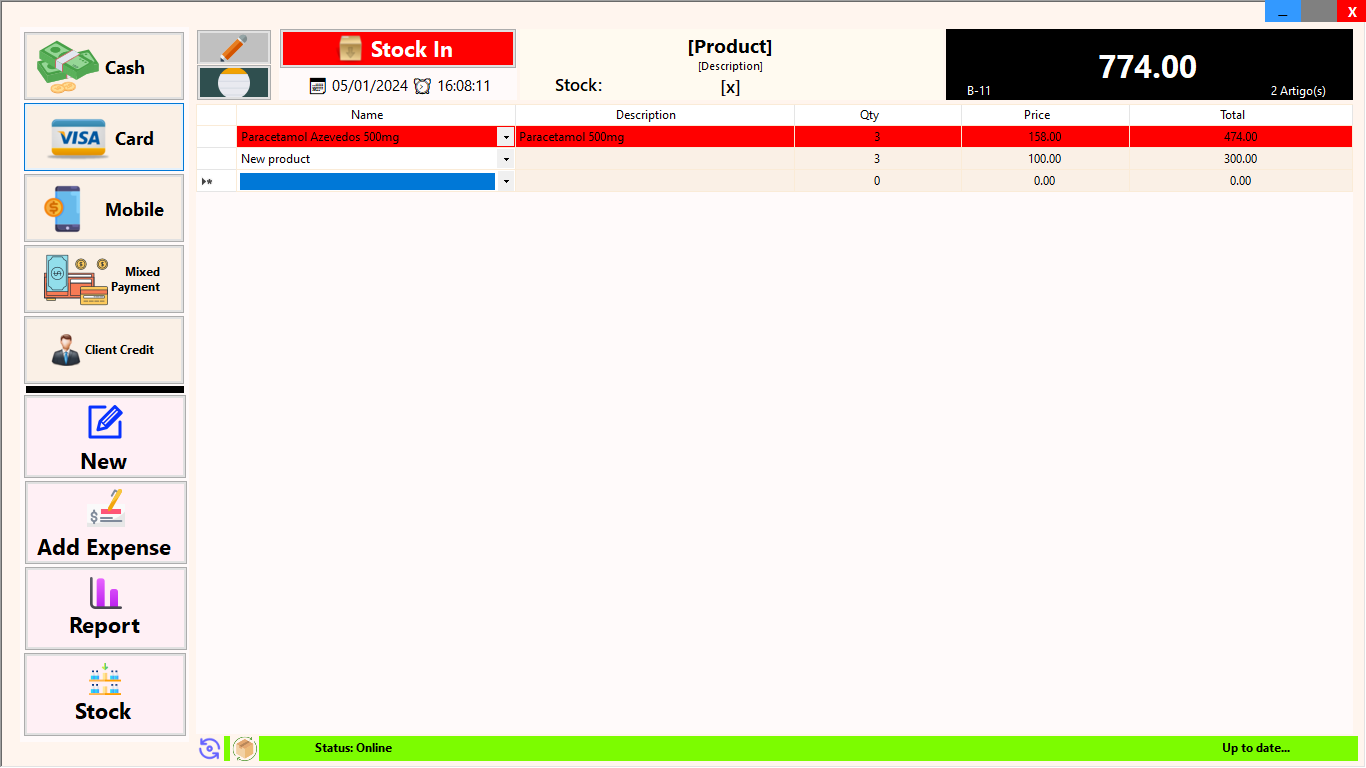
  2. Name-based: Navigate a convenient drop-down list for quick product selection, providing a seamless experience for diverse retail scenarios.

  3. Restaurant-based: Tailored for the food industry, this style incorporates table and takeaway sections, along with categorized products, creating an intuitive touch-screen system for restaurants and coffee shops. Elevate your POS functionality with these versatile styles, catering to a range of industries and operational preferences.

Barcode-based POS

Elevate your retail experience with the Barcode-based POS, designed for businesses with a mix of barcoded and non-barcoded products. Ideal for extensive product catalogs (200+ items) or those with diverse properties like varying prices, lots, and expiry dates. This versatile POS accommodates four key scenarios, ensuring seamless transactions for unique and similar products, whether with or without barcodes.

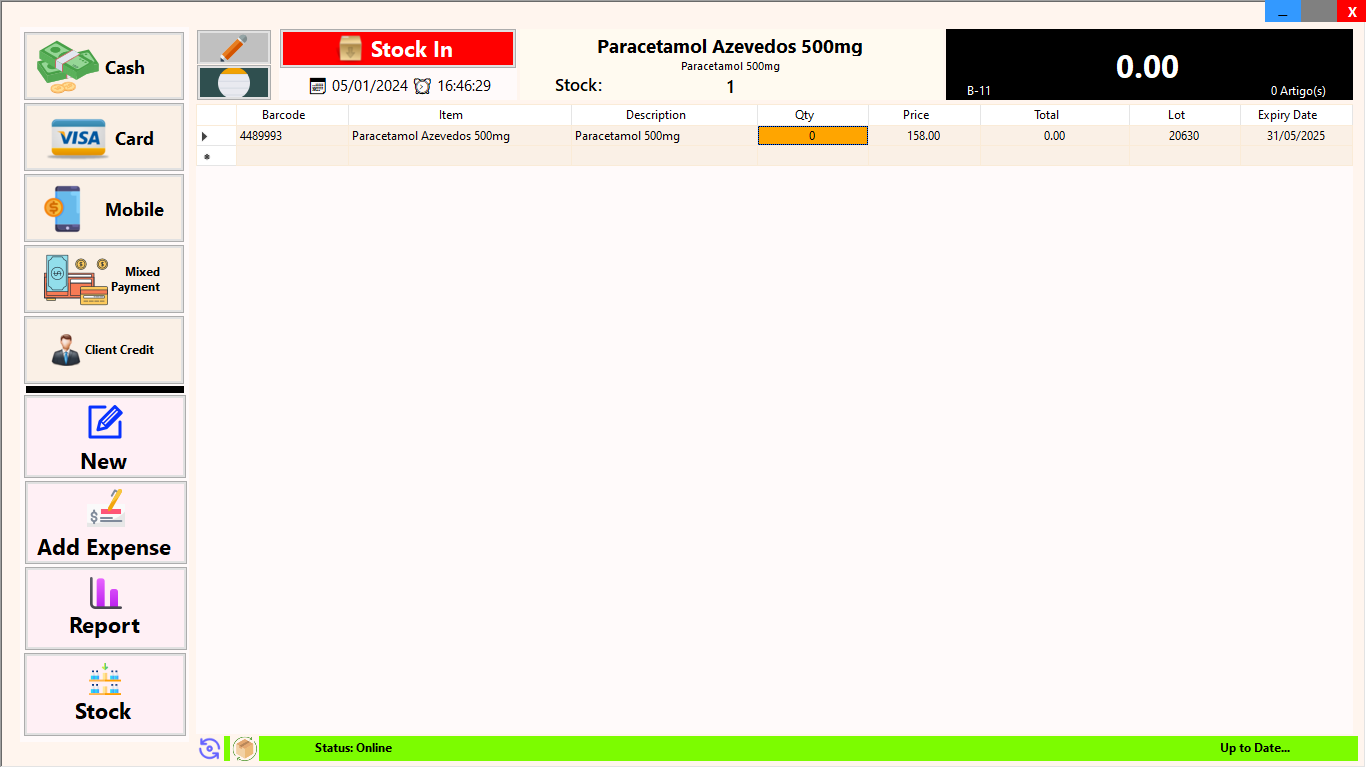
Unique Product with Barcode (2D/3D):
Scenario: Business has a single product with a unique barcode.

Unique Product with a Barcode

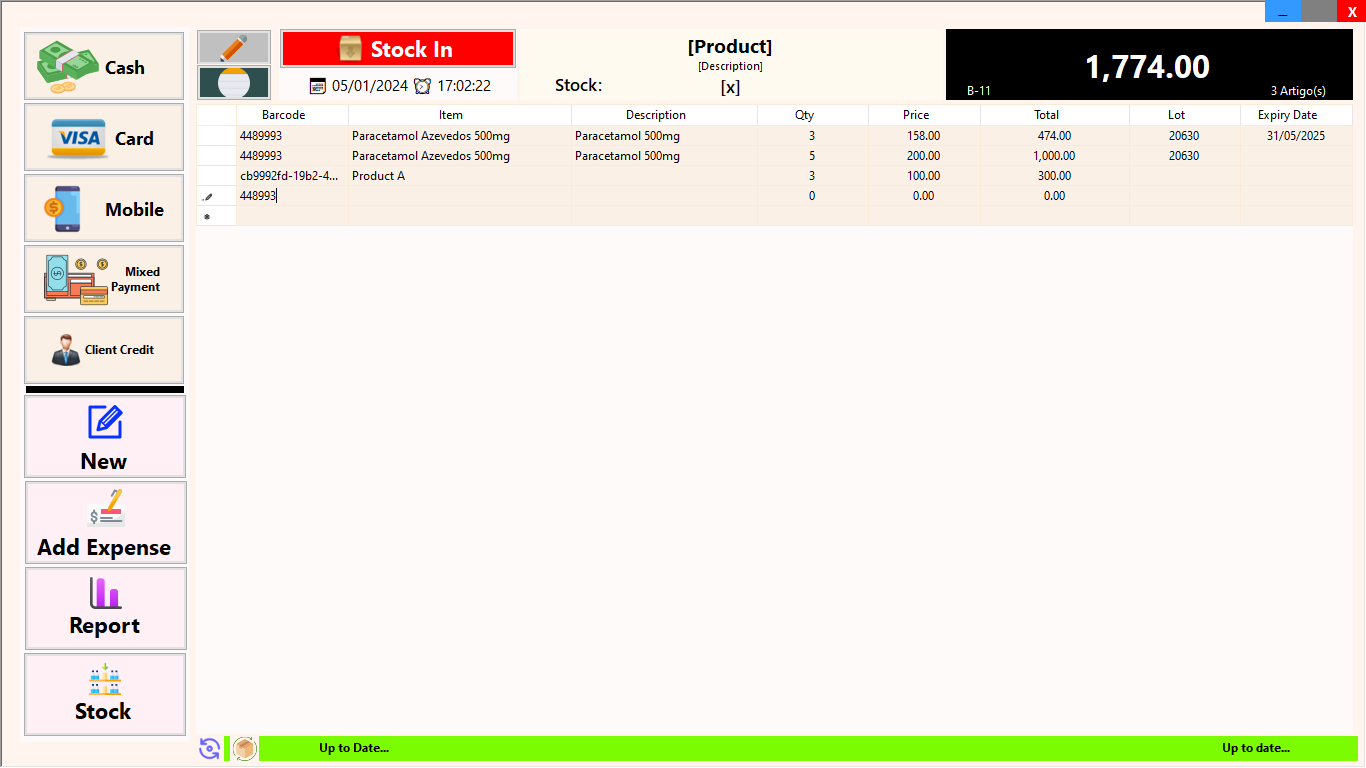
Same Products with Differentiating Properties with Barcode (2D/3D):
Scenario: Business has identical products with variations in properties such as prices, expiry dates, and lot numbers.

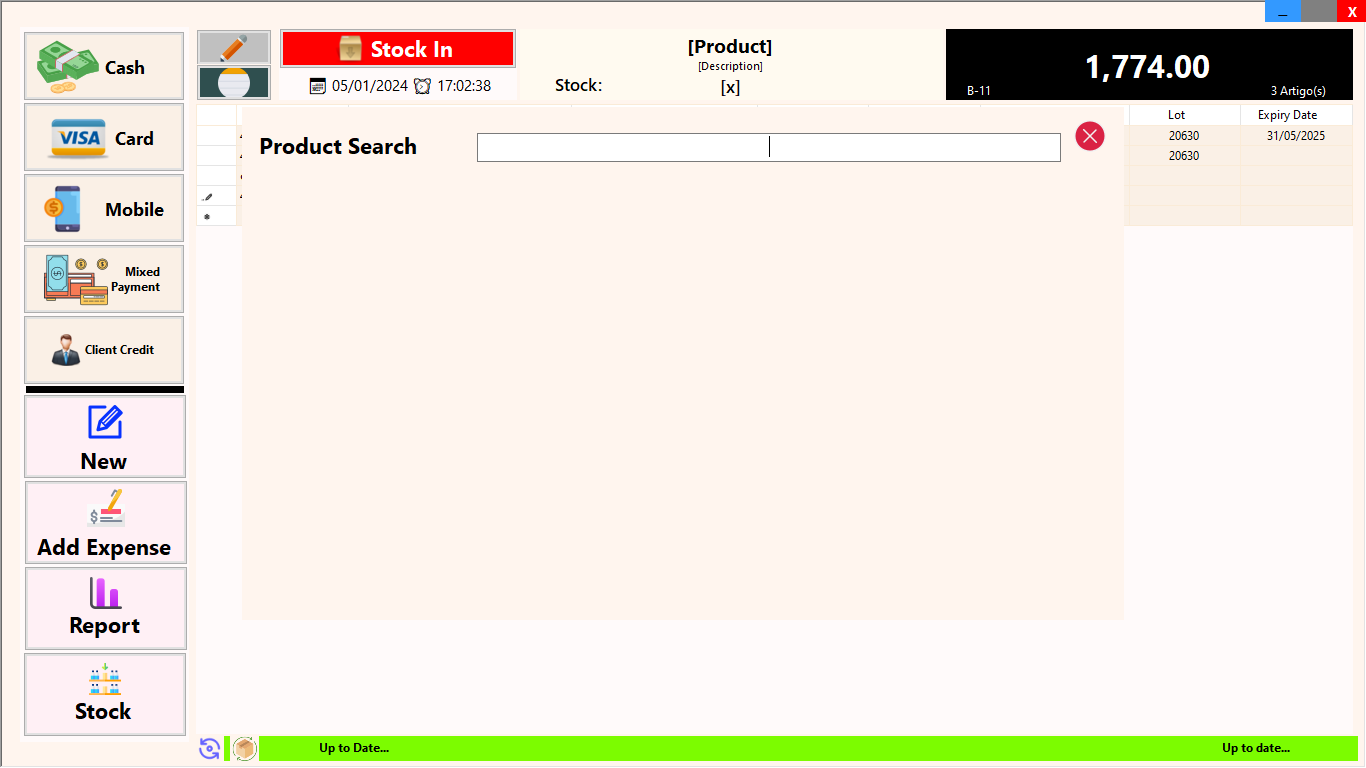
In the case that a Product is not found:
Scenario: Barcode bears no results

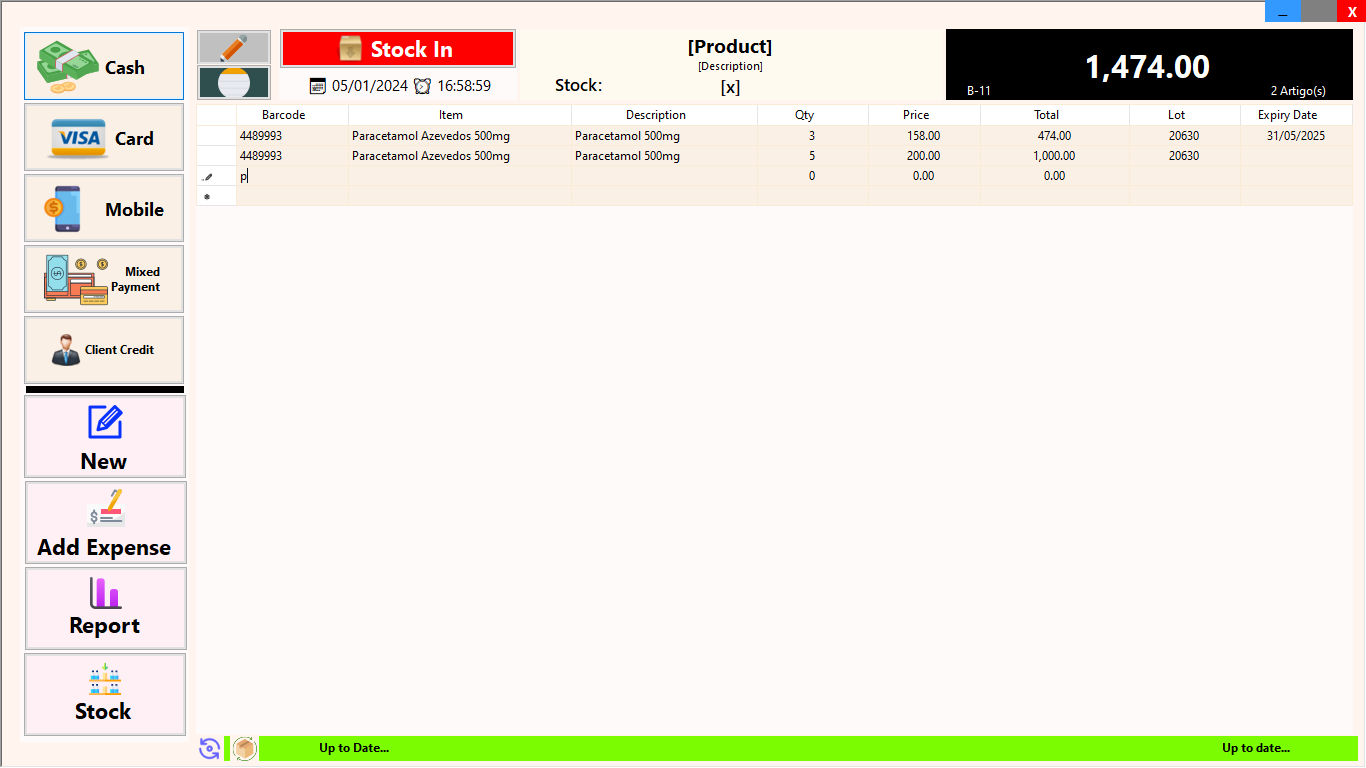
Unique Product without a Barcode:
Scenario: Business deals with a product that doesn’t have a barcode.

Same Products with Differentiating Properties without a Barcode:
Scenario: Business handles similar products with variations in properties, like different prices, expiry dates, and lot numbers, but none of these products have barcodes.

Name-based POS

The Name-based POS streamlines the sales process by presenting a drop-down list of all available products for seamless selection. Ideal for businesses with a moderate product range (less than 200) where each product is distinct. This POS eliminates the need for staff to memorize product IDs and ensures consistent product terminology across branches. Offering a faster user experience compared to the Barcode-based POS, the Name-based POS allows quick access to products through efficient typing in the drop-down menu.

Note: While any Name-based POS business can use the Barcode-based POS, the reverse is not applicable (as shown below).

Common Features in POS

Now let’s explore the common features shared by both the Barcode-based and Name-based POS:

Sidebar:

Sidebar
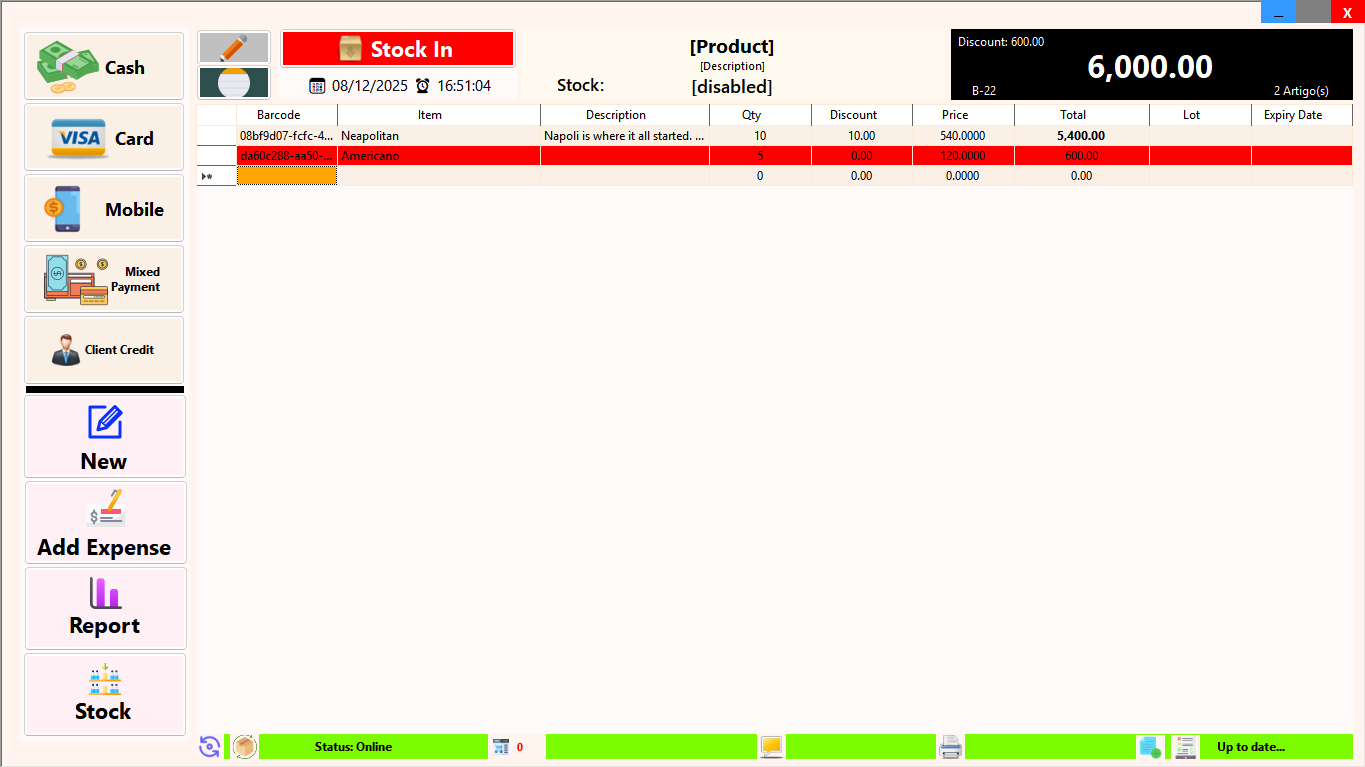
  • Payment Types: Check if stock is available for the products in the invoice & process payment (to be discussed later in detail).
  • New: Refreshes the POS, resyncs stock and invoice numbers, and checks for any stock transfers.
  • Other features to be discussed later in the article.

POS Section:

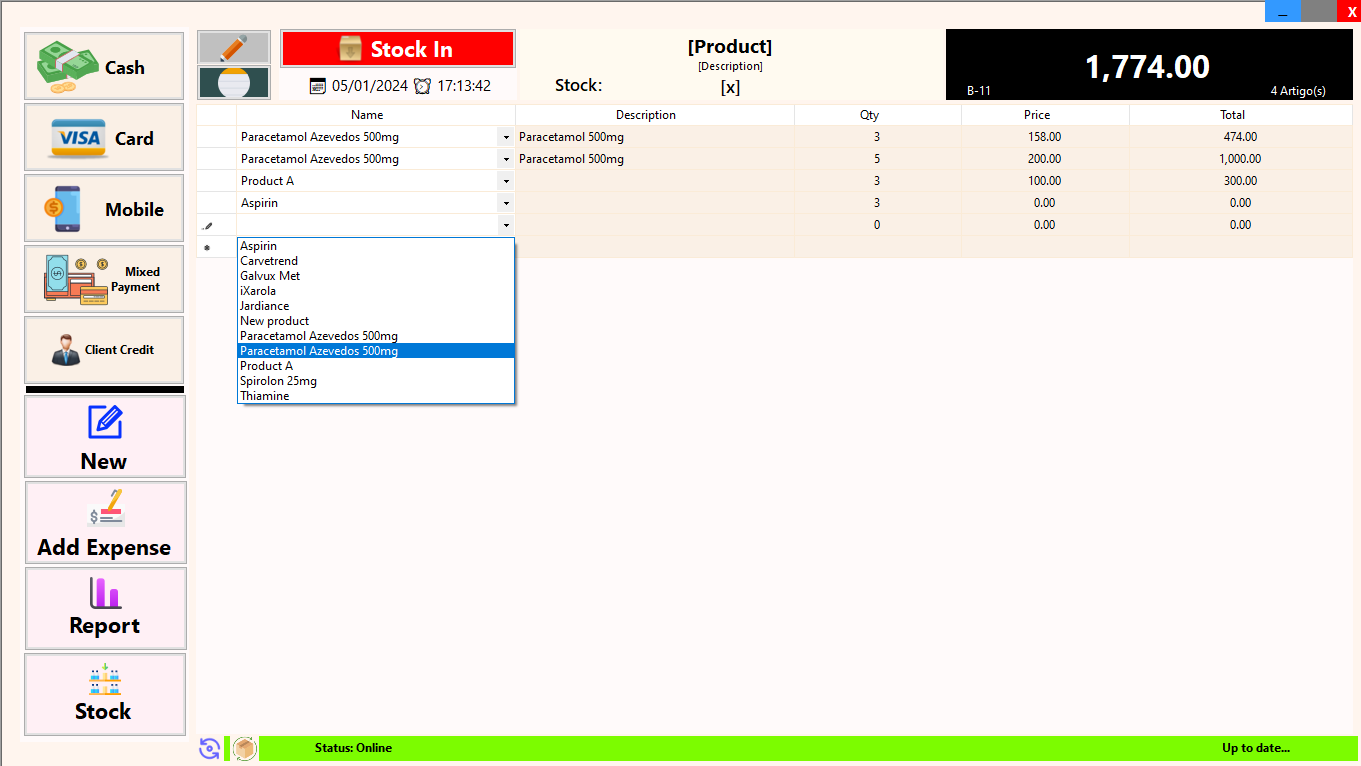
  1. Expiry Dates & Lot Numbers Visibility: Option to show Expiry Dates & Lot Numbers, useful for businesses dealing with perishable goods.
  2. Date & Time: Displays the current date and time.
  3. Product Name, Description & Quantity in Stock: Shows current stock availability for selected products.
  4. Invoice Number, Invoice Total & Number of Line Items: Displays invoice details, including total amount and line items.

Status Bar:

Status Bar
  1. Sync Stock: Resyncs stock without clearing the POS.
  2. Check for Stock Transfers: Verifies if there are any pending stock transfers.
  3. Online Orders (03.06.25): All orders received from the e-commerce platform are listed here and can be quickly reviewed and converted into an invoice.
  4. Transaction Comments: Add comments or notes to a transaction, which are automatically included on the generated invoice for additional details or instructions.
  5. Cash Register Closing (Fecho): Close the cash register at any point to end a shift or hand over to another cashier. The system finalizes totals up to that moment and starts the next sales session from zero.
  6. Create Quote (15.02.25): Generate a professional quote for a new or existing client to share pricing details before completing a sale, without affecting stock or accounts.
  7. Manage Quotes (15.02.25): View all generated quotes, convert an approved quote into an invoice instantly, or duplicate a quote for quick reuse.
  8. View System Processing Updates: Displays real-time system processing updates in the Up to Date section to keep users informed.

Comments Section:

Comments Section
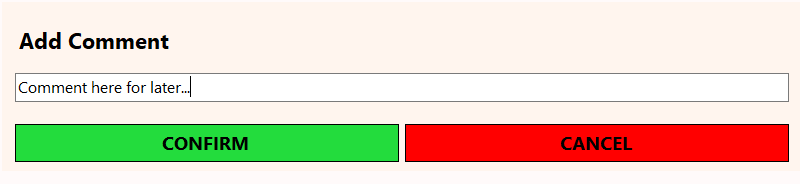
  1. Add Comment: Allows users to input comments.
  2. View Comments: Displays all recorded comments.
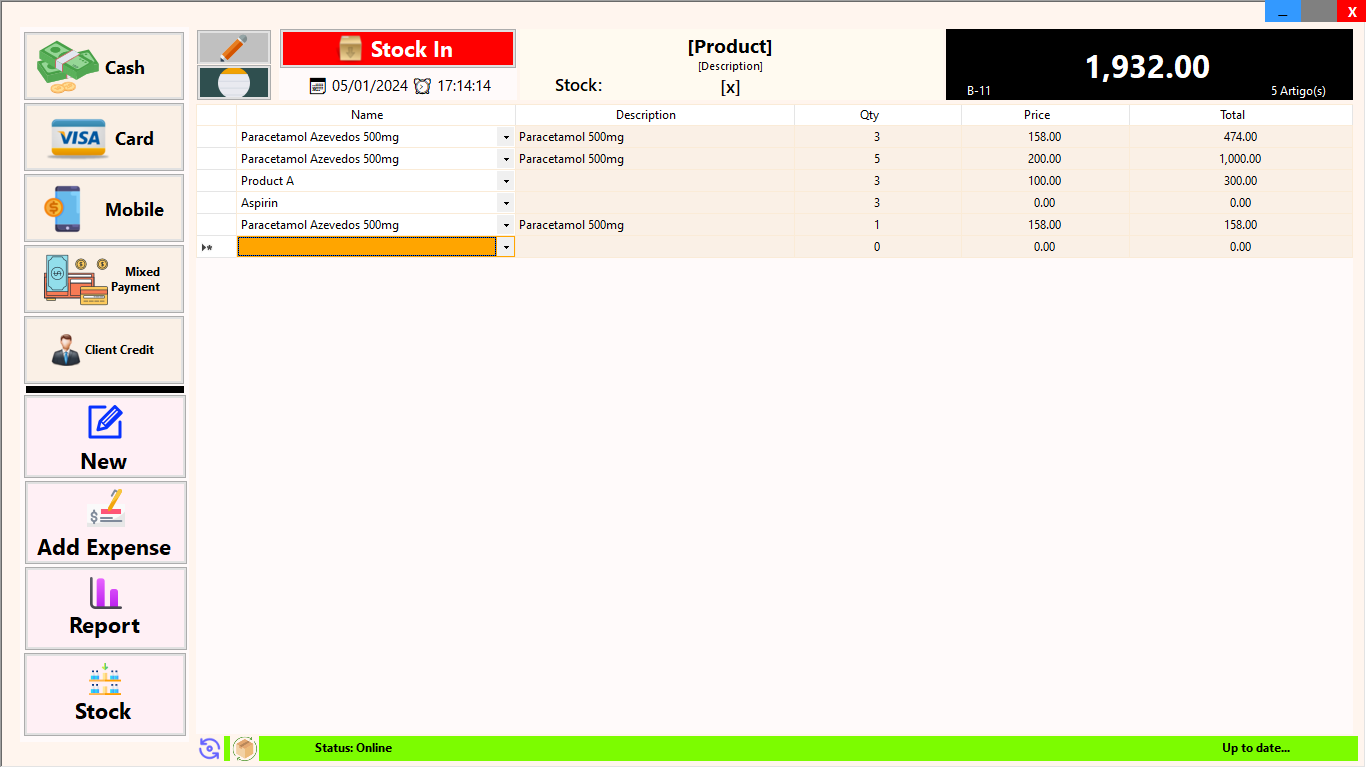
  3. Double Click Row-Header in POS: Automatically adds the product to the comments.

Behind the Scenes:

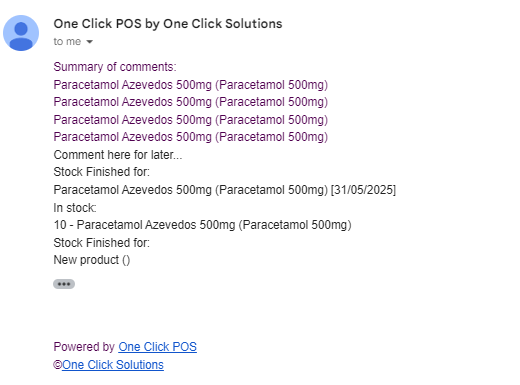
  1. Automatic Stock Depletion Recorded: Records comments for products that run out of stock. If the same product with different properties is available, it provides relevant details.
  2. Stock Notifications: Sends email notifications for comments either immediately or at the end of the day when the POS is closed.
  3. Auto-Saves on Each Line Item: Your work is automatically saved as each line item is added, preventing data loss if the system closes unexpectedly.

What if Stock is Disabled?

  1. Stock Quantities Not Shown on POS Section: The POS section will not display stock quantities for products.
  2. Sync Stock Only Refreshes Products: The “Sync Stock” function will refresh the product list without updating quantities.
  3. Stock May Go to Negative: Without stock tracking, the system allows for potential negative stock balances.
  4. Full Product List Used in Both POS: In the absence of stock tracking, the complete product list is utilized in both POS styles, allowing for unrestricted product selection.

Restaurant-based POS

Embark on an efficient and user-friendly experience with the Restaurant-based POS, designed for touch-screen interfaces and crafted for establishments with categorized products and a moderate product range (less than 100). Tailored for Takeaways, Restaurants, and Coffee Shops, this POS module seamlessly caters to sit-downs, takeaways, and table management. Elevate your customer service by effortlessly opening tables, adding products to each table or takeaway, all while maintaining a comprehensive view of your store.

Note: By default, stock control is disabled in the Restaurant-based POS (may be during system setup).

Within the Restaurant-based POS, there are two distinct sections catering to different scenarios:

  1. Sit-down:

    • Displays the configured number of tables from the Restaurant Settings.
    • If the number of tables exceeds the screen size, an auto-scroll feature facilitates easy table selection.
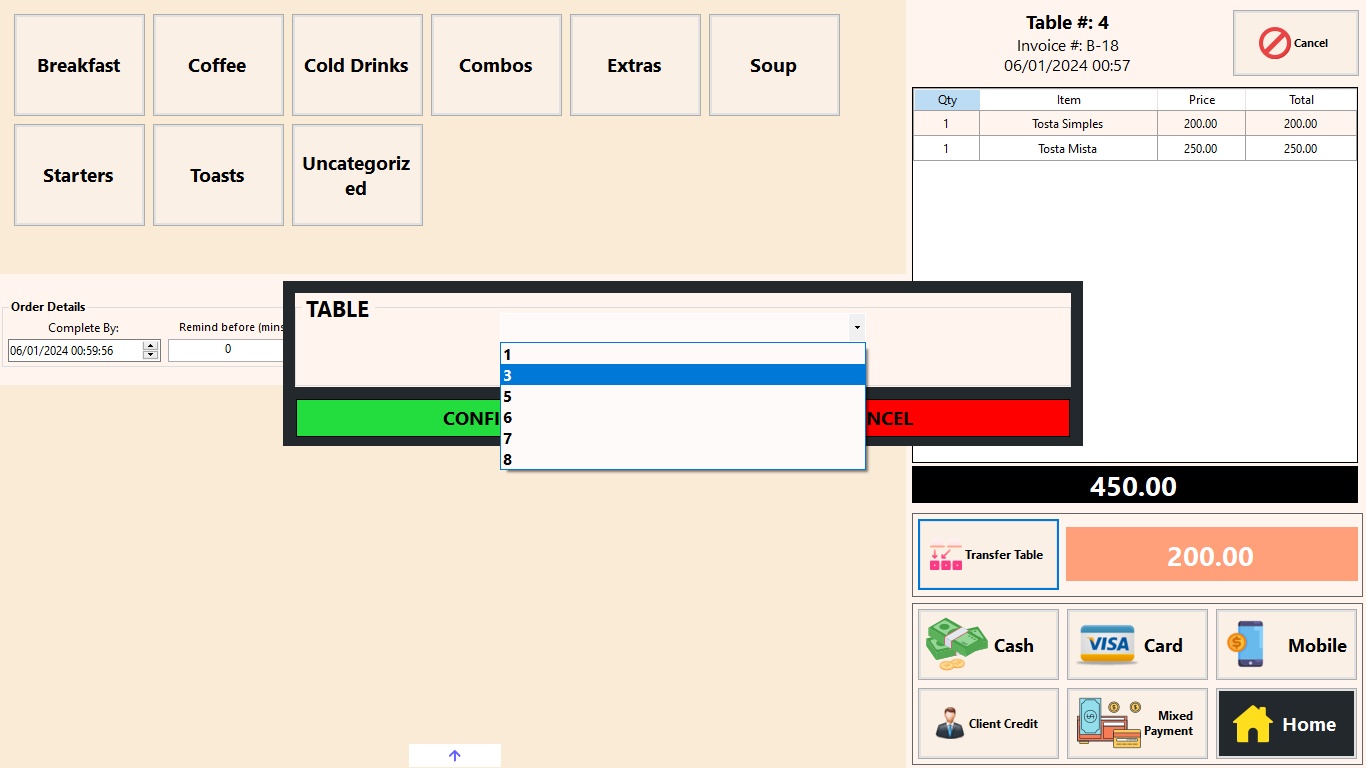
    • Transferring Tables transfers the entirety of one table’s contents to another (empty or existing table), providing flexibility in managing orders and optimizing table assignments (see below for more details).
  2. Takeaway:

    • Functions similarly to traditional invoicing.
    • Adding a takeaway item creates an “invoice” for streamlined processing.

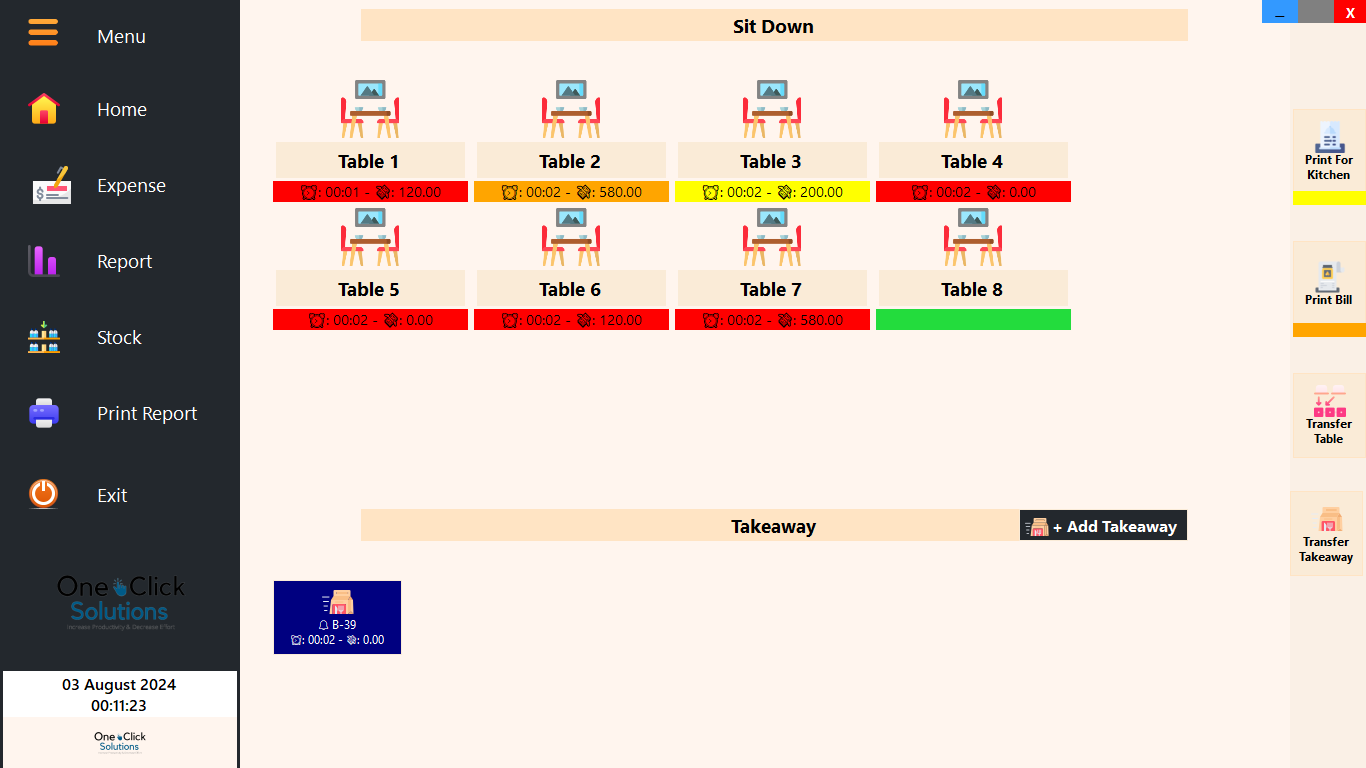
The Right Sidebar shortcuts offer quick options for actions like Printing to Kitchen, Printing the Bill & Transfer Table (details to be discussed later).

NEW (02.08.24): Transfer Takeaway

This functionality allows you to free up valuable table space while keeping orders open for continued use. Enhance your service flow by effortlessly transforming dine-in orders into takeaways, ensuring a smooth and flexible dining experience for your customers.

This dual-section approach in the Restaurant-based POS ensures tailored functionality for both sit-down and takeaway scenarios, enhancing the efficiency of operations in a restaurant or similar establishment.

Restaurant-based POS (Home)

The home view in the Restaurant-based POS module utilizes color-coded indicators to signify different order statuses for tables:

Tables (colors in the status bar of a table):

  • Red: Order in progress
  • Orange: Bill has been printed for the order
  • Yellow: Order has been printed for the kitchen

Tables & Takeaways (color on the “box” itself):

  • Blue: Serves as a reminder for the order set by the user (further details discussed later)

Additional features displayed on the home view include:

  1. Time the order was received: A timestamp helps track when the client’s order was recorded, facilitating monitoring of order placement time.
  2. Total amount of the order: Offers a quick view of the total amount for an order on a table or takeaway.
  3. Custom label for a table: Allows users to set a personalized label for a table, aiding easy identification of customers’ seating arrangements.

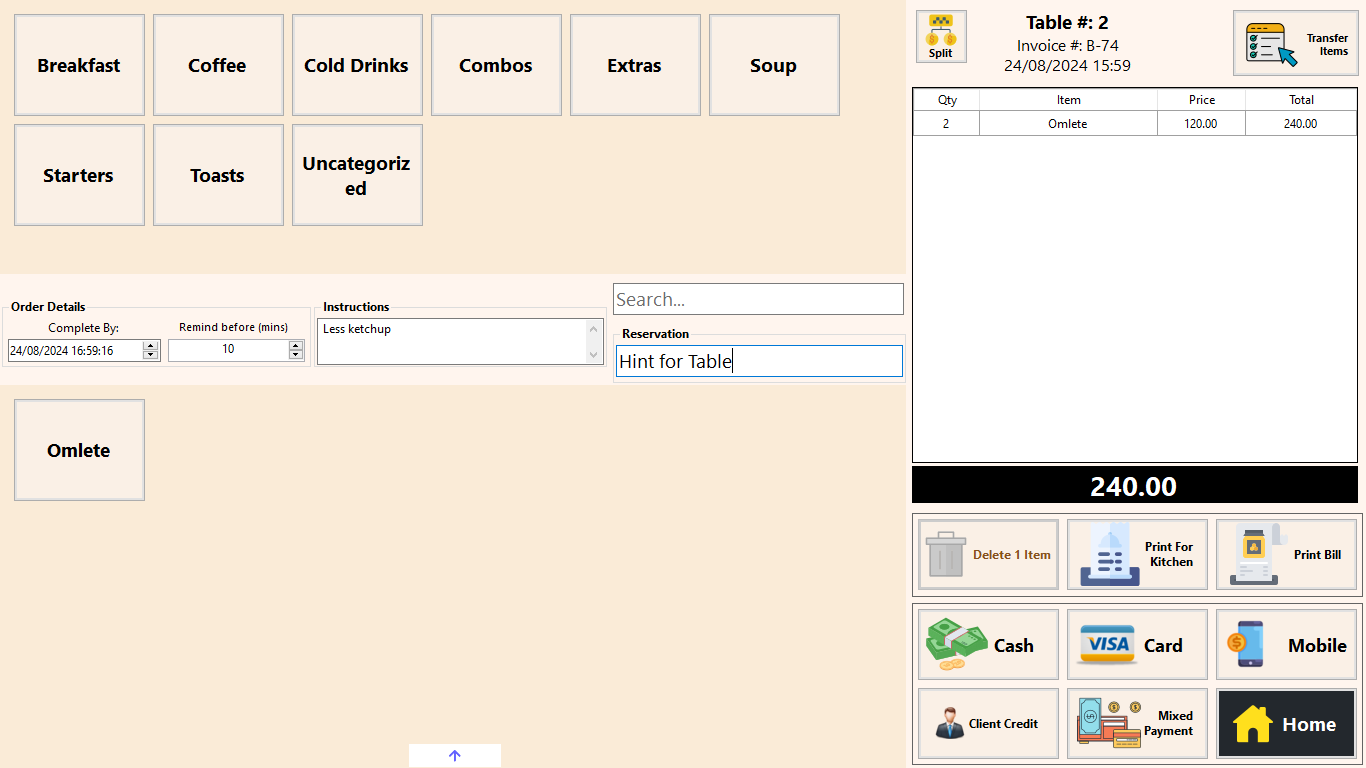
Clicking on any Table or Takeaway opens the Manage Order page, providing a detailed view of the order specific to the selected table or takeaway.

Key Features in the Manage Order Page:

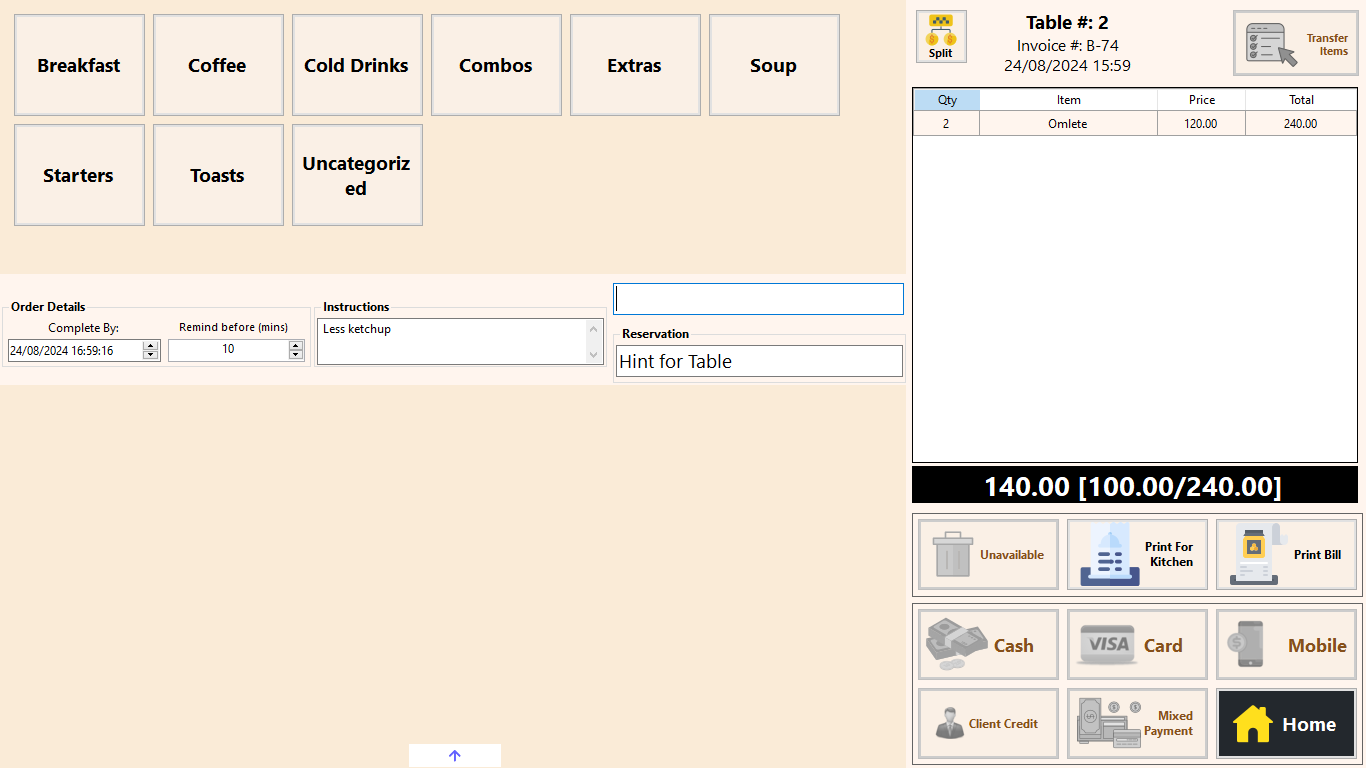
  1. Category List: Displays all configured product categories.
  2. Product List: Shows products within the selected category.
  3. Order Details: Includes completion time and reminder settings (notifies when its time in the home page – “blue box”)
  4. Instructions: Allows entry of specific order instructions (shown in Print for Kitchen).
  5. Search: Quickly finds products regardless of category.
  6. Reservation: Adds a custom label to the order.
  7. Up Arrow Key: Enables swift navigation between different tables/takeaways (shown at the top of the page).
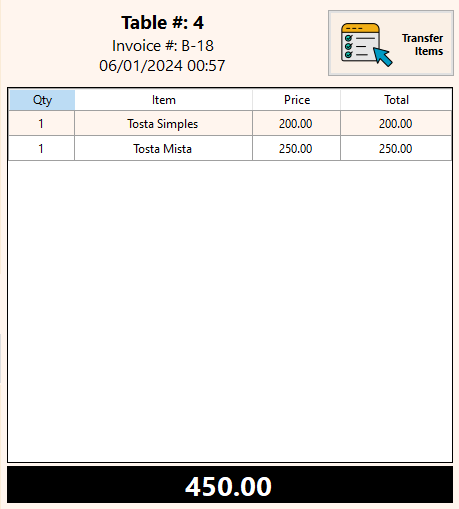
  8. Transfer Items & Transfer Table: This functionality enables the selection and transfer of items between orders before bill generation. It allows the seamless movement of items from one table to another (shown below).
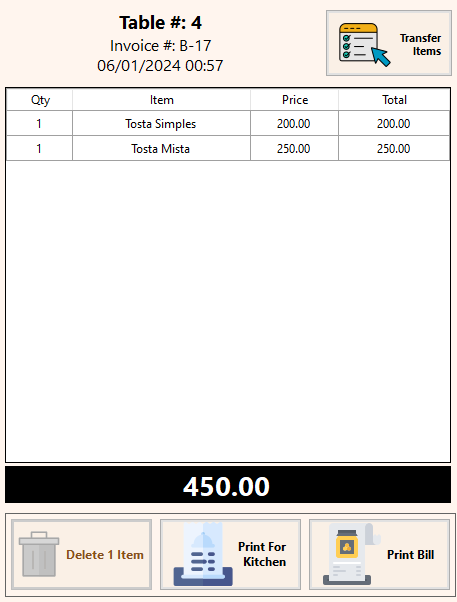
  9. Print for Kitchen: Prints products in the order that haven’t been printed yet for the kitchen.
  10. Print Bill: Generates a bill for presentation to the client.
  11. Payment Types: (to be discussed later)
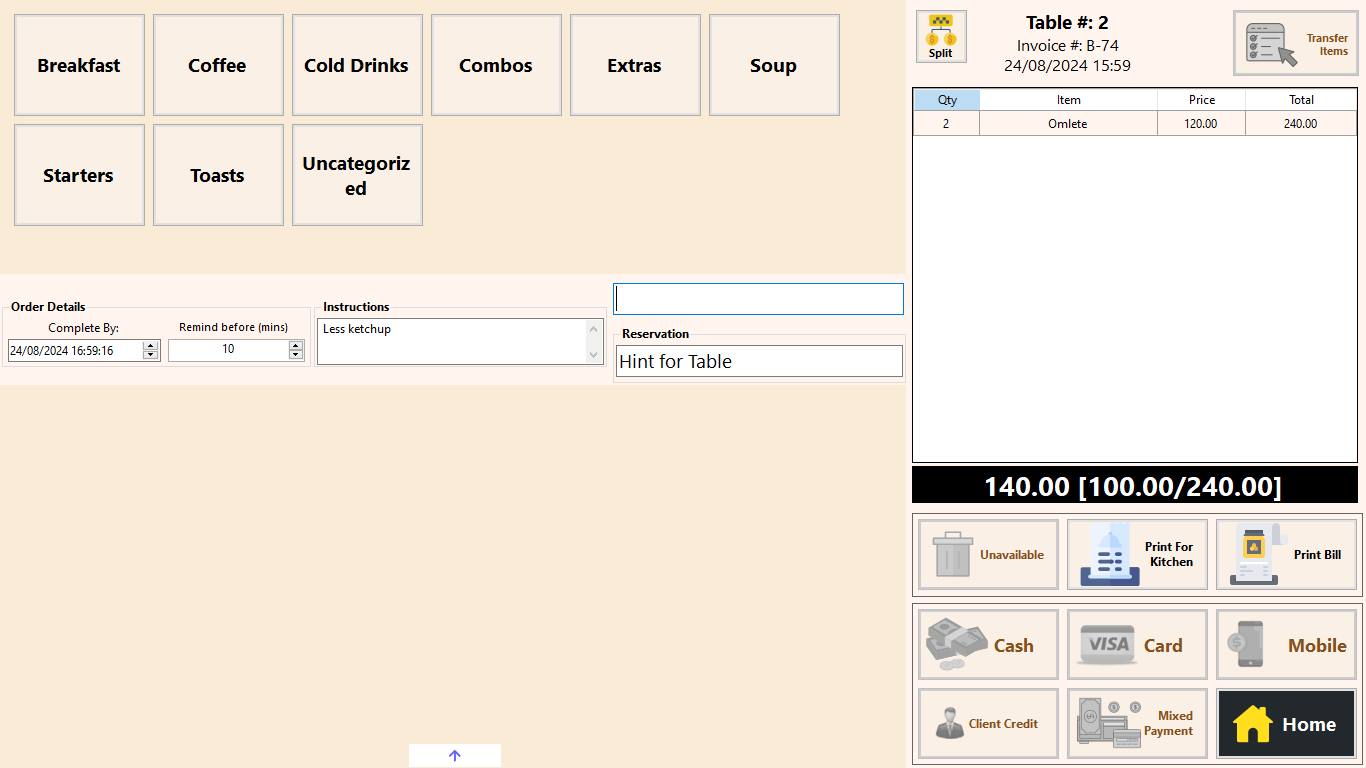
  12. Split Payments (24.08.24): Easily manage multiple payments for a single order, allowing each customer to pay their share. Note: The ability to pay for individual items is currently under development.

Edit & Delete in an Order

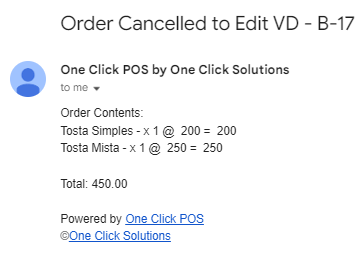
One Click POS implements robust measures to prevent potential fraud by employees against customers. Consider a scenario where a group orders 20 items, each priced at $10, totaling $200. If a system allows editing after printing a bill, unscrupulous employees could manipulate the order to pocket extra cash. To thwart such possibilities, our system prohibits editing after a bill is printed, ensuring transparency and safeguarding customers. In the event of a genuine mistake, the system permits order cancellation and duplication under a new invoice number, accompanied by printed documentation and email notifications for clarity and accountability.

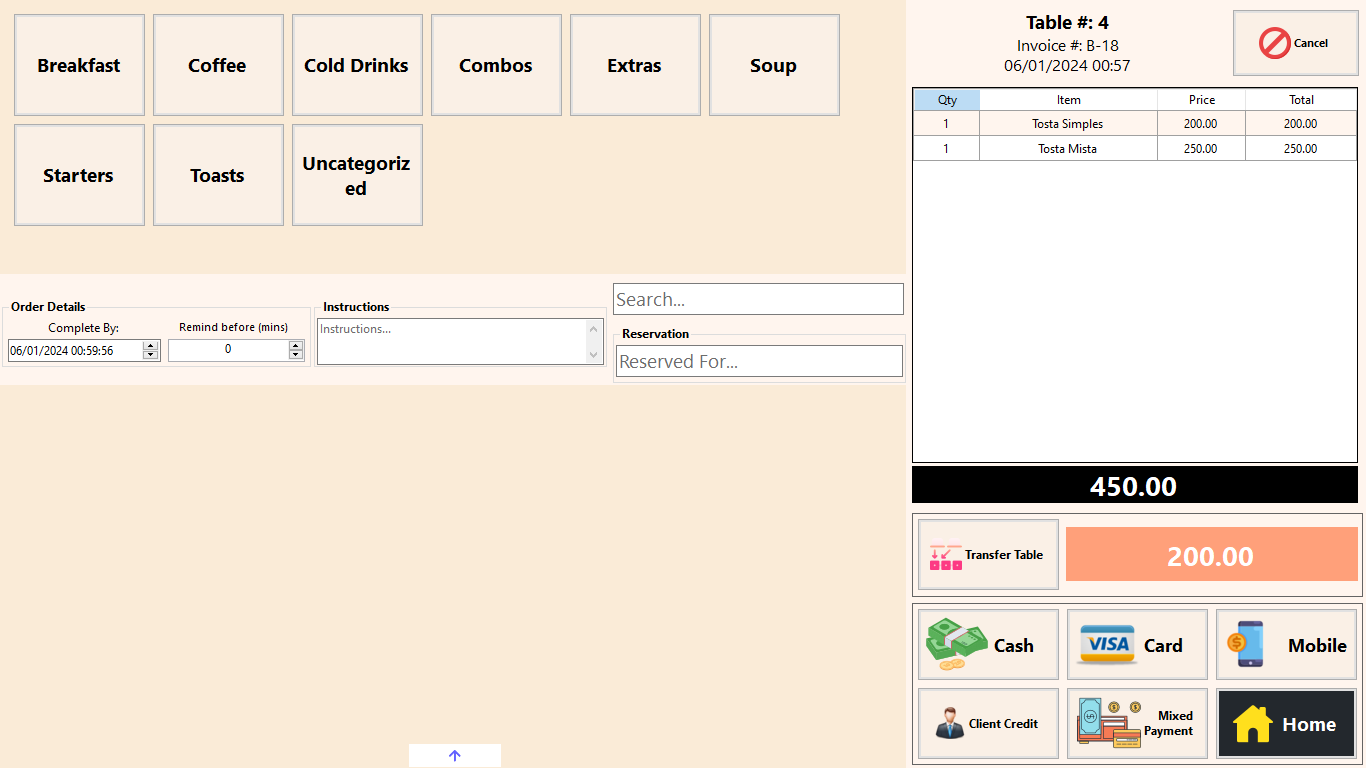
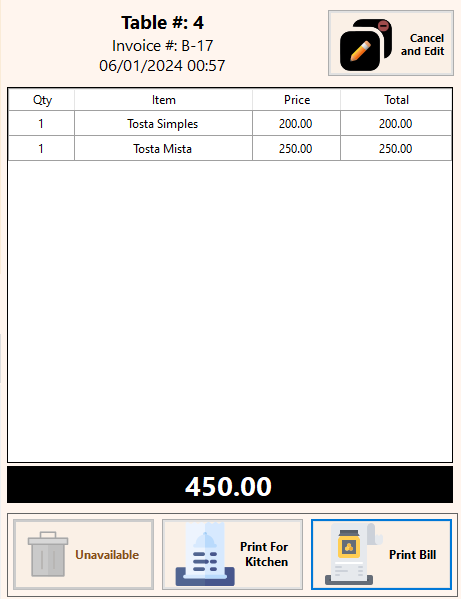
When the Print Bill button is clicked, the system disables the Delete button & enables the Cancel and Edit button.

Note: An empty order may be cancelled & an order prior to “Print Bill” may be edited.

Activating the “Cancel & Edit” button triggers the duplication of the existing order to a new invoice number, effectively canceling the previous transaction. Simultaneously, an automated email notification is dispatched, providing both transparency and accountability in managing order corrections.

Features in POS

Sidebar

The left sidebar in this POS displays unique features, including:

  • Company Logo: Enhances the aesthetics by showcasing the company logo.
  • Print Report: Prints an end-of-day report detailing total sales, payment type breakdown, total expenses, net cash sales (cash in the register), canceled VDs (via Cancel and Edit button), and a comprehensive list of products sold (quantity-wise) for the day.
  • Other features to be discussed later in the article.

Petrol Station POS

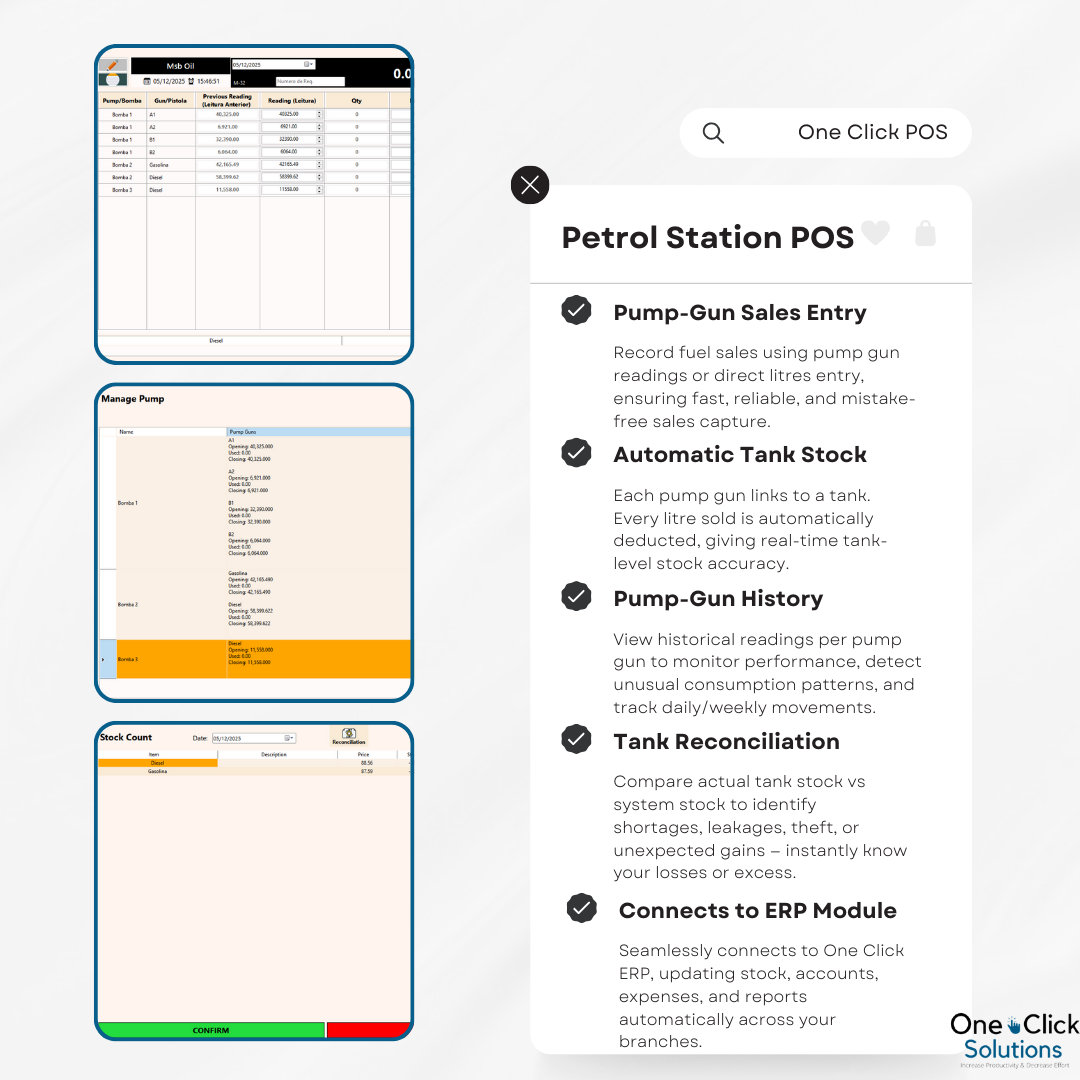
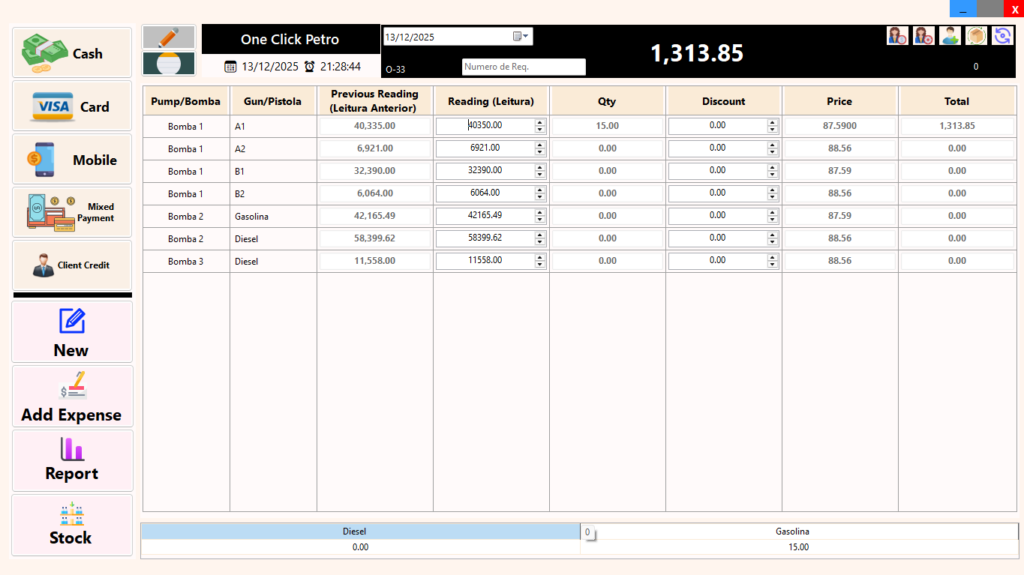
The Petrol Station POS is a specialized fuel management solution designed to give station owners full control over fuel sales, stock, and cash flow in real time. It allows sales to be recorded using pump gun readings or litres sold, with each transaction automatically reducing fuel from the linked tank to maintain accurate stock levels at all times. The system keeps a complete historical record for every pump gun, enabling clear tracking of consumption patterns and easy identification of discrepancies. Built-in tank reconciliation tools compare physical tank readings with system stock to detect losses, leaks, or gains, ensuring strong audit and control. Fully integrated with the One Click ERP, the Petrol Station POS also supports cash, card, mobile money, mixed payments, credit sales, expenses, notes, and detailed reports, providing a single, reliable platform for both operational and financial management of a fuel station.

Petrol Station-based POS

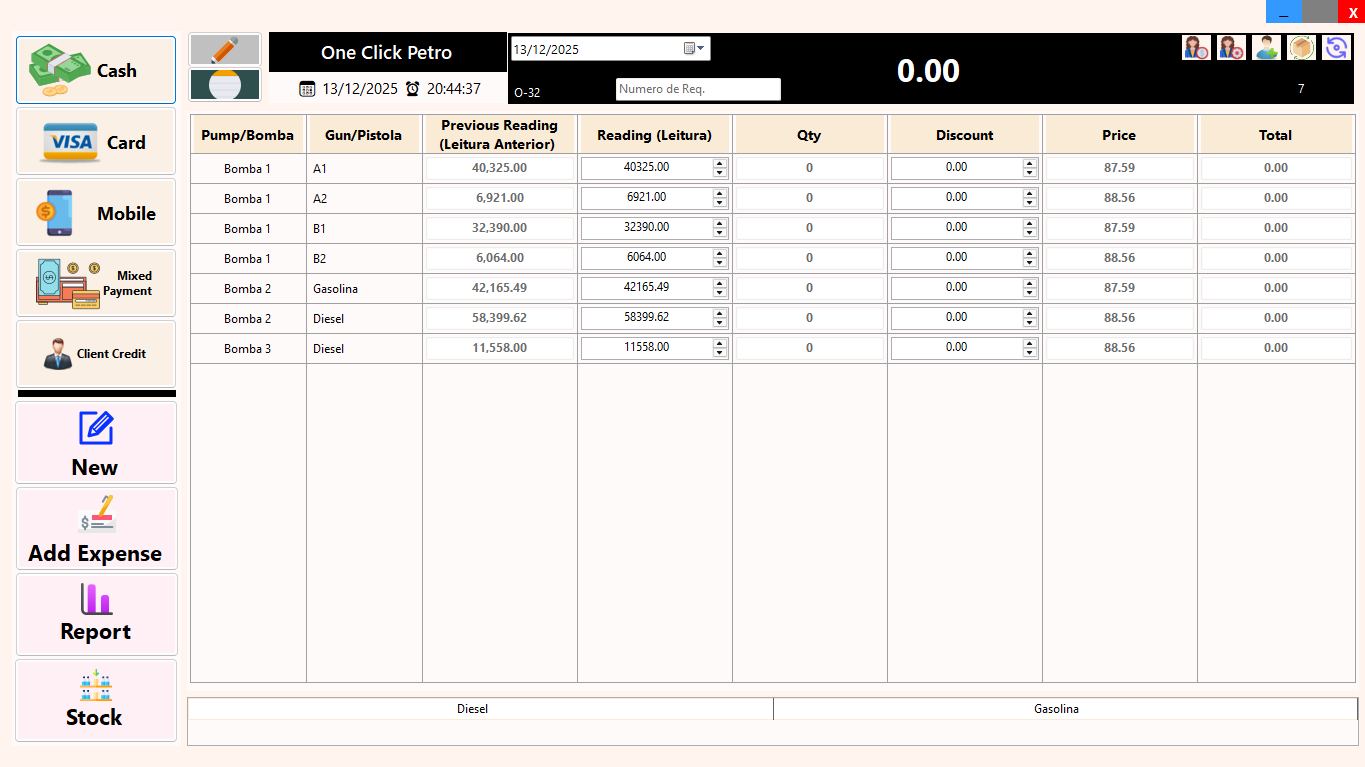
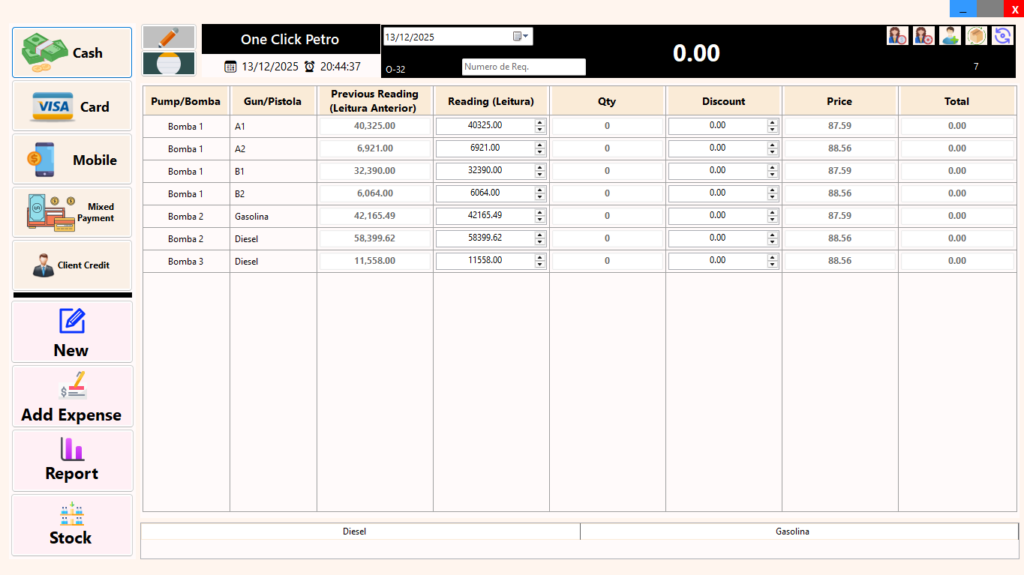
Sidebar: the sidebar is similar to the Barcode-based POS’s sidebar. Different payment types make up the top part. The bottom part has NEW which clears the transaction. The rest are covered in the next section – Common Features in all POSs.

5 buttons at the top right corner:

  1. Sync Stock: Resyncs stock without clearing the POS.
  2. Check for Stock Transfers: Verifies if there are any pending stock transfers.
  3. Client In (optional on this POS – from ERP Module): Record payments from clients.
  4. Manage Clients (optional on this POS – from ERP Module): Manage clients to view their pending accounts and statements.
  5. Add Client (optional on this POS – from ERP Module): Add new clients.

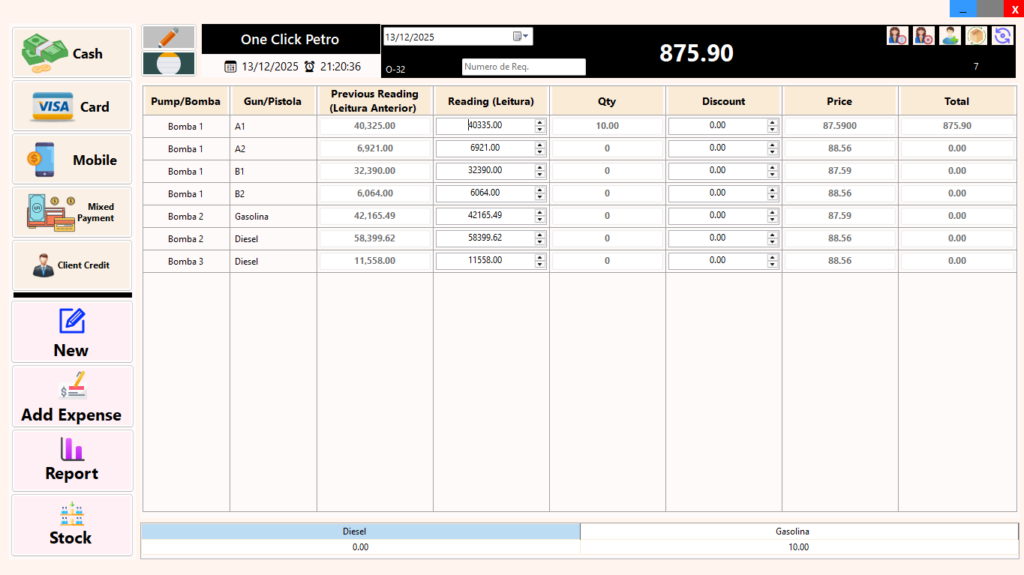
Bottom Bar: shows the total litres of Diesel and Gasoline in the transaction.

How it works
  1. Setup Pumps and Tanks (ERP Module)
    Pumps and pump guns are first created in the ERP by assigning their names, initial meter readings, and linking each gun to its respective fuel tank. Once configured, all pumps and pump guns automatically appear on the POS side (no duplicate setup is required).

  2. End-of-Day Operation (Manual, Not Pump-Integrated)
    The system is designed for end-of-day accounting and does not connect directly to fuel pumps. Physical pump readings are taken manually at the end of the shift or day and used for reconciliation.

  3. Record Credit Sales First
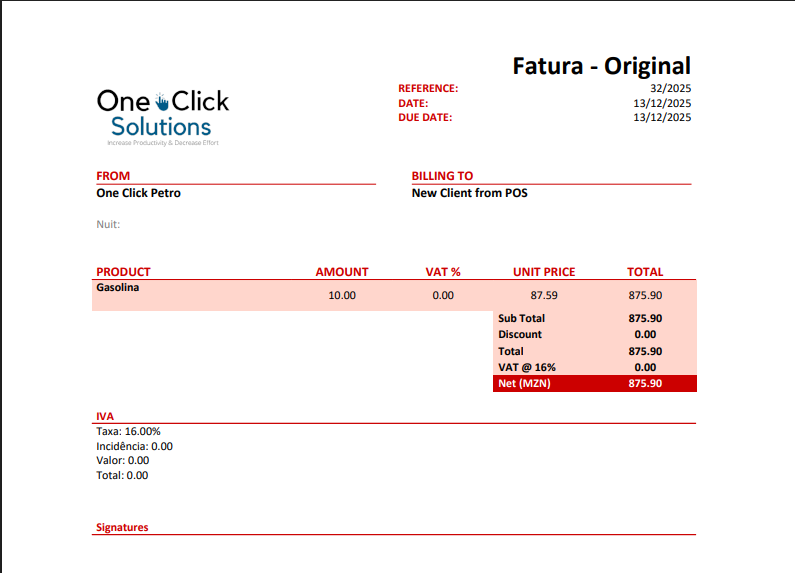
    After receiving the pump report, credit sales are entered first. For example, if pump gun A1 shows a starting reading of 40,325 liters and a client takes 10 liters on credit, this credit sale is recorded against the client’s account by adding 10 litres to the reading.

  4. Enter Final Pump Reading
    Once all credit sales are captured, the final pump reading is entered. In this example, the final reading is 40,350 litres, meaning 25 litres were sold in total during the period.

  5. Record Paid Sales Using Mixed Payments
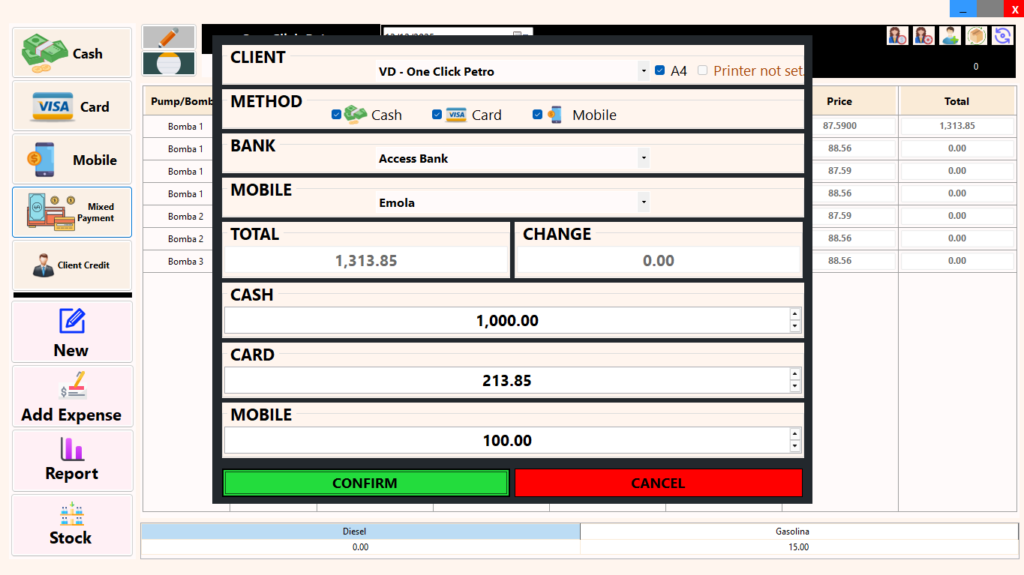
    The remaining litres (total litres sold minus credit litres) are treated as paid sales. The mixed payment feature allows splitting these sales across different payment methods such as cash, card, or mobile money.

  6. Automatic Accounting & Stock Updates
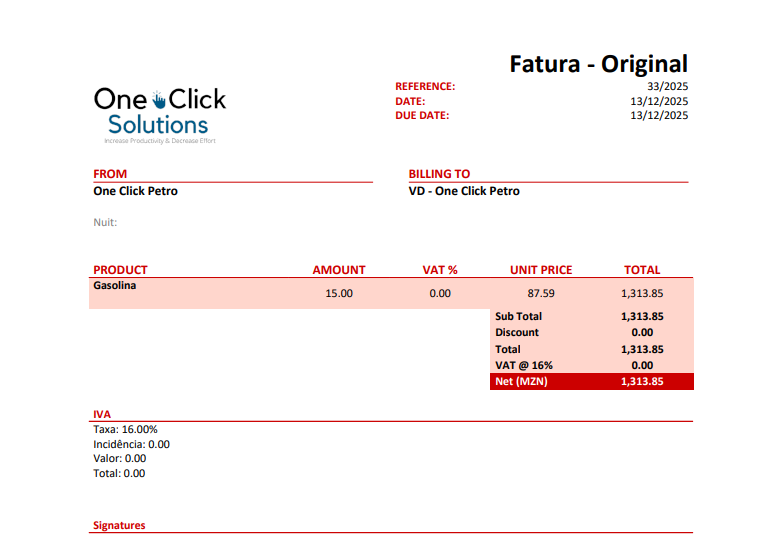
    The system automatically adjusts tank stock levels, records sales, updates client accounts for credit transactions, and reflects all payments correctly in reports (without manual calculations).

Property Management POS (Hotels, Motels & Conference Halls)

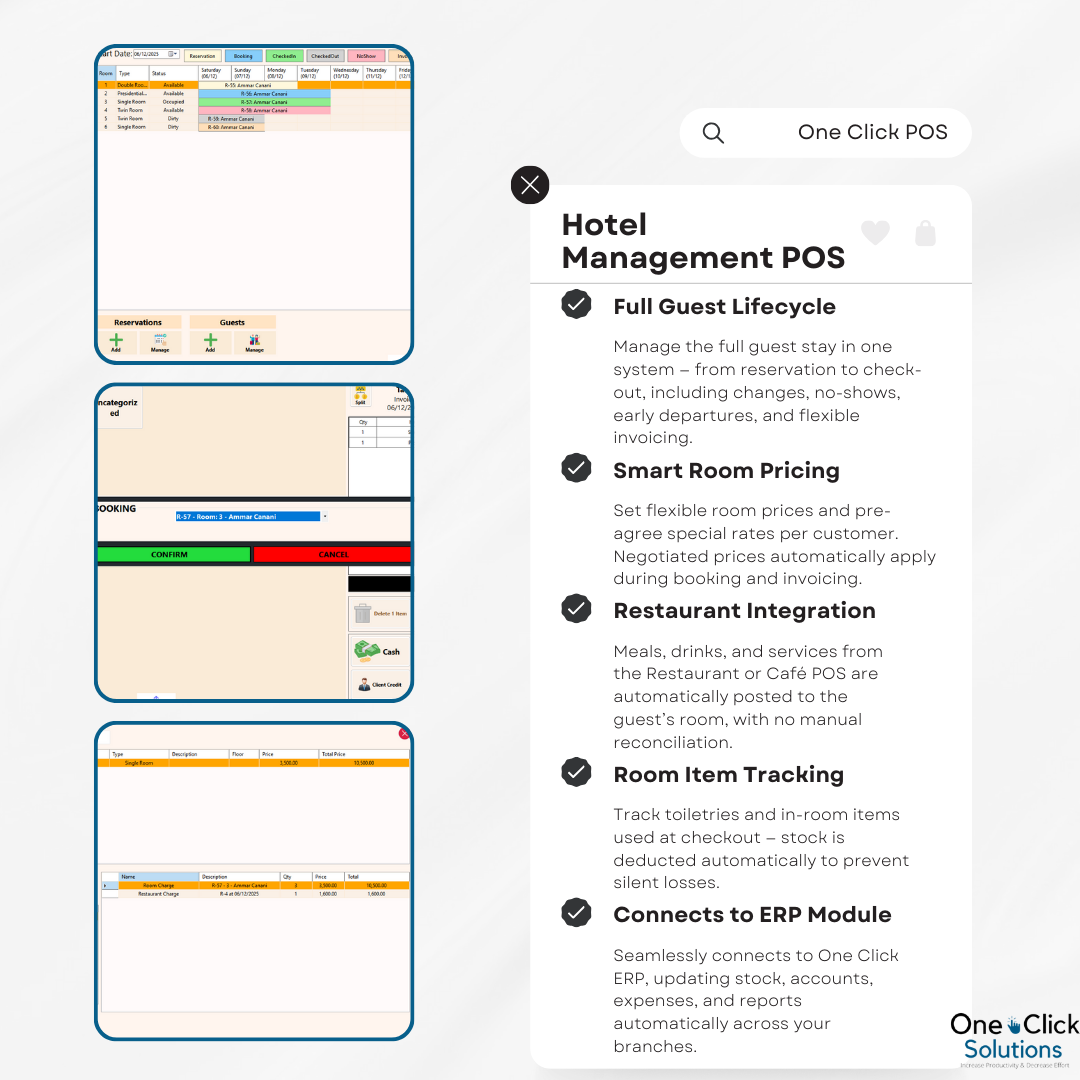
The One Click Property Management System is designed to manage the entire hospitality cycle from reservation and booking through check-in, stay management, and check-out, while keeping billing and financial settlement as a controlled, independent process. The system clearly separates guests (the individuals staying at the property) from clients (the billing entities or account holders), allowing companies, agents, or organizations to host multiple guests under a single client account. Flexible pricing structures, including room-based pricing, promotional rates, and client-specific negotiated pricing, ensure accurate and consistent charging across all stays. Operational activities such as restaurant charges, room consumables, and additional services are seamlessly added to guest accounts, while invoices can be settled immediately or credited to clients regardless of check-out status. Fully integrated with POS and ERP modules, the system delivers end-to-end visibility, control, and accountability across accommodation, services, inventory, and finance.

Property Management-based POS (Hotel, Motel & Conference Hall)

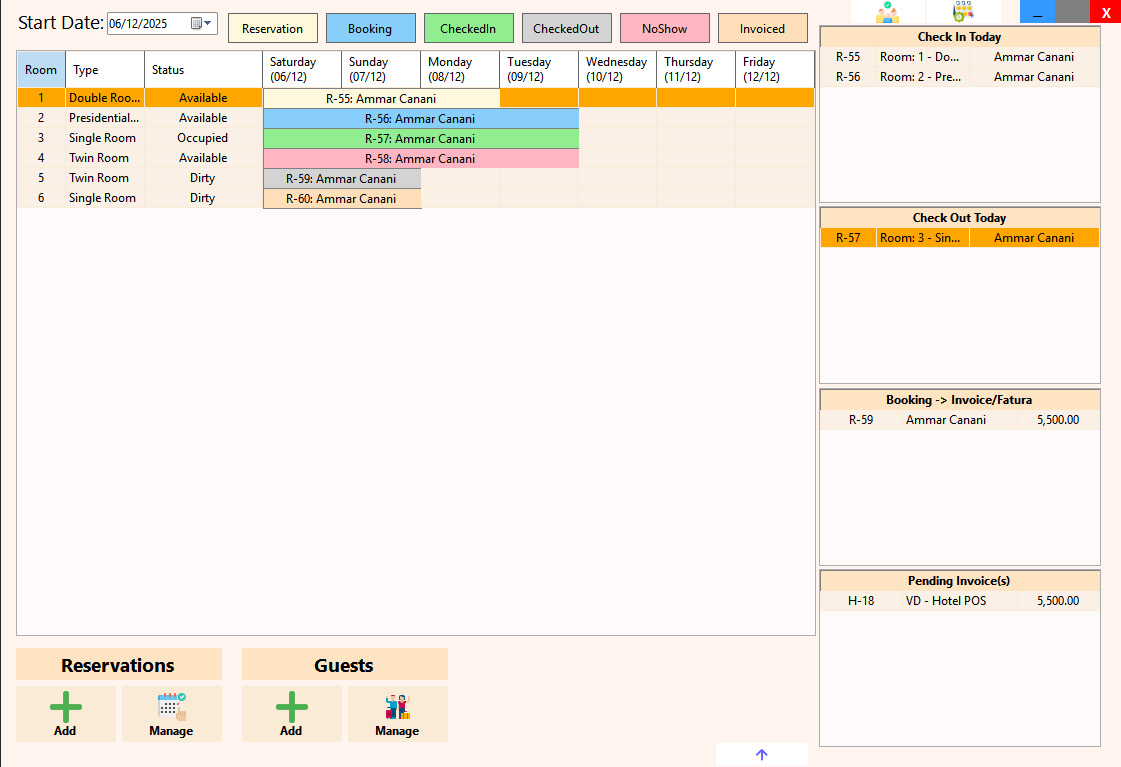
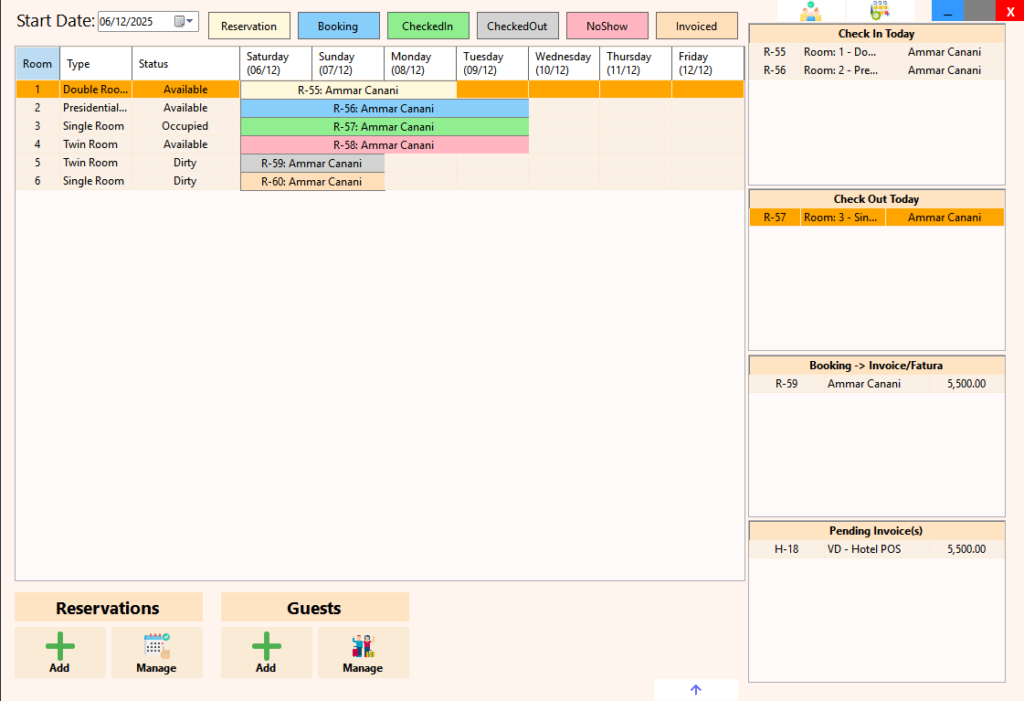
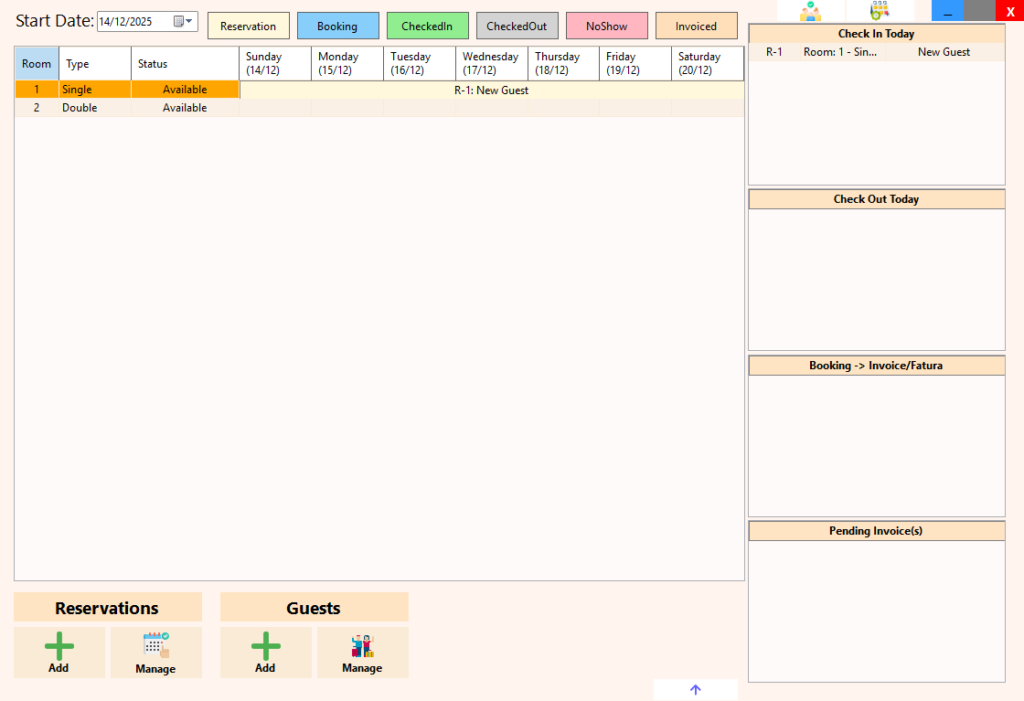
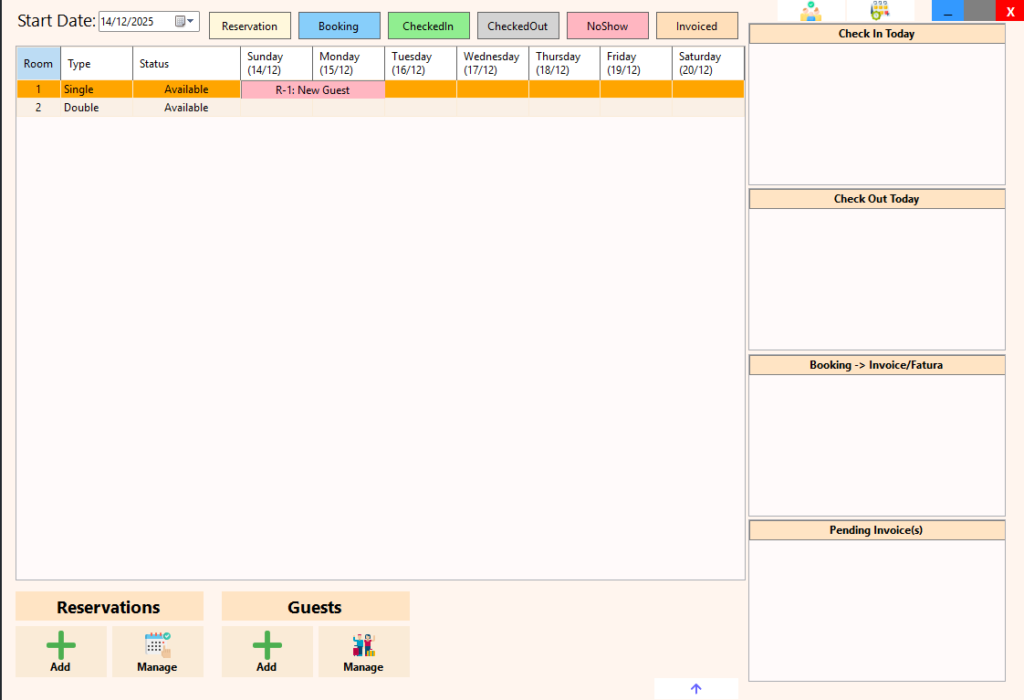
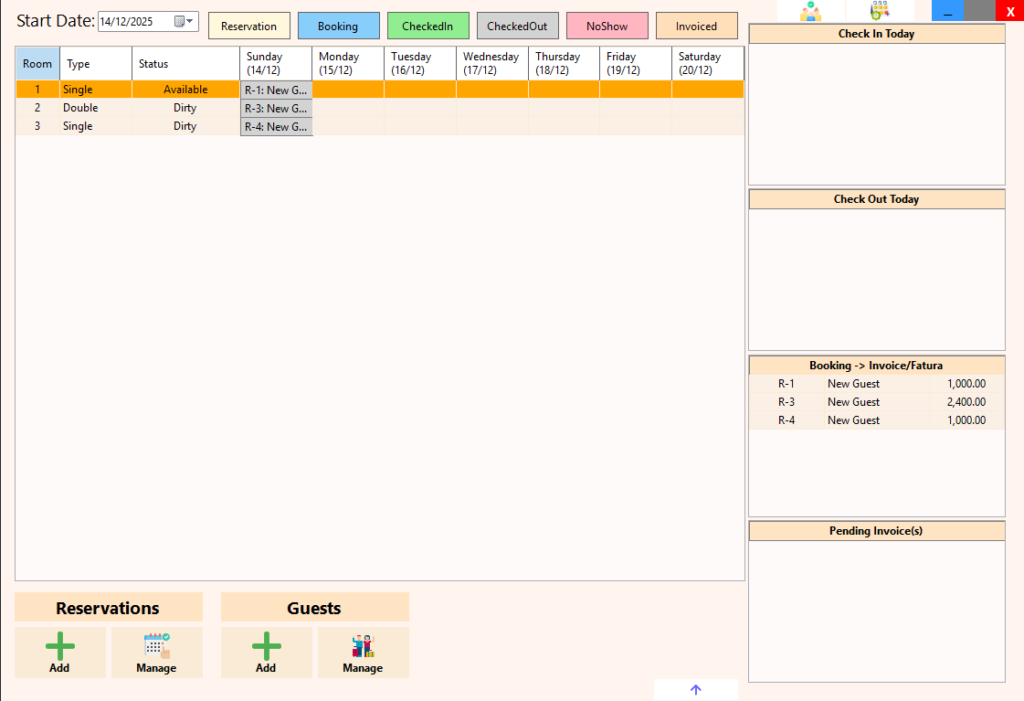
Calendar
Provides a 7-day view displaying the status of every room, showing occupancy and availability per date.

Start Date
Allows setting the starting date for the calendar view to review past or upcoming room allocations.

Legend
Displays the color coding reference used in the calendar for quick identification of booking and room statuses.

Top Action Buttons

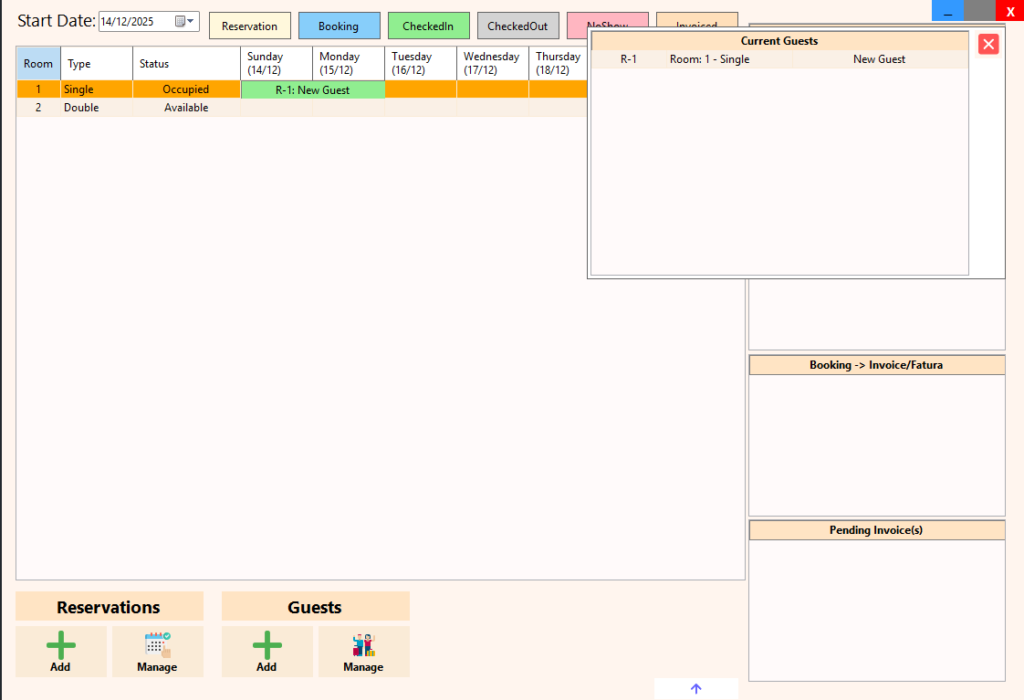
  • Current Guests: Displays all guests currently checked in

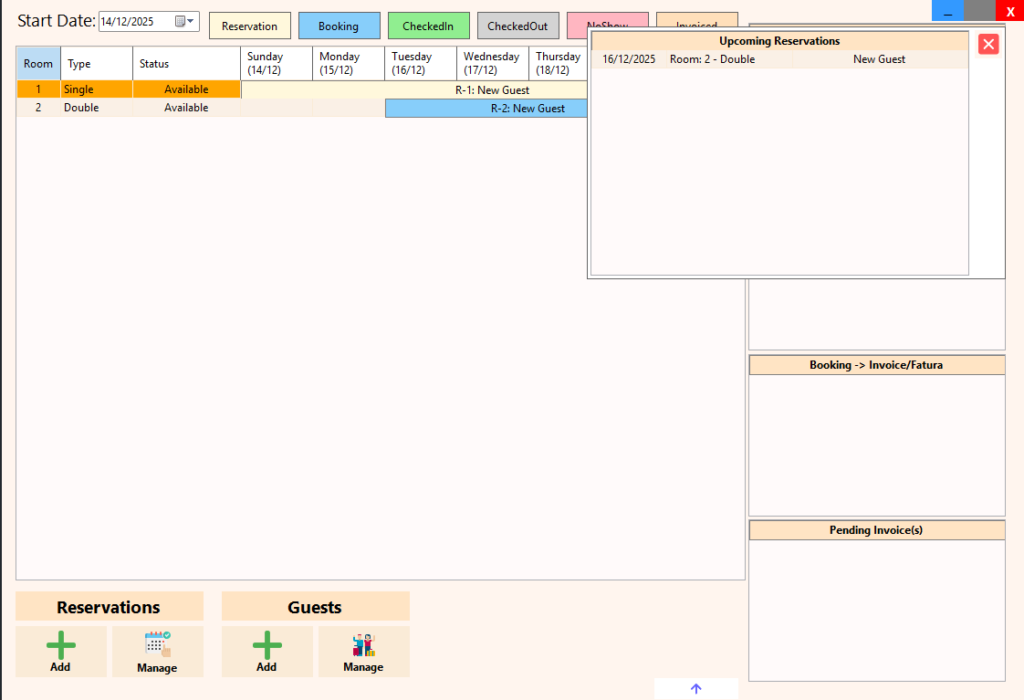
  • Upcoming Reservations: Displays all future bookings and reservations

Check-In Today
Lists all reservations scheduled to be checked in today for quick operational handling.

Check-Out Today
Lists all guests scheduled to check out today, helping prepare billing and room turnover.

Booking → Invoice
Shows checked-out reservations that can be converted into a new invoice or added to an existing invoice.

Pending Invoices
Displays invoices that are not yet settled, including those credited to clients.

Manage Reservations
Allows adding, viewing, and managing reservations directly from the PMS POS screen.

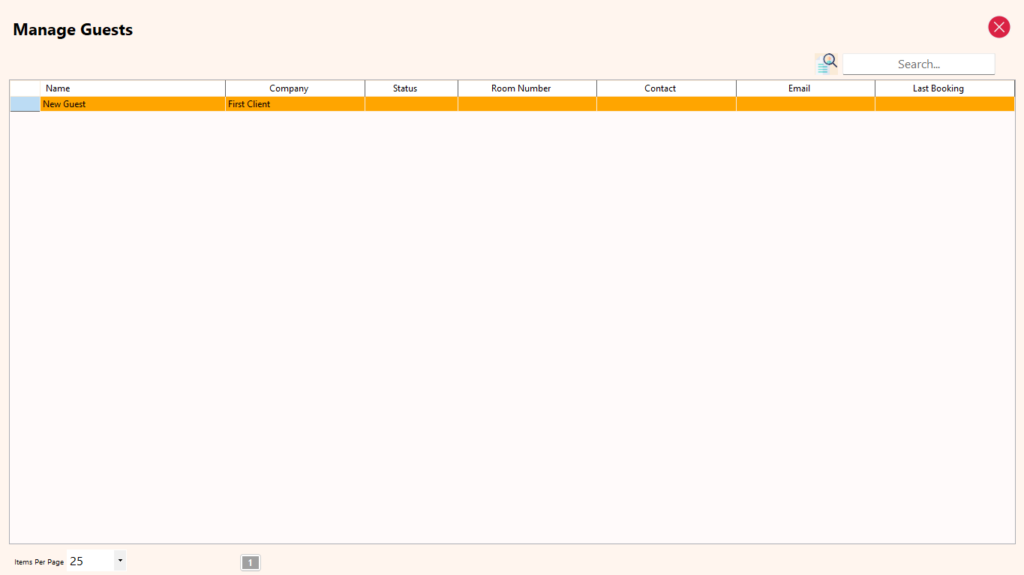
Manage Guests
Allows adding, editing, and deleting guest records, independently of client accounts.

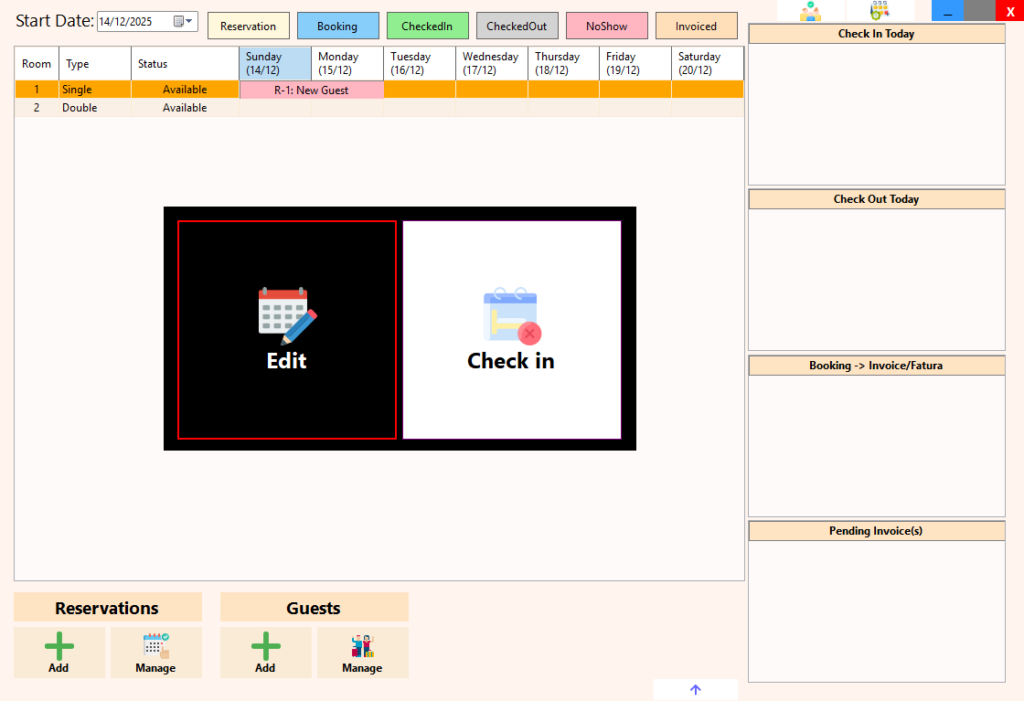
Calendar – Double Click Action
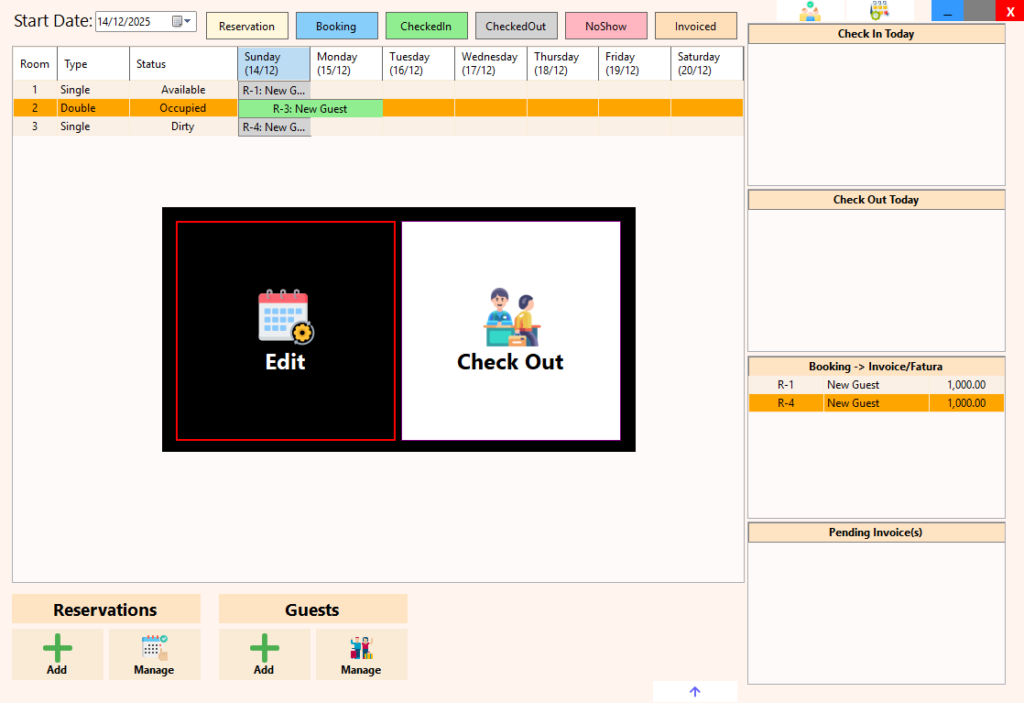
Double-clicking a booking allows users to edit the reservation or proceed to the next step in the guest lifecycle.

Calendar – Right Click Action
Right-clicking a booking displays the reservation details, including charges and linked items such as restaurant orders or added services.

Manage Guests

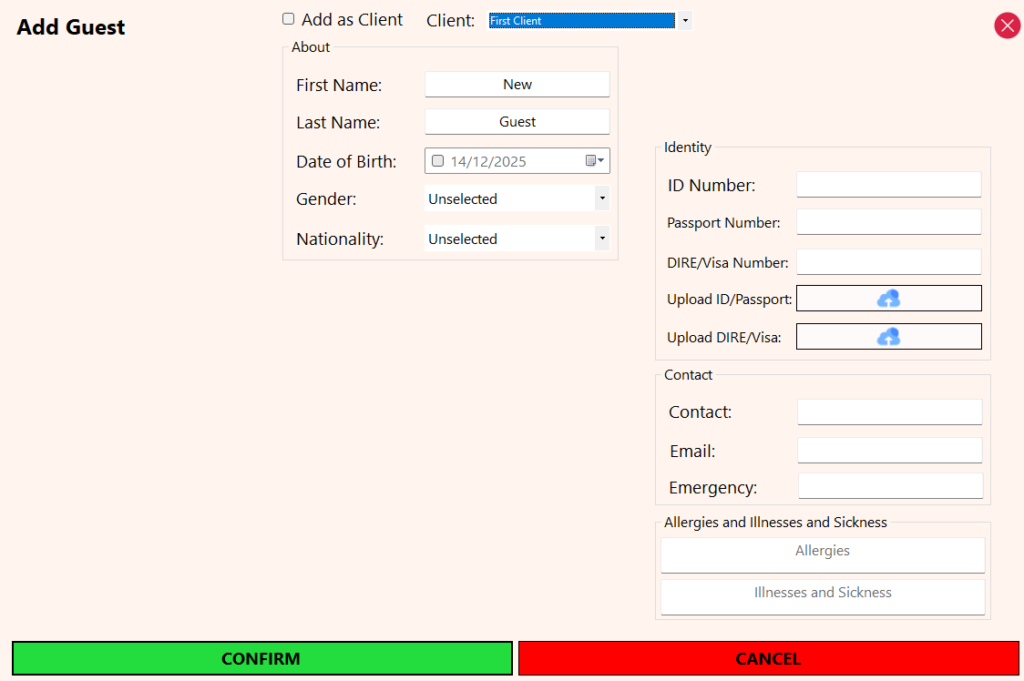
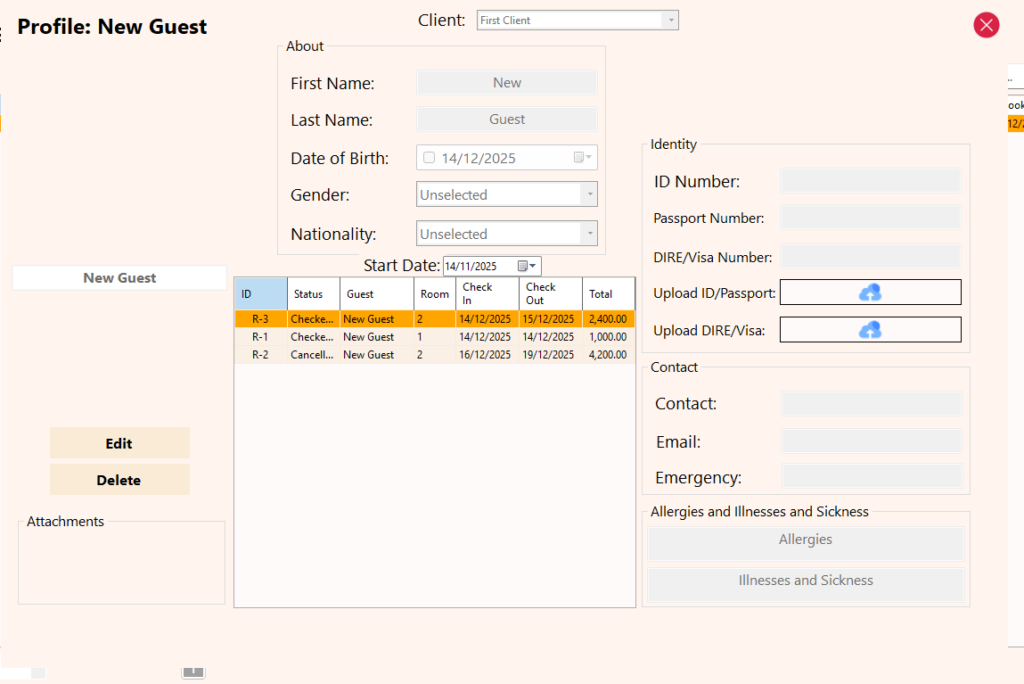
The Manage Guests feature allows capturing, maintaining, and reviewing detailed information for individuals staying at the property.

When adding a new guest, the system allows:

  • Optional guest profile photo

  • Recording personal and identity information

  • Uploading identification documents and any other required documentation

  • Capturing contact details for communication and record keeping

Guests can be:

  • Linked to an existing client, allowing companies or account holders to manage multiple guests under one client profile

  • Created as clients, when the guest is also the billing entity

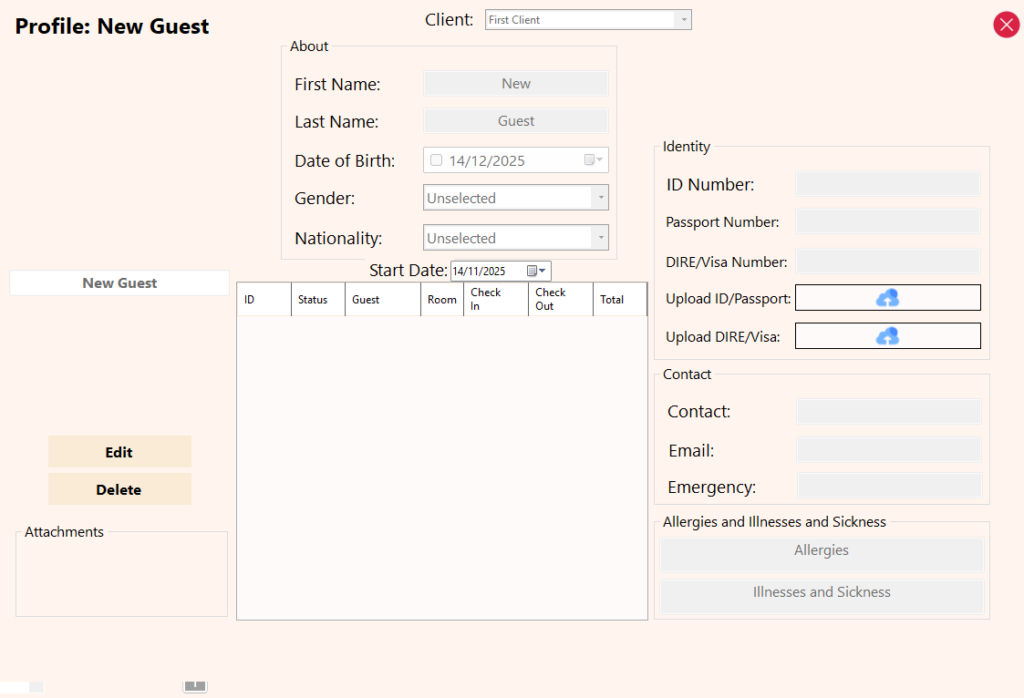
When viewing a guest profile, users can:

  • Edit guest details at any time

  • View the guest’s full stay history, including past bookings and reservations

This structure maintains a clear distinction between guests (occupants) and clients (billing entities) while providing full visibility into guest activity, supporting accurate operations, billing, and reporting.

How it works

System Configuration Note

One Click PMS offers customizable POS behavior, including the option to remove date restrictions across the reservation, check-in, check-out, and billing cycle.
This allows properties that perform end-of-day or next-day data entry to manage the entire operational cycle without being limited by calendar dates, while still maintaining accurate records, reporting, and audit trails.

Add a Reservation

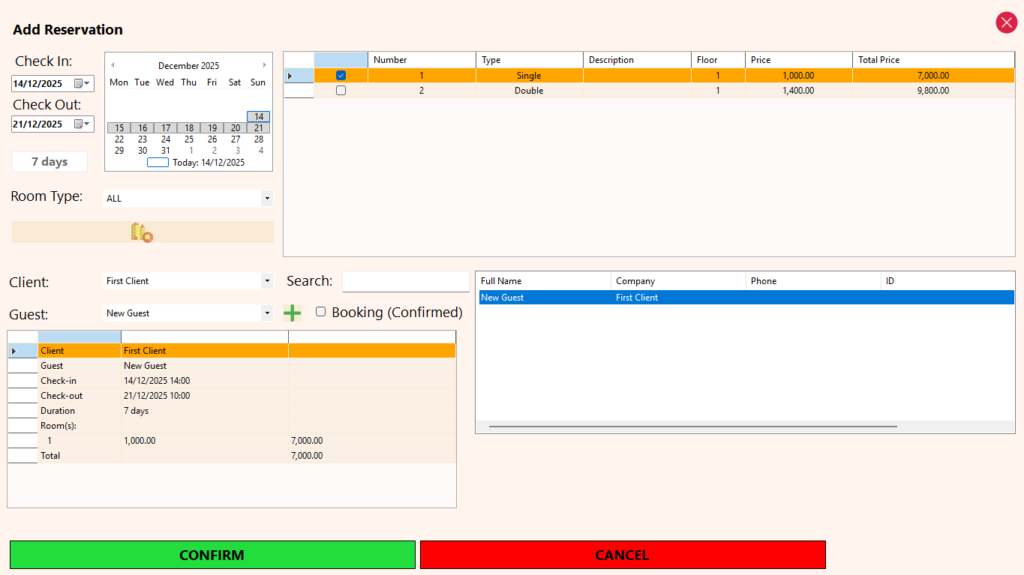
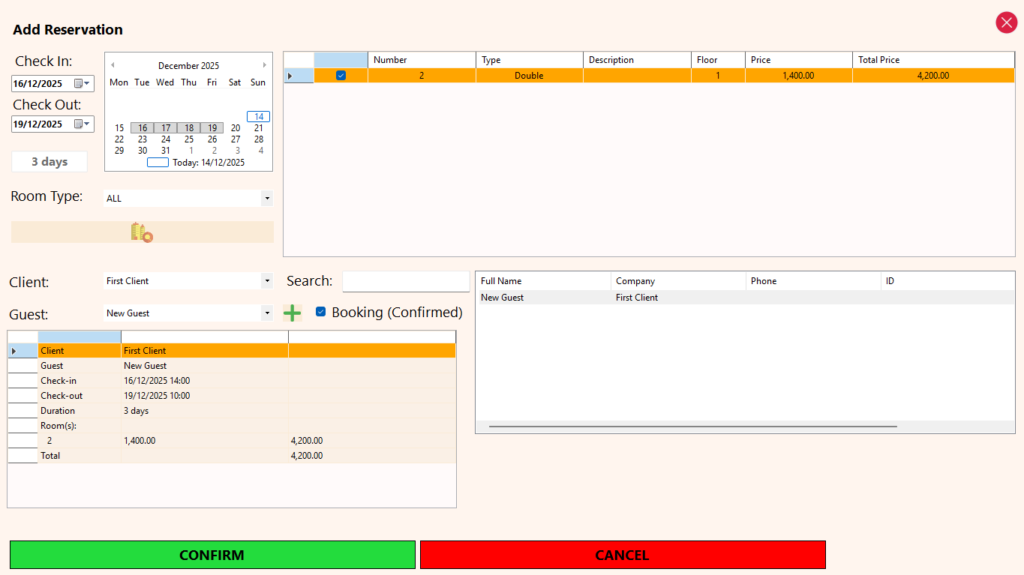
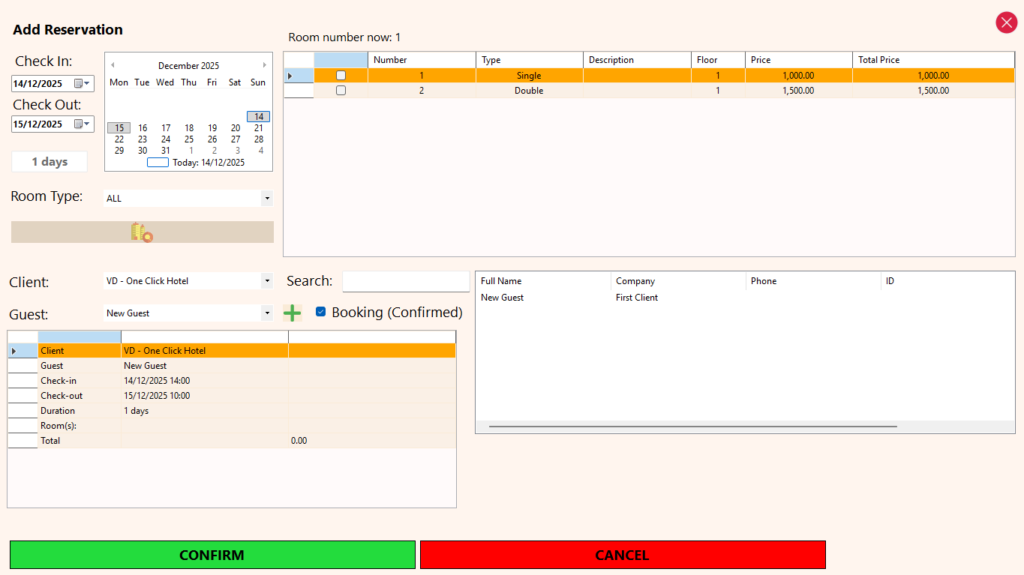
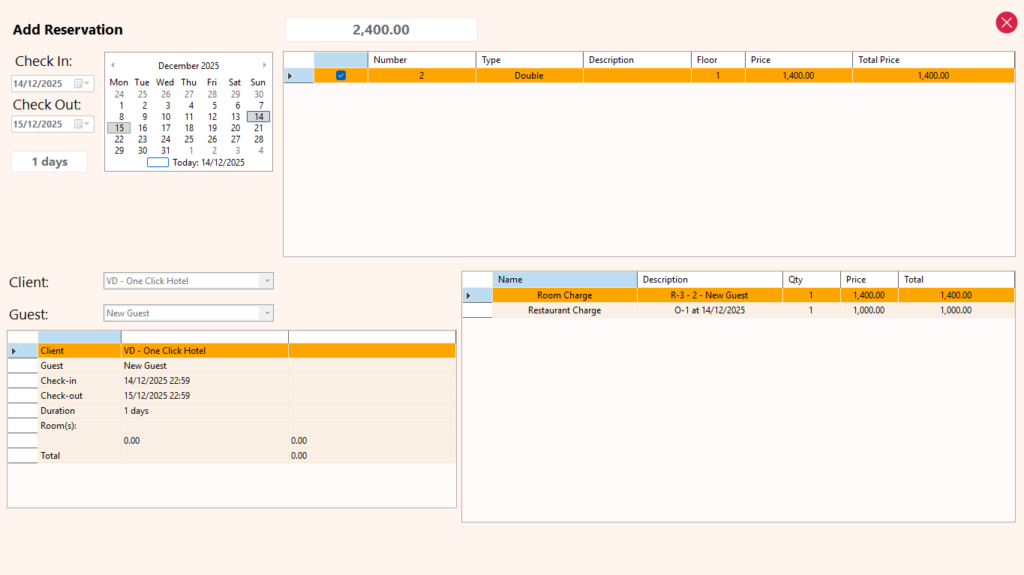
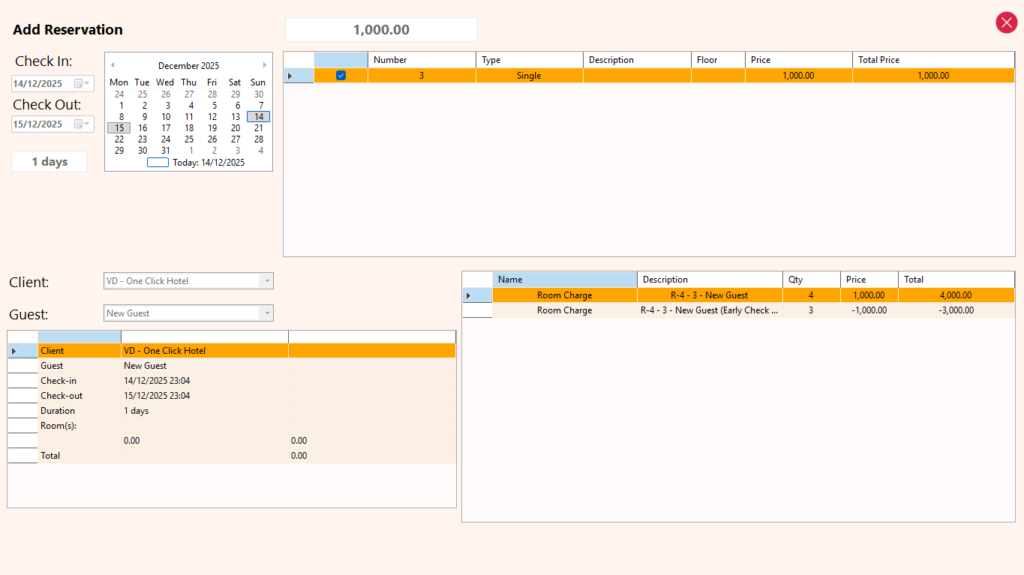
The reservation process begins by creating a new reservation, where the system allows searching for available rooms within a selected date range.

Users can:

  • Search for all available rooms for the selected dates

  • Filter availability by specific room type, supporting client preferences and negotiated room categories

A reservation can be:

  • Saved as a reservation for future confirmation

  • Saved directly as a booking, allowing immediate progression in the guest lifecycle

During reservation creation:

  • Selecting a guest linked to a client automatically assigns that client as the billing entity for the reservation

  • If the guest does not exist in the system, a shortcut to create a new guest is provided without leaving the reservation flow

This ensures a smooth and uninterrupted workflow while maintaining the correct guest-to-client linkage for invoicing and reporting.

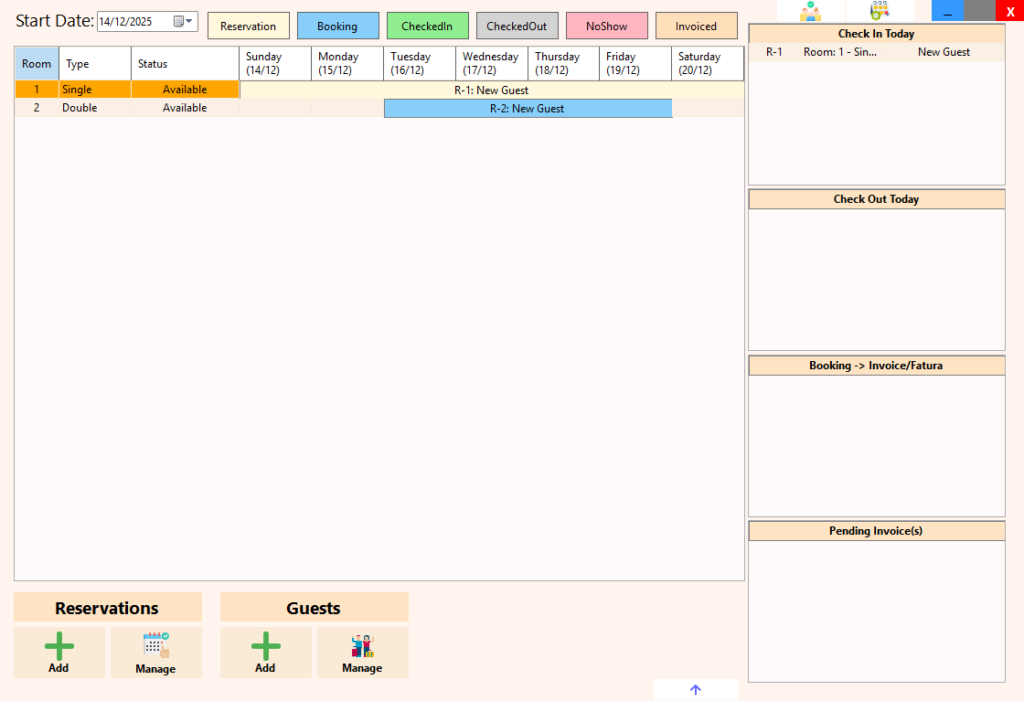
In the sample images below, two reservations are shown:

  • One reservation scheduled for today

  • One upcoming reservation, already saved as a booking

Optional Reservation & Booking Actions

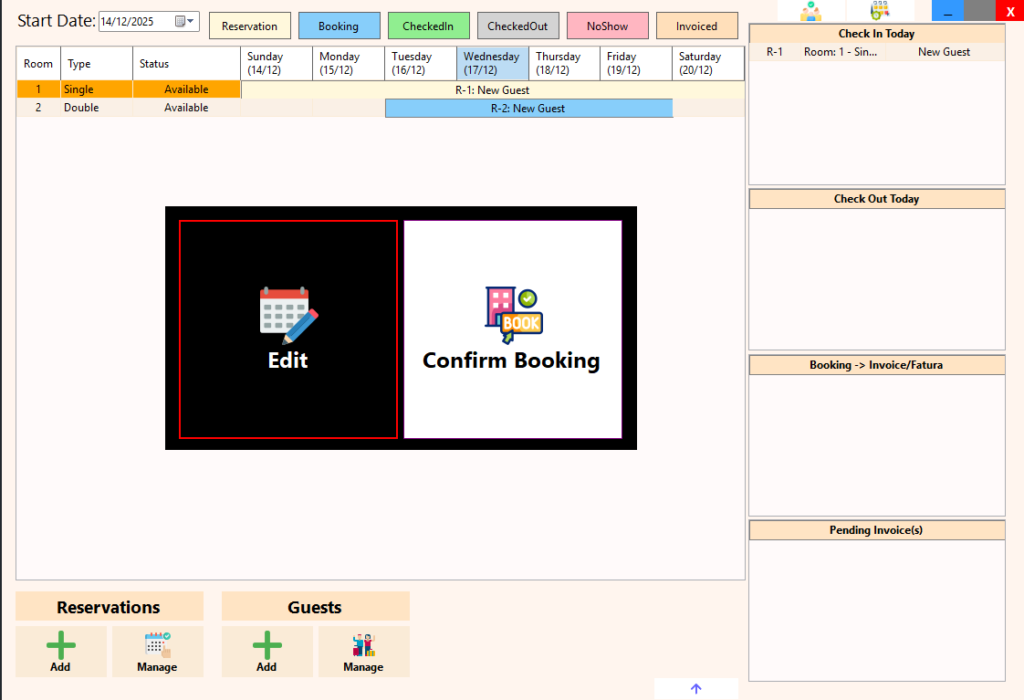
A reservation can be confirmed into a booking by double-clicking the reservation block on the calendar, allowing quick progression without reopening forms.

Editing a reservation or booking allows:

  • Modifying check-in and check-out dates

  • Adjusting the duration of stay as required

Bookings and reservations can also be:

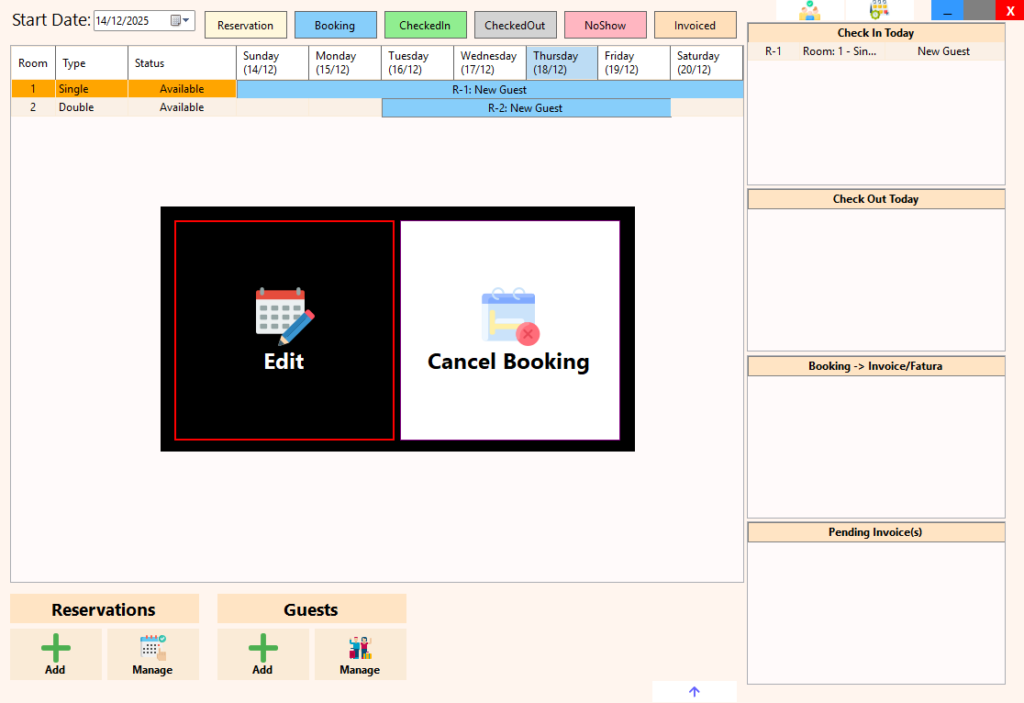
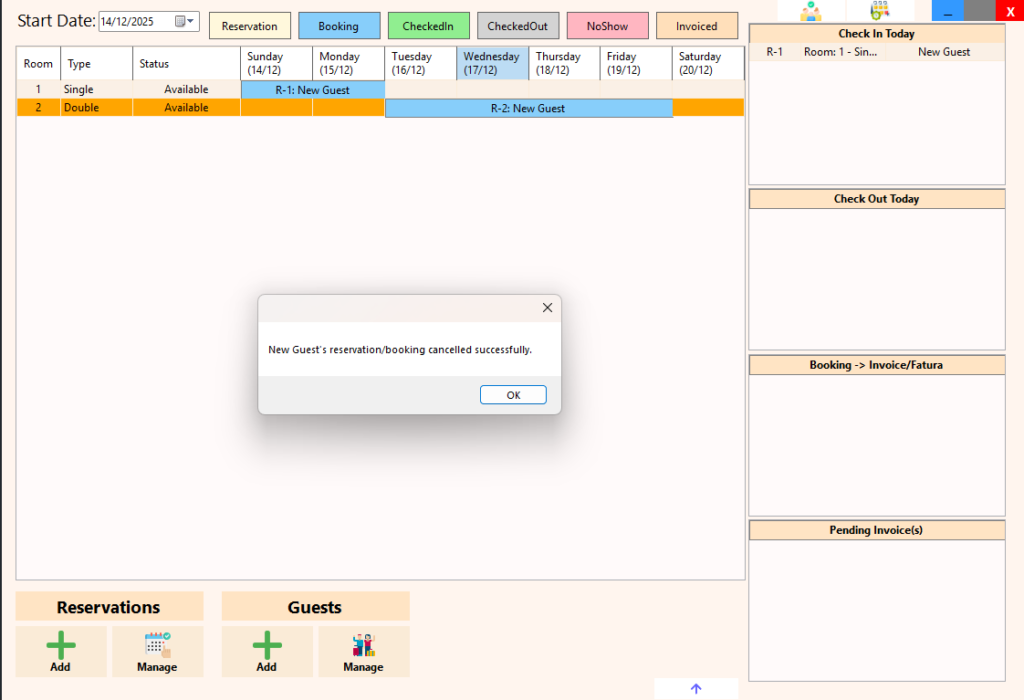
  • Cancelled, removing them from active planning

  • Deleted by selecting the reservation block in the calendar and pressing the delete button

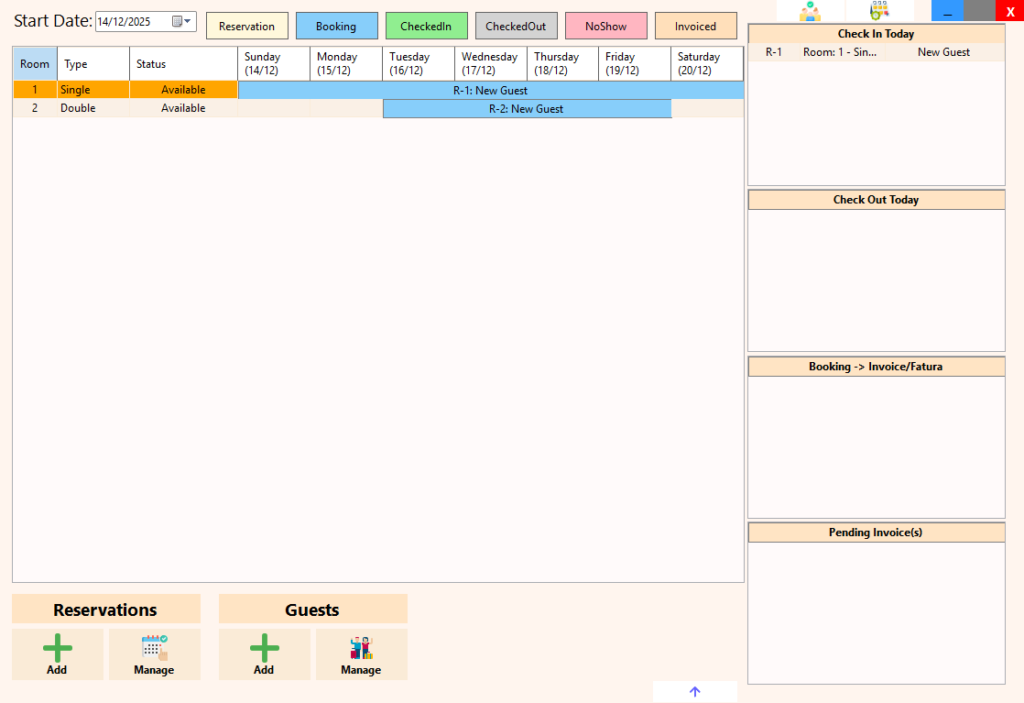
In the sample images below:

  • One reservation was confirmed into a booking and then edited to a one-day stay

  • A second reservation was cancelled

No-Show Handling

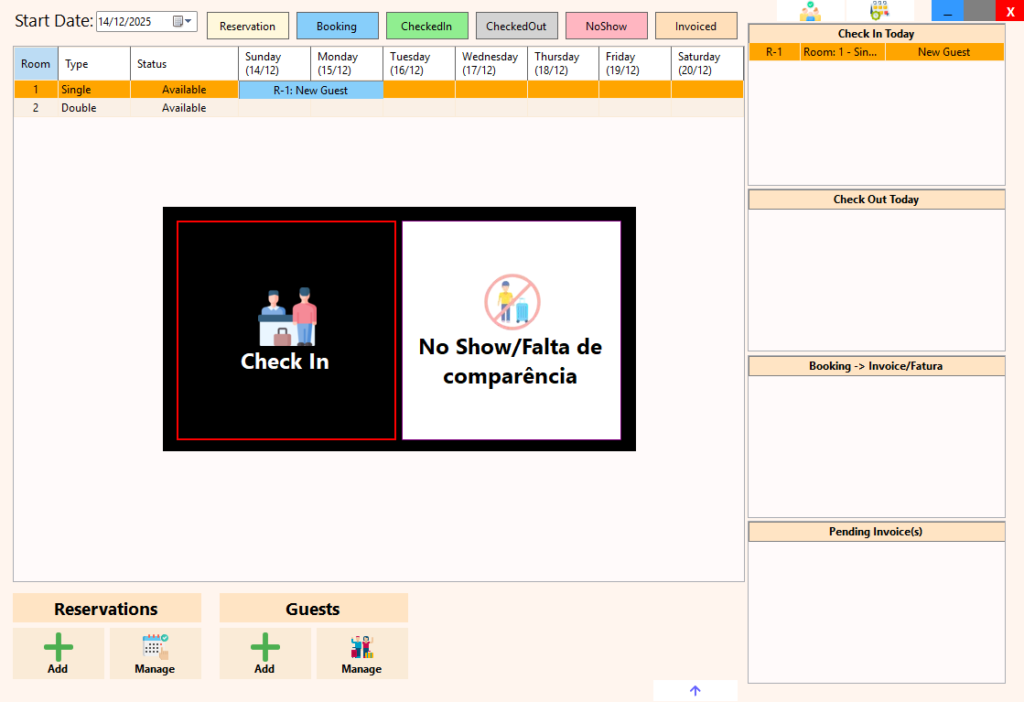
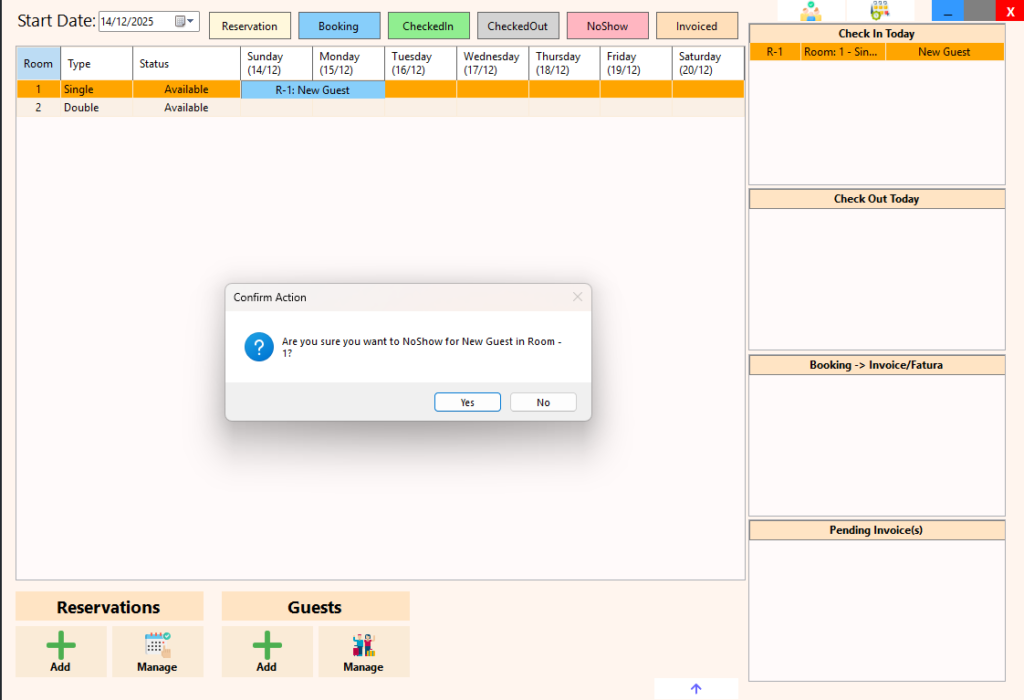
Guests who do not arrive as scheduled can be managed directly from the system.

By double-clicking a reservation listed under Check-In Today, a guest who has not arrived can be marked as a no-show.

A no-show reservation may still be checked in later, in cases where the guest arrives late.
Once checked in, the guest immediately appears under Checked-In Guests and Current Guests, ensuring continuity in the guest lifecycle and accurate operational tracking.

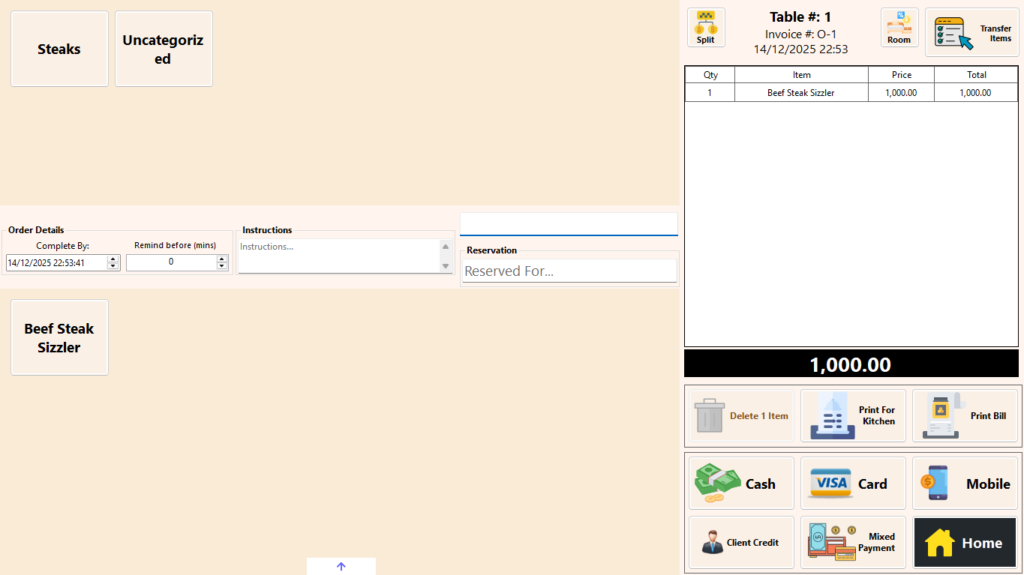
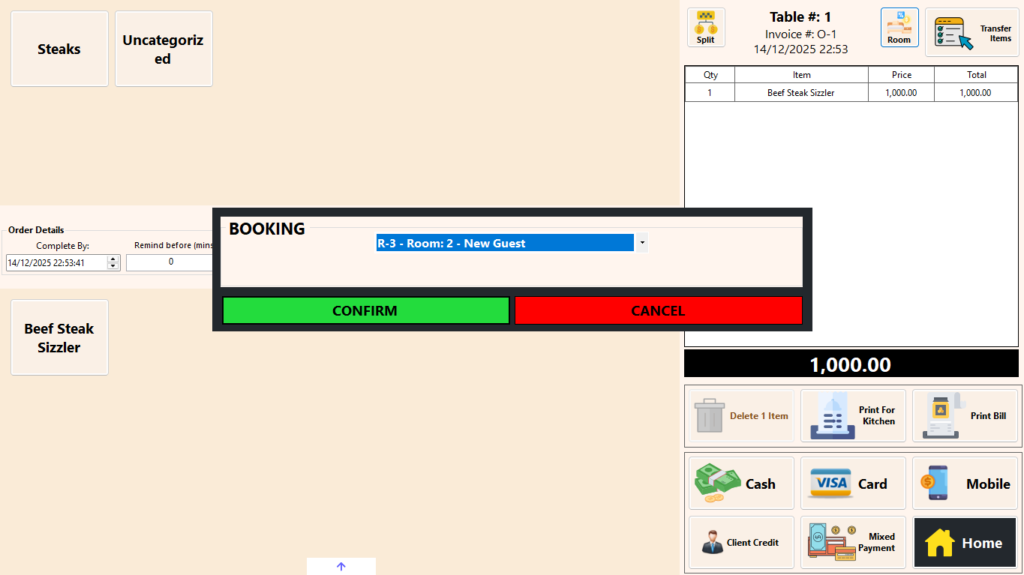
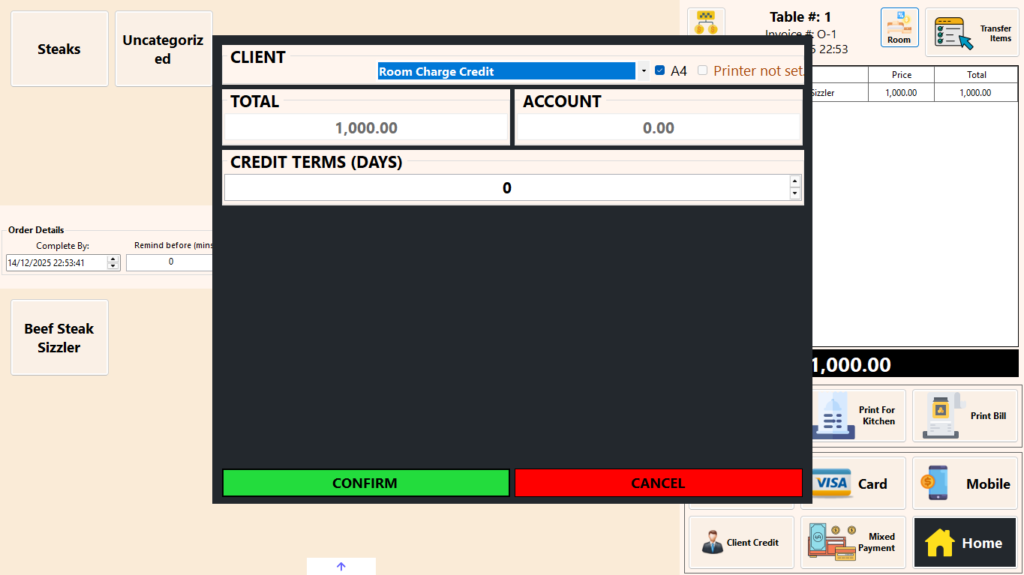
Posting Restaurant Charges to a Room

While a guest is checked in, the Restaurant POS can post charges directly to the guest’s room.

For example, if a guest dines at the restaurant:

  • The restaurant bill is sent to the room

  • The guest’s room account is charged for the amount

  • The restaurant account is credited, allowing the restaurant to close its sale independently

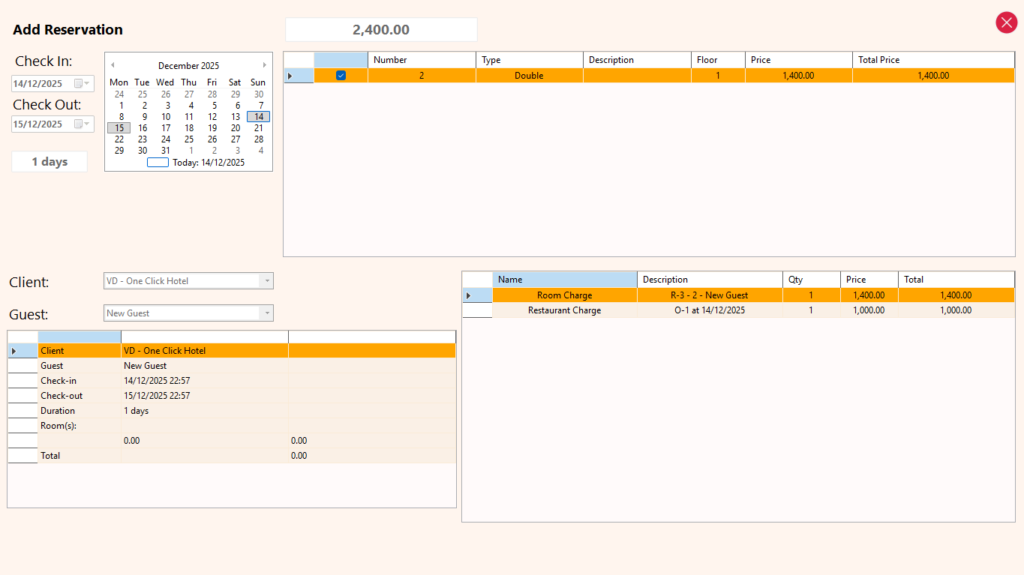
On the PMS side:

  • The charge is automatically added to the guest’s account

  • The booking reflects the updated balance, including all posted services

This integration ensures:

  • Seamless charging across departments

  • Accurate guest billing

  • Proper financial separation between restaurant operations and accommodation, while remaining fully synchronized through the ERP.

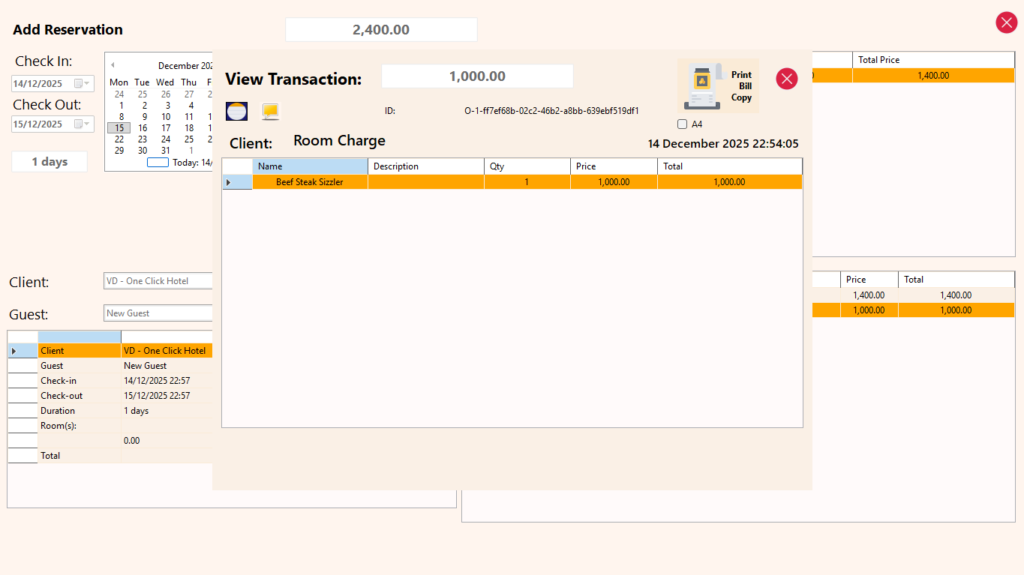
Viewing Guest Bookings & Charges

At any point during or after a stay, a guest’s booking can be opened to view the full breakdown of charges linked to the account.

This includes:

  • All invoices and posted charges, displayed in detail

  • Items and services added from connected POS systems, such as restaurant charges

In addition, the guest’s profile provides visibility of:

  • Previous bookings and stay history

  • A complete record of past activity for reference, support, or reporting

This ensures transparency, easy dispute resolution, and a clear historical view of guest activity across all stays.

Early Check-Out Handling

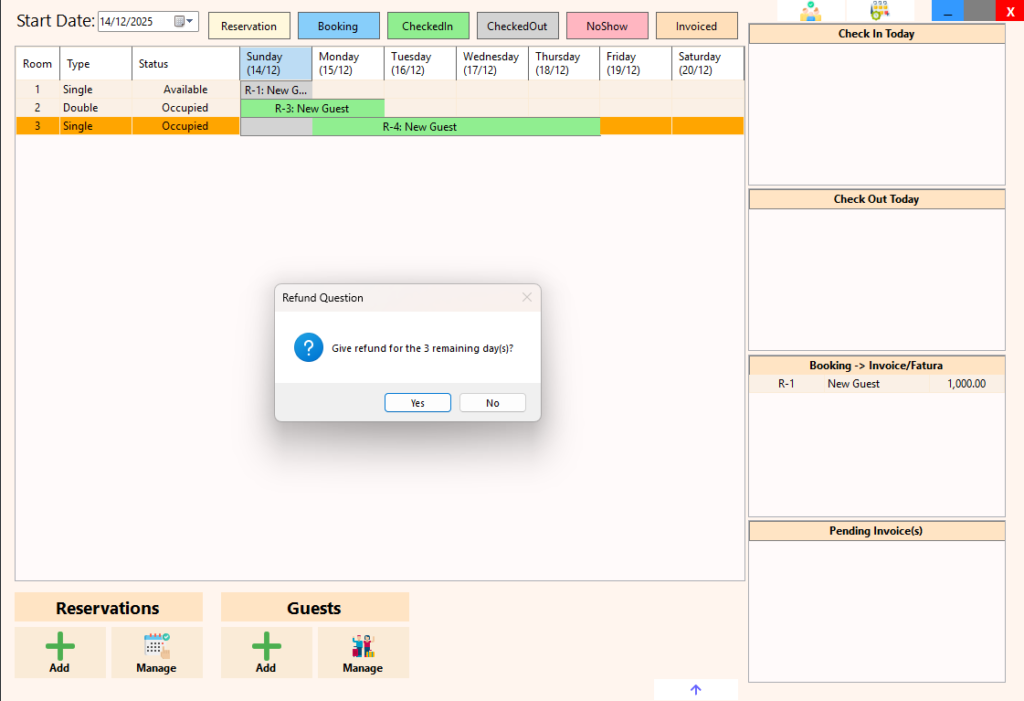
A guest who is currently checked in may perform an early check-out before the originally scheduled departure date.

During early check-out, the system provides the option to:

  • Refund unused days, or

  • Issue no refund, based on the property’s policy

When unused days are refunded:

  • The booking amounts are automatically adjusted

  • The guest or client account reflects the corrected charges

  • Financial records remain accurate and traceable

This flexible handling allows properties to enforce their policies while maintaining correct billing and reporting across the PMS, POS, and ERP.

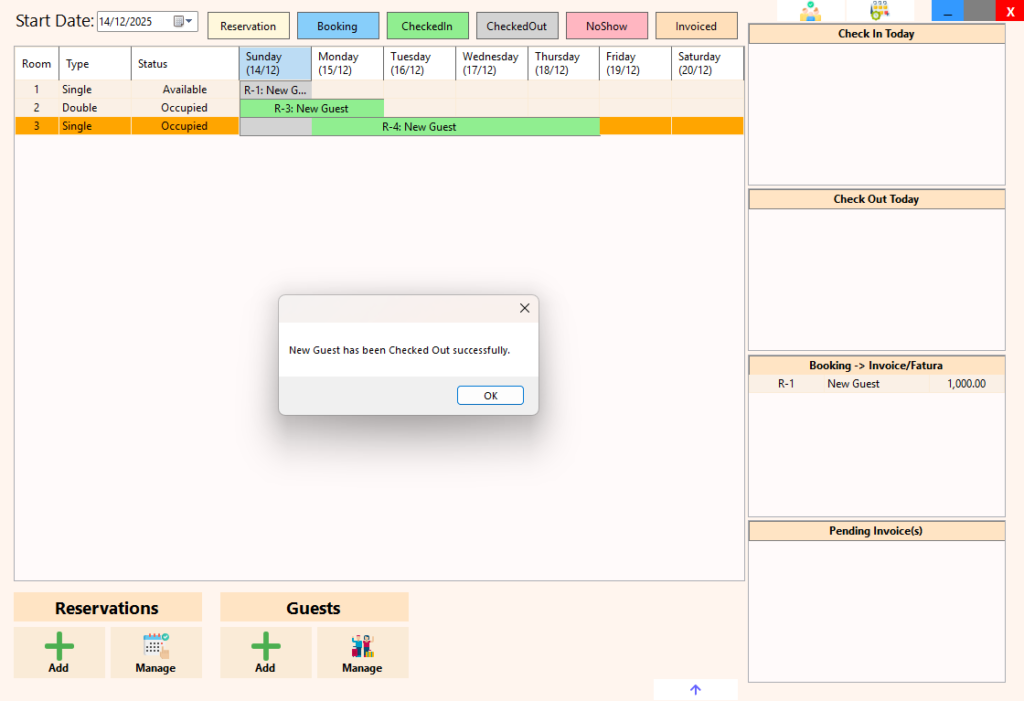
Once a guest is checked-out the standard check-out process continues (next section).

Standard Check-Out & Room Status Handling

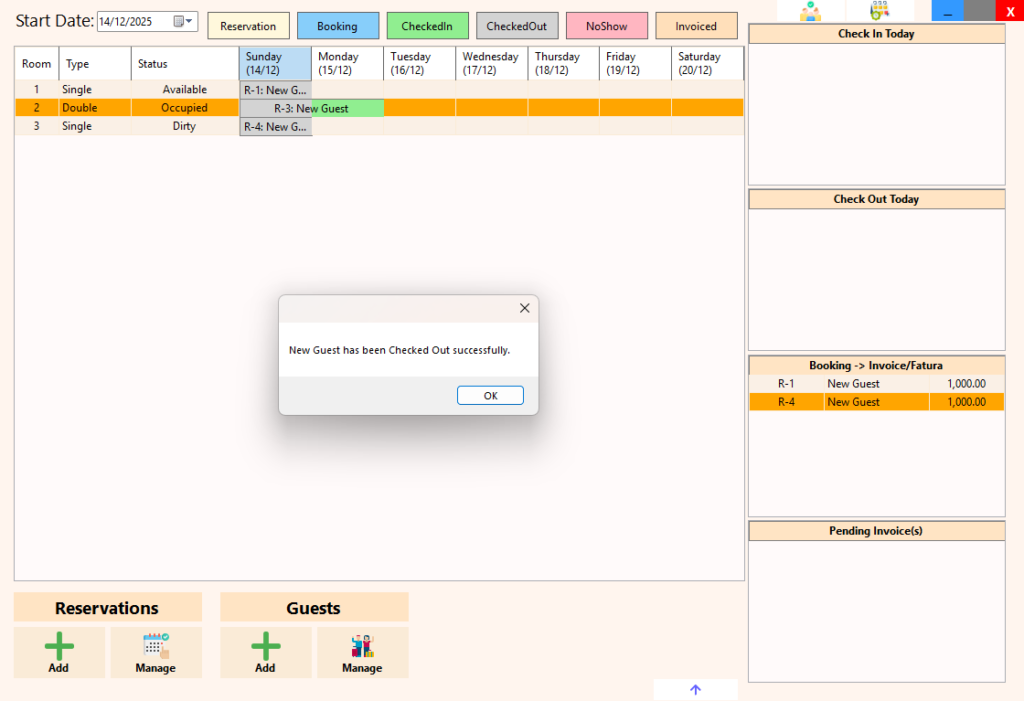
When a guest performs a standard check-out, the system completes the check-out without prompting for refunds, as the stay has followed the planned reservation.

Upon check-out:

  • The guest is marked as checked out

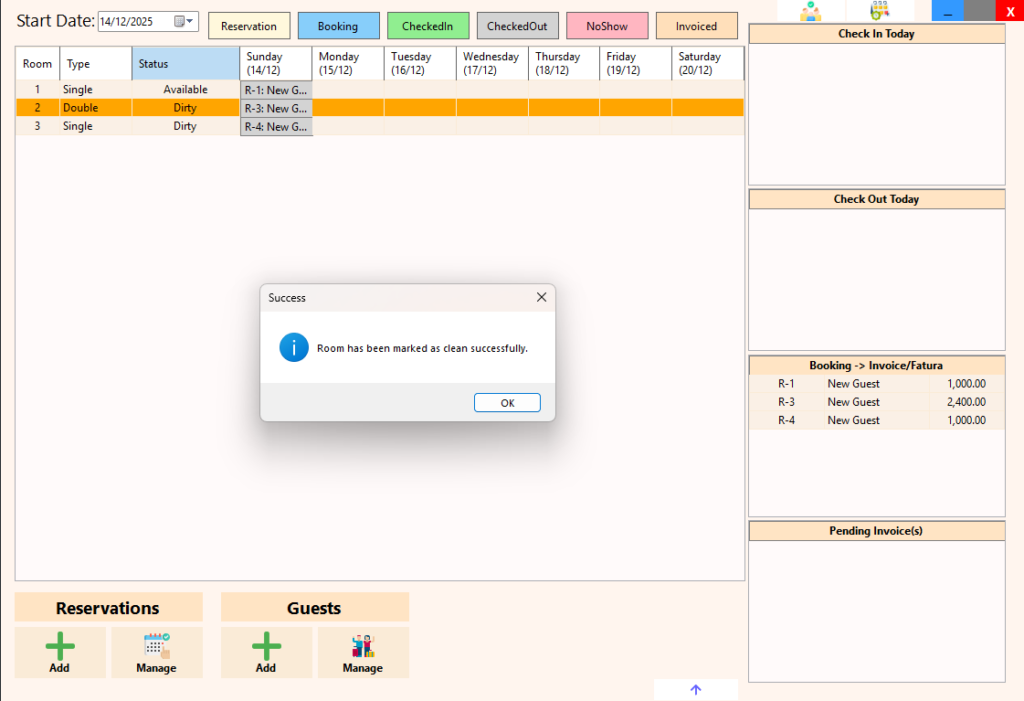
  • The room status is automatically set to Dirty, indicating it requires housekeeping

A room remains unavailable for new reservations until:

  • It has been cleaned, and

  • The status is manually updated to Available

Room availability is restored by double-clicking the room status, ensuring housekeeping confirmation before the room can be reused.

This process enforces proper room turnover, prevents double bookings, and ensures operational control between guest checkout and room readiness.

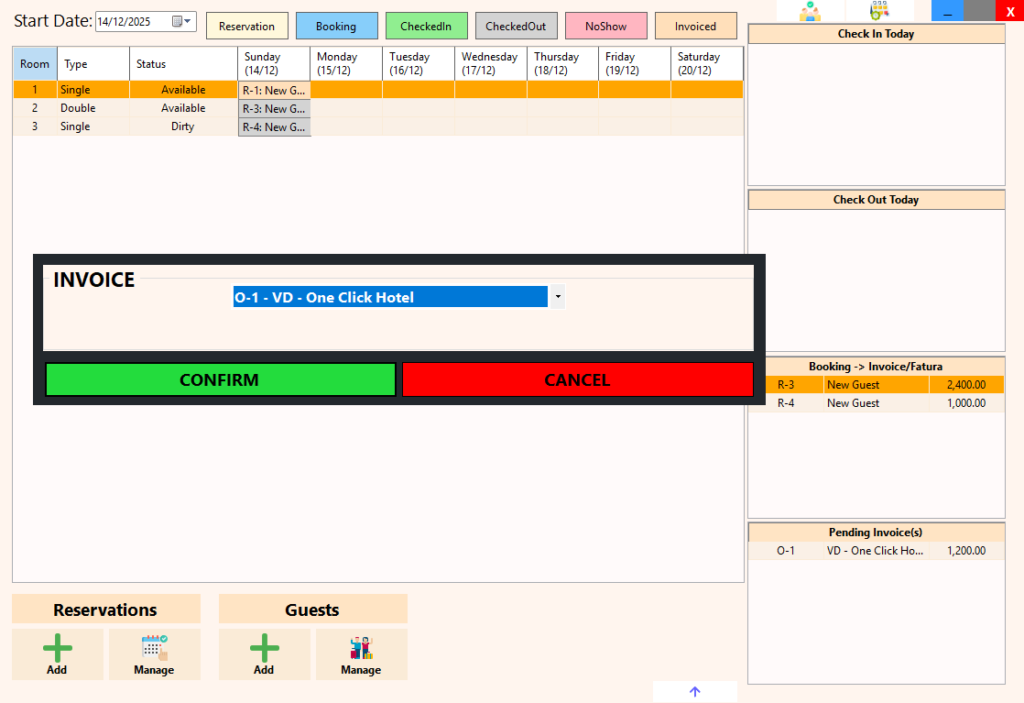
Booking to Invoice Conversion

Once a guest has checked out, they no longer affect room availability or room status; however, their bill still needs to be settled.

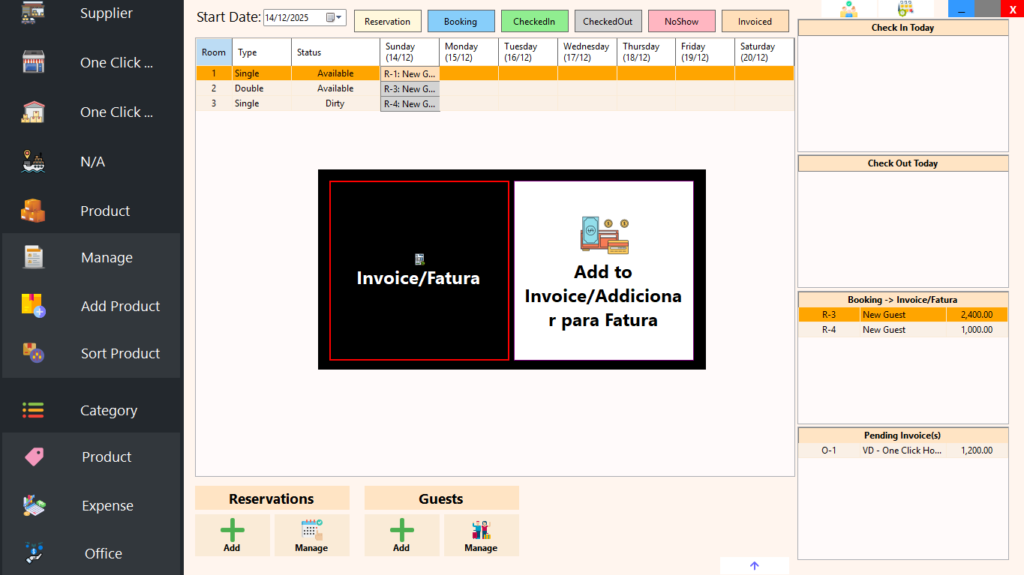
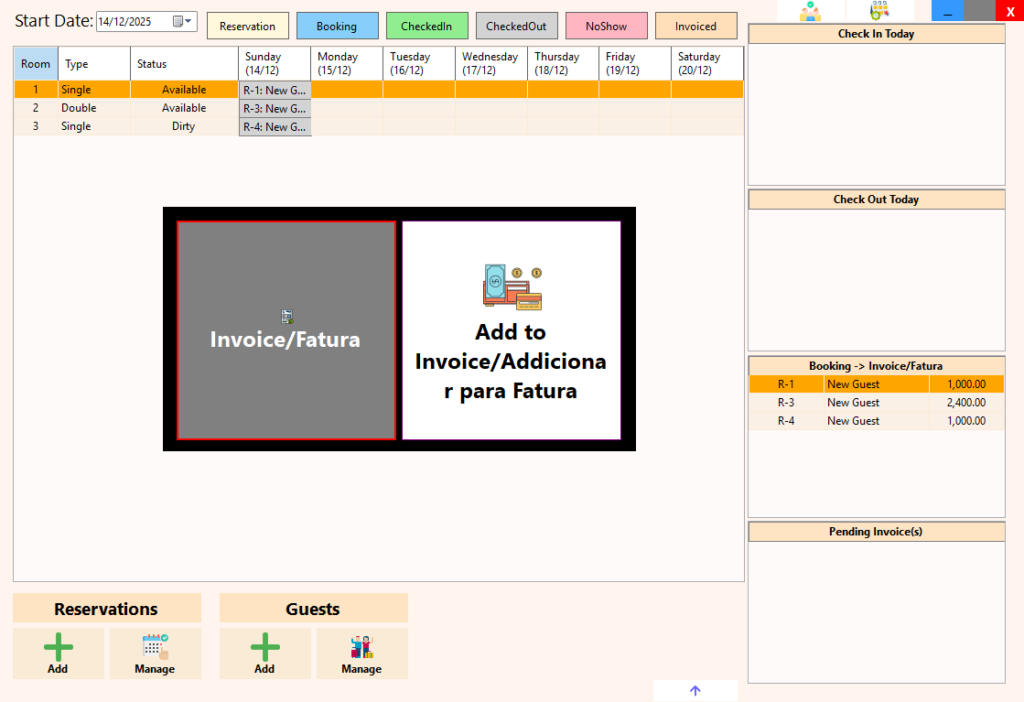
All checked-out bookings that have not yet been billed are listed under the Booking → Invoice table.

From this point:

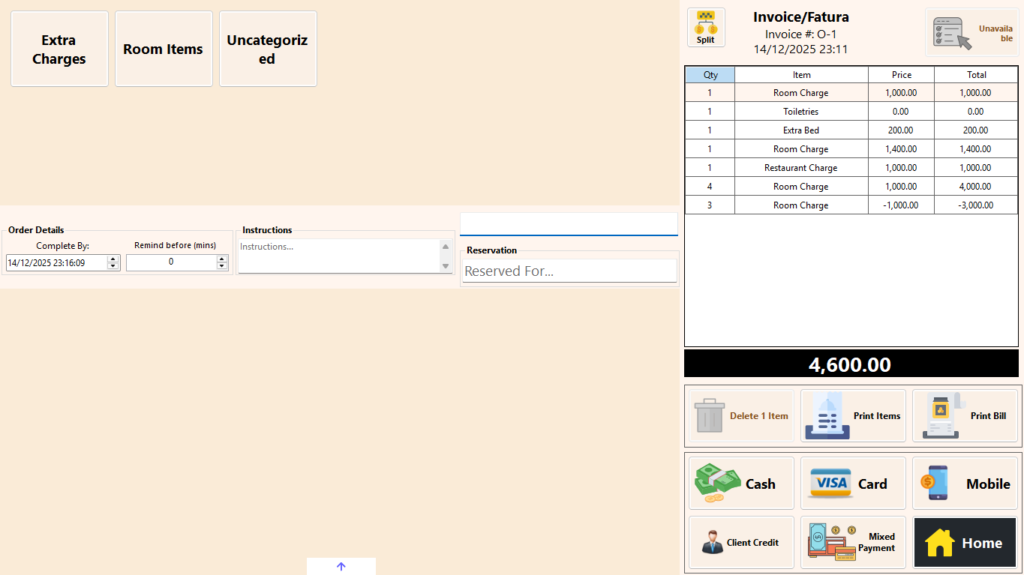
  • A booking can be converted into an invoice

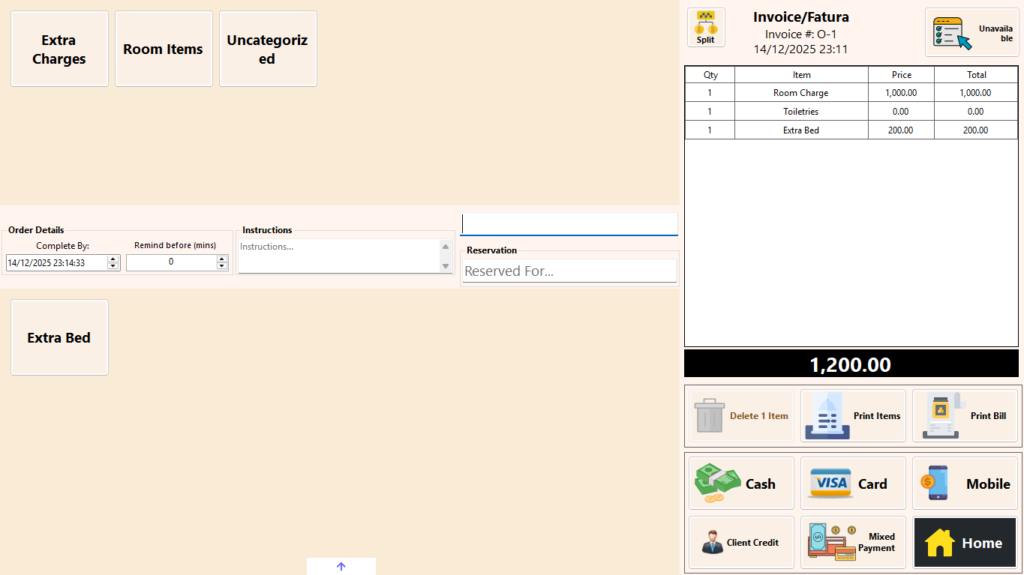
  • Additional items may be added before finalizing the bill, such as:

    • Zero-value stock items (e.g. toiletries)

    • Extra charges (e.g. additional bed, special services)

  • Multiple bookings can be merged into a single invoice, supporting group or corporate billing

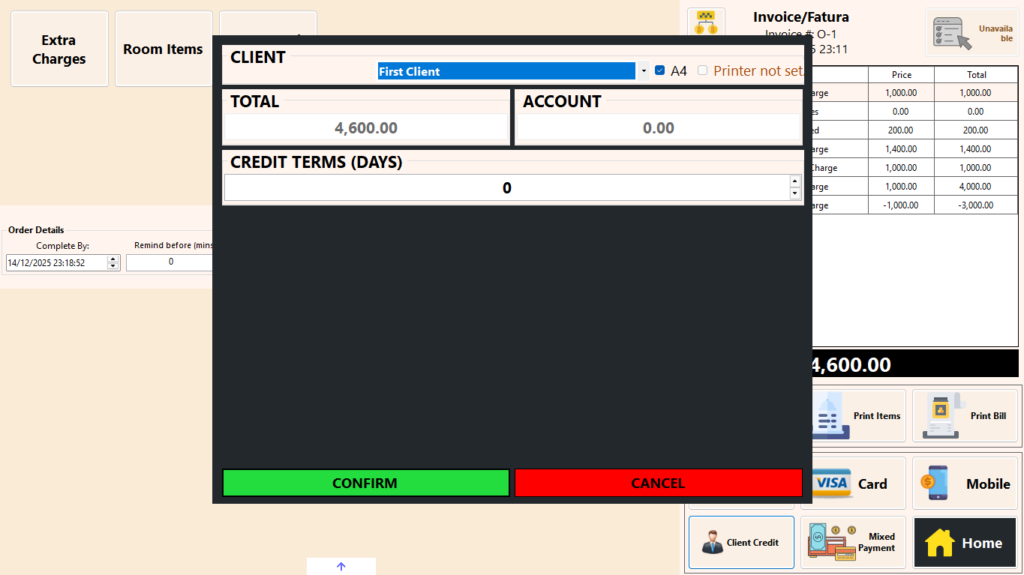
Before finalizing the invoice:

  • A payment type can be selected, using the same payment options available in the Restaurant POS

  • The invoice is then generated and posted

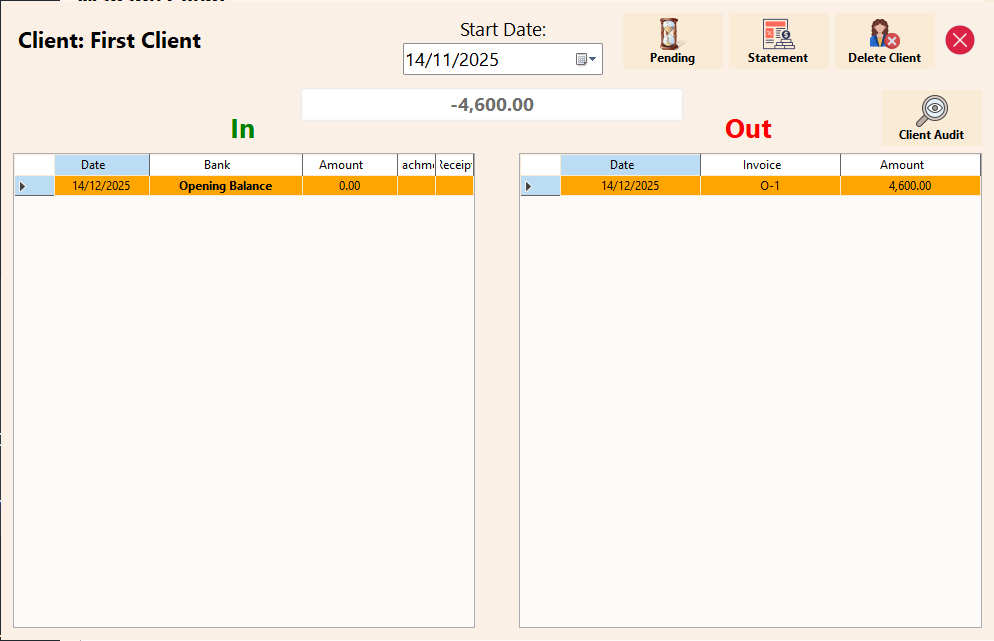
In this example, the invoice is credited to a client account, allowing settlement to occur later without affecting the completed guest stay.

The One Click Property Management System manages the full operational flow from reservation and booking creation, through check-in, in-stay charge posting, and check-out, while clearly separating accommodation operations from financial settlement. Guests may be linked to clients for corporate or account-based billing, with custom pricing applied where applicable. During a stay, charges from connected POS systems such as the restaurant are posted directly to the guest account. Upon check-out, rooms are released operationally while billing continues independently, allowing bookings to be converted into invoices, merged where required, and finalized with the appropriate payment method or client credit. Once invoiced, all further processing, settlement, and reporting continue on the ERP side, ensuring controlled, auditable, and centralized financial management.

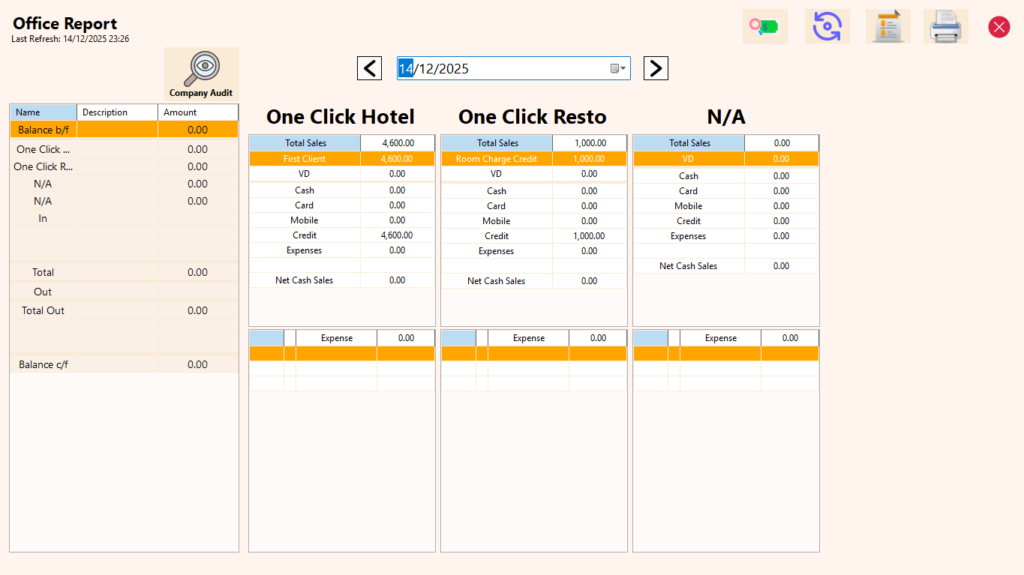
ERP Module - End of Day Report

Common Features in all POSs

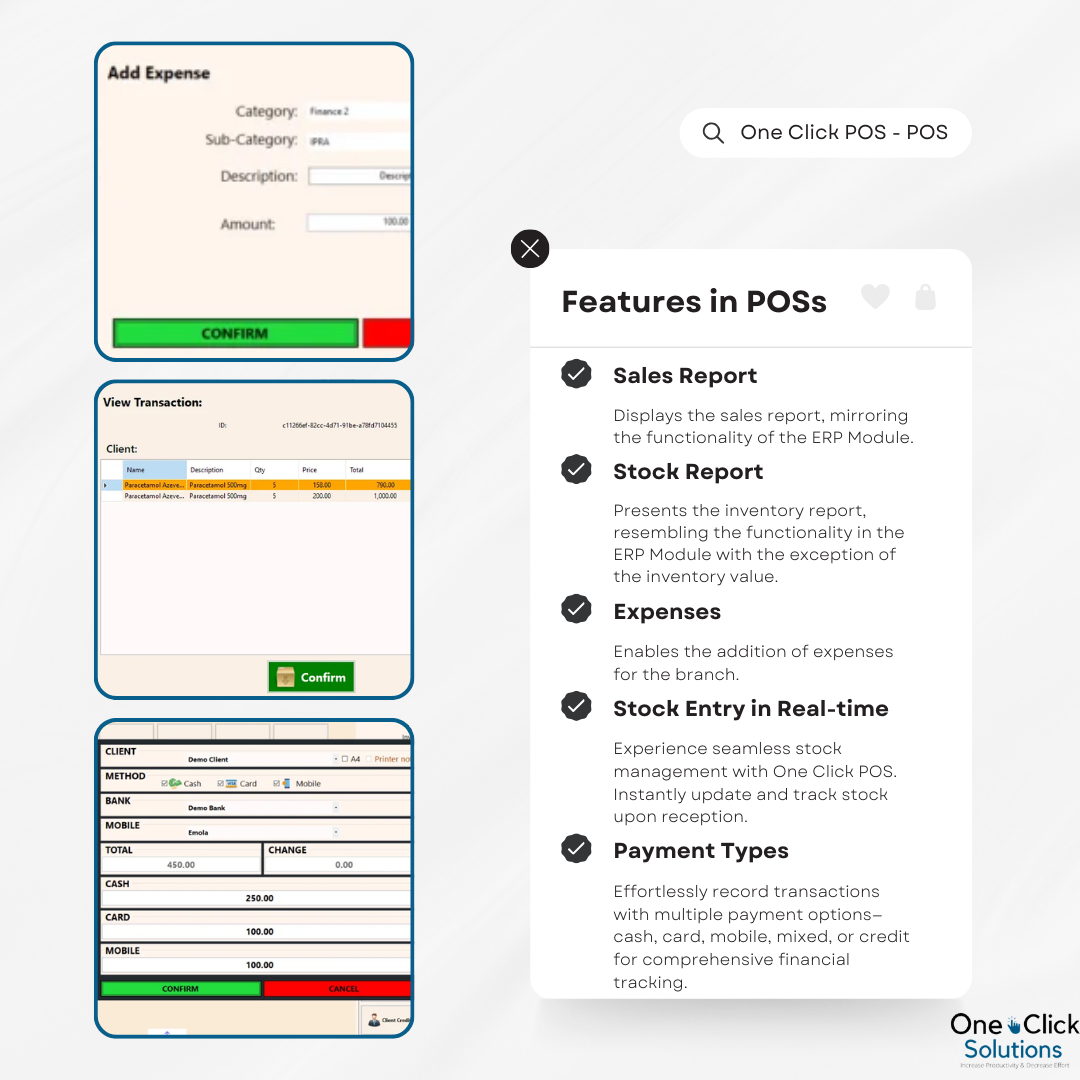
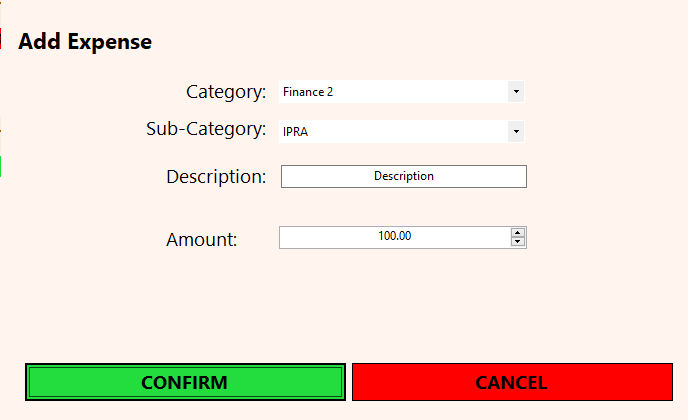
Add Expense
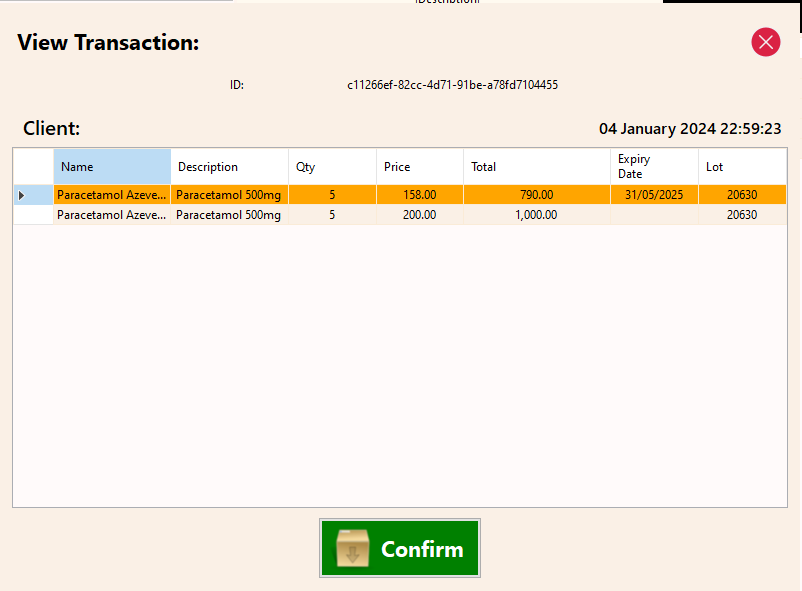
  • Stock In: Manages stock transfers and stock entries, with the receiving branch confirming the stock to update quantities automatically.
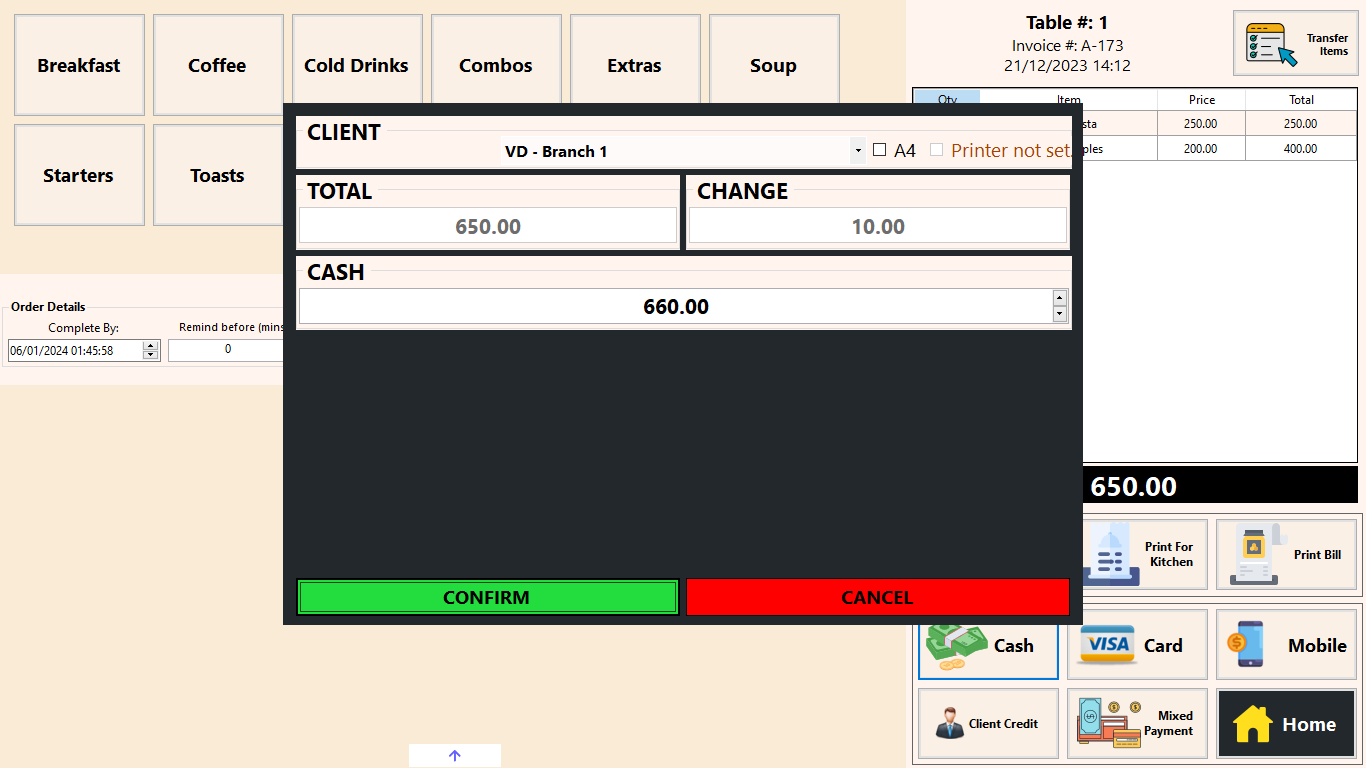
  • Payment Types:

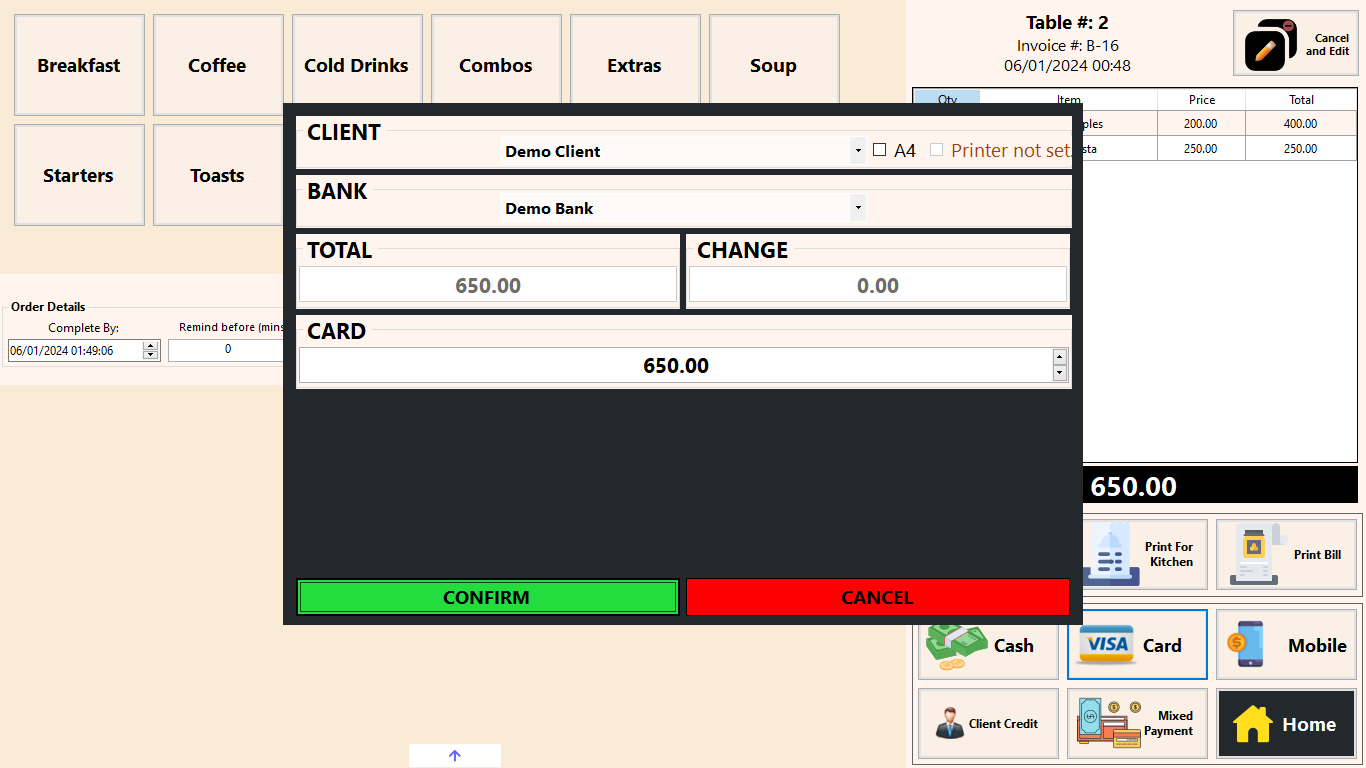
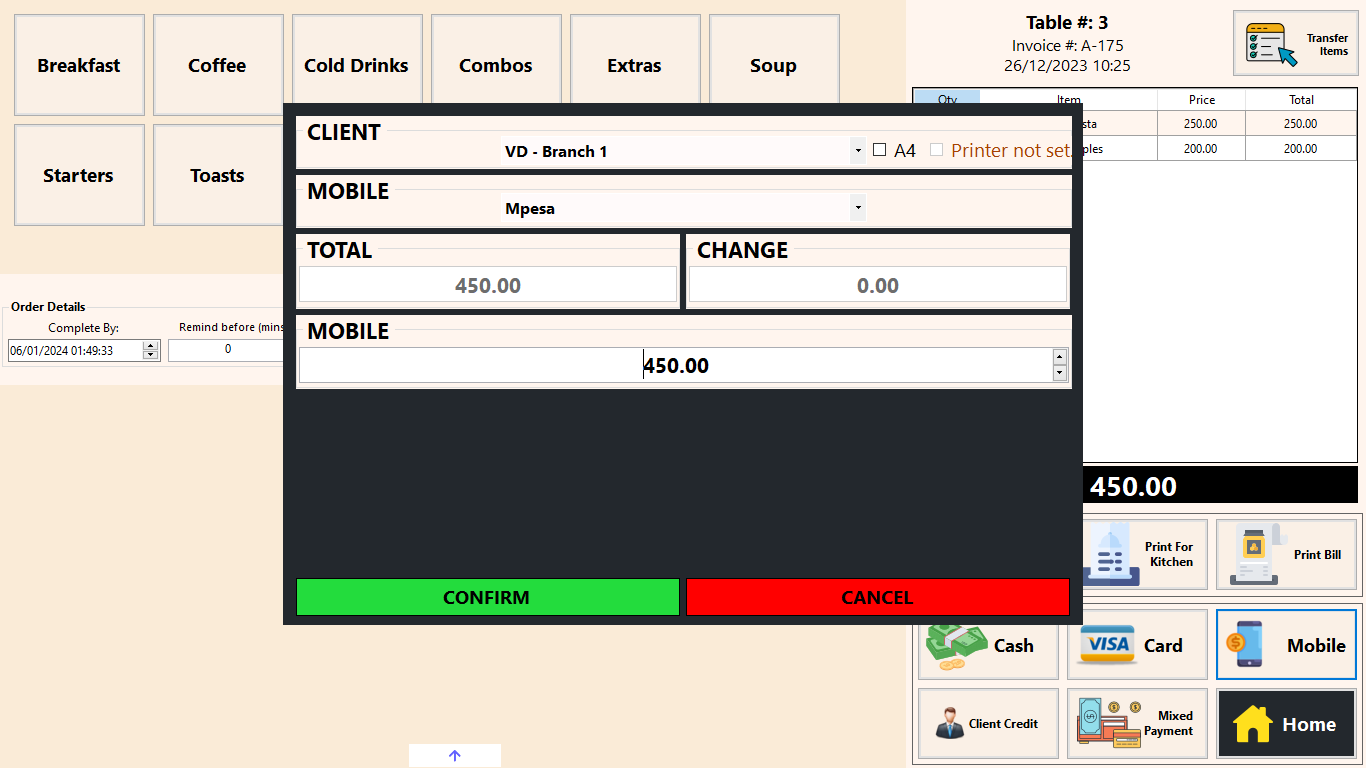
Point of Sale (POS) transactions support various payment methods, including cash, card, mobile wallet, mixed payment (combination of cash, card, and mobile), and credit sales to clients. By default, sales made by cash, card, mobile wallet, and mixed payments are attributed to the public (VD).

If configured in the ERP Module, branches can also make sales to clients, allowing for the selection of clients when transactions are made by cash, card, or mobile. This action records the transaction in the client’s account, viewable in the Manage Client section, with credit sales adding the transaction to the account.

The payment screen prompts users to enter the amount tendered and displays the change to be returned. Any excess payment is deducted from cash, impacting the net cash at the end of the day.

Each payment type has a specific impact on the Company’s accounts:


Discover more from One Click Solutions

Subscribe to get the latest posts sent to your email.

Leave a Comment

Your email address will not be published.

You may use these HTML tags and attributes: <a href=""> <abbr> <acronym> <b> <blockquote cite=""> <cite> <code> <del datetime=""> <em> <i> <q cite=""> <strike> <strong>

Send a Message

Discover more from One Click Solutions

Subscribe now to keep reading and get access to the full archive.

Continue reading