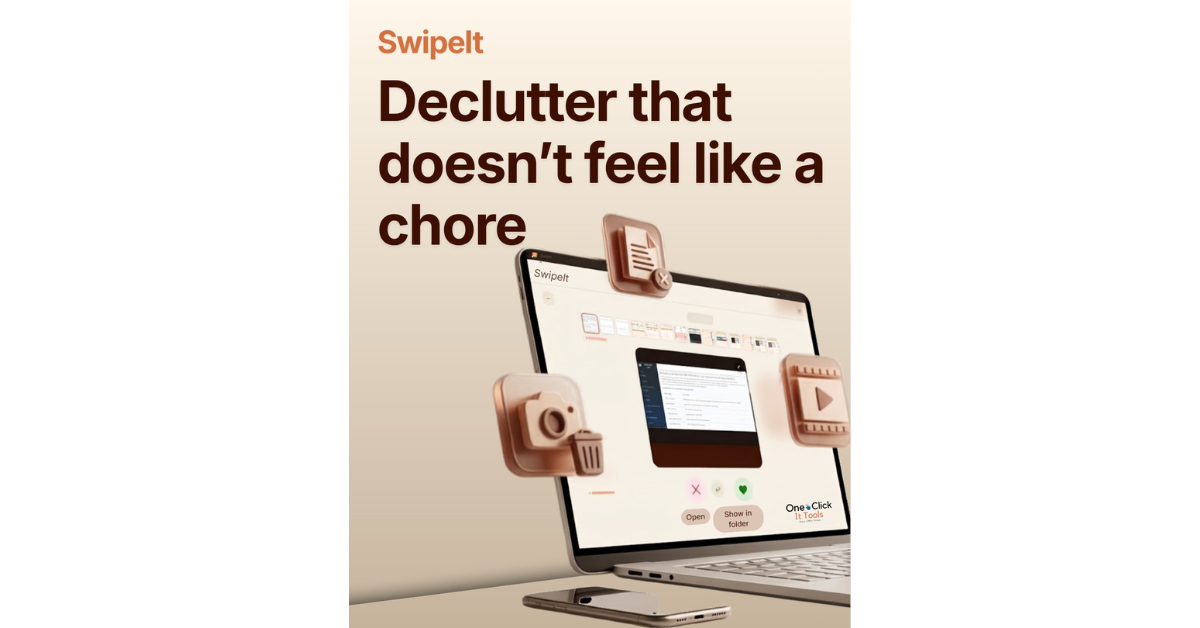

SwipeIt
Your Downloads folder didn’t get messy overnight. Clearing it shouldn’t take overnight either.
SwipeIt turns years of photos, screenshots, and forgotten downloads into a fast swipe-right-to-keep, swipe-left-to-toss habit.
The Problem
Everyone has the folder. Thousands of phone-backup photos, half of them near-duplicates. A Downloads folder full of installers you don’t remember getting. Screenshots from two years ago. Old Zoom recordings sitting on the desktop.
The reason it never gets cleaned isn’t the size of the mess — it’s that a file browser makes you decide about a hundred files at once. Multi-select, scroll, second-guess, close the window, try again next month. SwipeIt fixes that by making it one decision at a time: keep it, or let it go. Swipe right, swipe left, done in a sitting.
How it works
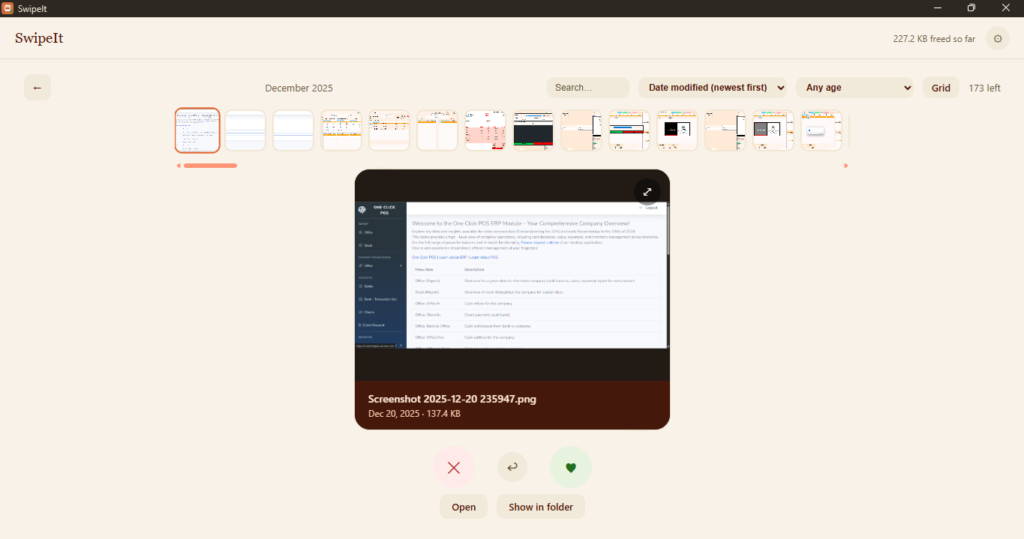
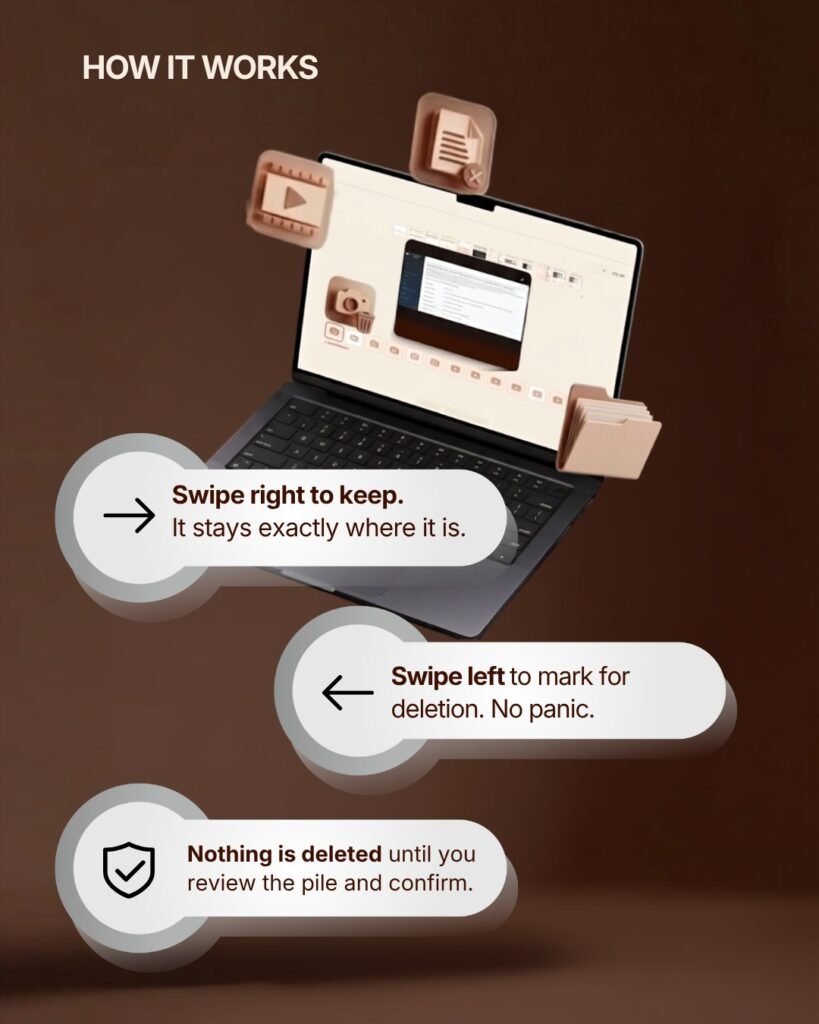
Swipe right to keep, left to mark for deletion — mouse, trackpad, or the arrow keys. Nothing is actually removed at swipe time. Every mark is provisional until you land on a review screen showing a running count and total size, where you can still change your mind on anything before confirming. Deletion itself goes through Windows’ own Recycle Bin by default, so even a confirmed batch isn’t gone-gone unless you choose “permanent” yourself.
What it covers?
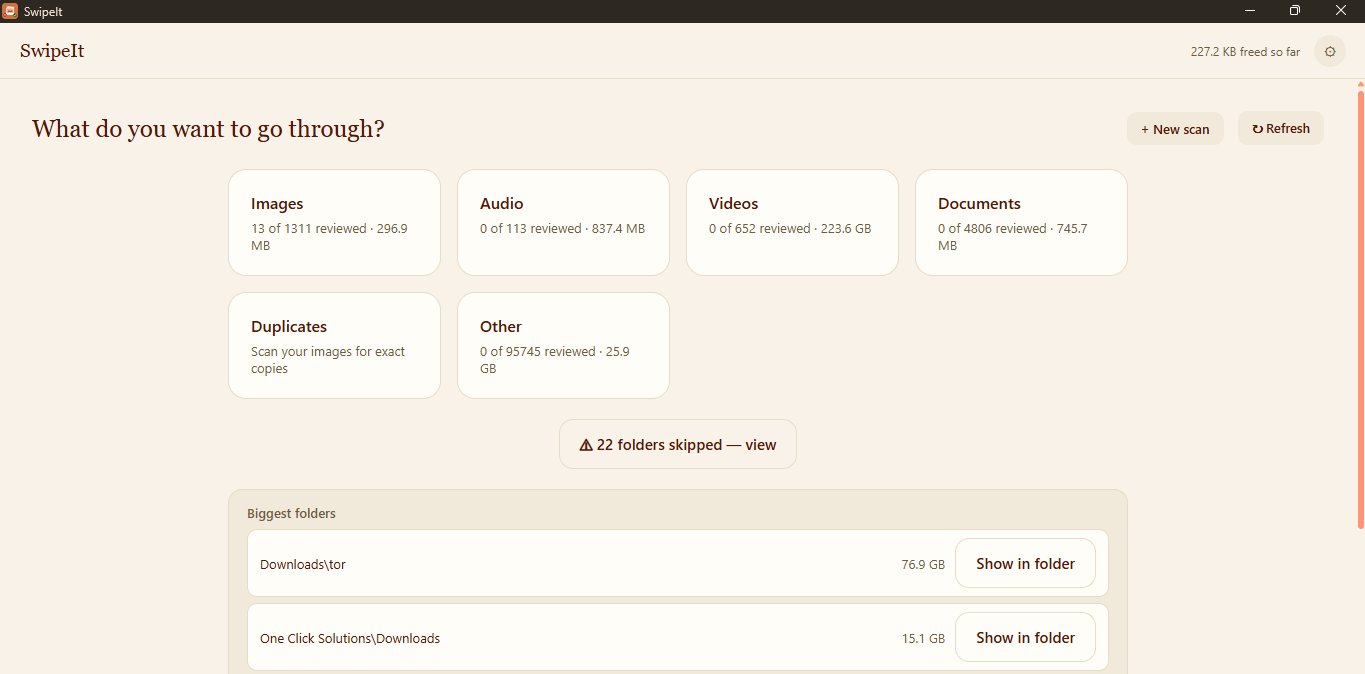
- Five categories, and more ways to start than just opening the app. Images, Audio, Video, Documents, and a catch-all Other category (installers, oddball files) — scan the usual places (Desktop, Documents, Downloads, Pictures, Videos) in one click, point it at any folder yourself, right-click a folder straight from File Explorer (“Scan with SwipeIt”), or drag a folder onto the window.
- Browse your way. Group by month or by folder, sort by size to find your biggest space-hogs first, or filter down to anything you haven’t touched in 6 months, a year, or longer.
- See it before you decide. Real previews, not icons — photos, video (with a fallback for tricky codecs like HEVC), audio playback with a scrub bar, and documents (PDF, Word, Excel, PowerPoint, plain text).
- Obviously a keeper, or obviously junk? Browsing by folder, a “Keep all”/”Delete all” button handles the whole folder in one tap instead of swiping through every file to say the same thing repeatedly.
- See where your space is actually going. A “Biggest folders” panel ranks what’s eating the most room across everything you’ve scanned, before you even pick a category.
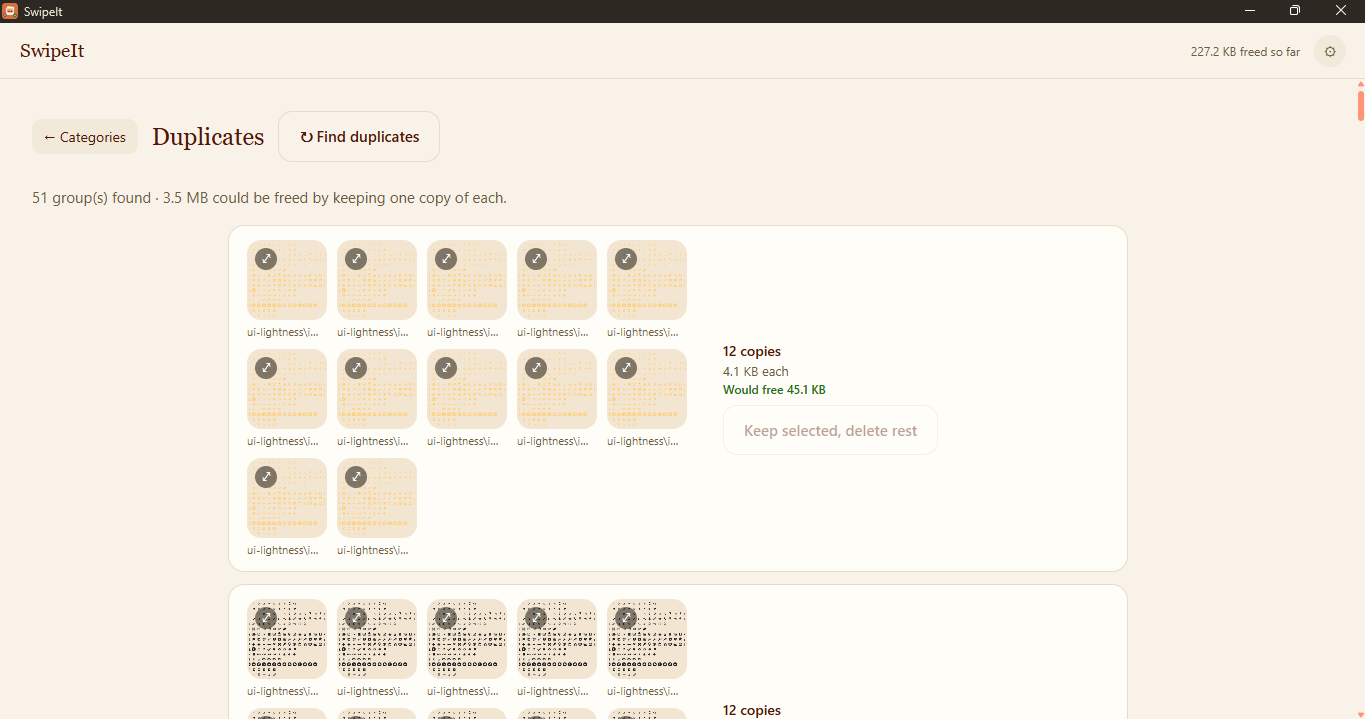
- Find exact duplicates. SwipeIt can scan your images for byte-identical copies, show you which folders they’re spread across, and let you pick which one to keep — no guessing at how much space you’d get back.
- Pick up where you left off. Every scan and every swipe is remembered across sessions. Scanning more folders later merges in without touching decisions you’ve already made.
- The rest of the toolkit: a gallery grid with multi-select for when swiping one-by-one isn’t the fastest way, undo/redo, live filename search, a quick link to the Recycle Bin right after clearing something out, and a Settings screen for your defaults.
Runs on your PC, not someone else's server
SwipeIt doesn’t have an account, a cloud, or any telemetry. Every scan, preview, and deletion happens entirely on your own machine — nothing you look at is ever uploaded anywhere. The only thing SwipeIt ever reaches out for is checking whether a newer version exists, and that’s never automatic or required.
Free Version
Not ready to commit? Try SwipeIt Free. Scan and swipe as much as you want, forever — no time limit, no daily reset. The only thing capped is deleting, and even then you get 100 free deletes for life, no credit card required. Upgrade to the full version any time and pick up right where you left off — same app, same progress, nothing to redo.
Pricing
R319.99~$19.99. One time. No subscription, no recurring charge, and every future update is free for as long as you own it. Licensed for one PC — using it on a second PC needs its own license, and if you need several (a small team, a shared office computer), get in touch rather than buying one-by-one.
FAQ
Is there a free version? Yes — the Free edition lets you scan and swipe through as much as you want, with no time limit, ever. The only cap is 100 deleted files over the lifetime of your install; anything marked past that stays visible and queued, ready the moment you upgrade.
Is this a subscription? No — it’s a one-time $19.99 purchase, and every future update is free.
Does one purchase cover all my computers? A license covers one PC. If you use SwipeIt on a desktop and a laptop, that’s two licenses. Need it on several machines at once — a small team, a shared office computer? Get in touch rather than buying licenses one at a time.
Does SwipeIt delete my files the moment I swipe? No. Swiping only marks a file — nothing is removed from your PC until you review and confirm on a separate screen, and confirmed deletions go to the Recycle Bin by default, not straight to permanent deletion.
Is my data safe — does anything get uploaded anywhere? No. SwipeIt runs entirely offline. There’s no account and no cloud step; nothing you scan or preview ever leaves your computer.
What file types does it handle? Images, audio, video, documents (PDF, Word, Excel, PowerPoint, plain text), and a catch-all “Other” category for everything else, like installers and downloads.
How do I scan a specific folder? Whichever’s easiest for you: open SwipeIt and choose a folder, drag a folder straight onto the window, or right-click it in File Explorer and choose “Scan with SwipeIt.”
Why does Windows show a blue warning when I run the installer? That’s Microsoft SmartScreen flagging that we’re a small, independent publisher rather than a large signed vendor — it’s not a sign of a security problem. Click “More info,” then “Run anyway” to continue.
What do I need to run it? Windows 10 or 11, 64-bit. There’s nothing else to install first — SwipeIt runs on its own.
Related Posts
Discover more from One Click Solutions
Subscribe to get the latest posts sent to your email.
- Tags:
- declutter ,
- digital clutter ,
- Downloads folder ,
- duplicate photos ,
- file management ,
- free up disk space ,
- One Click It Tools ,
- PC cleanup ,
- photo organizer ,
- Productivity tools ,
- storage cleanup ,
- swipe to delete ,
- swipeit ,
- Windows software
- Share:
One comment
Leave a CommentPingback:One Click It Tools - Yours. Offline. Private. - One Click Solutions