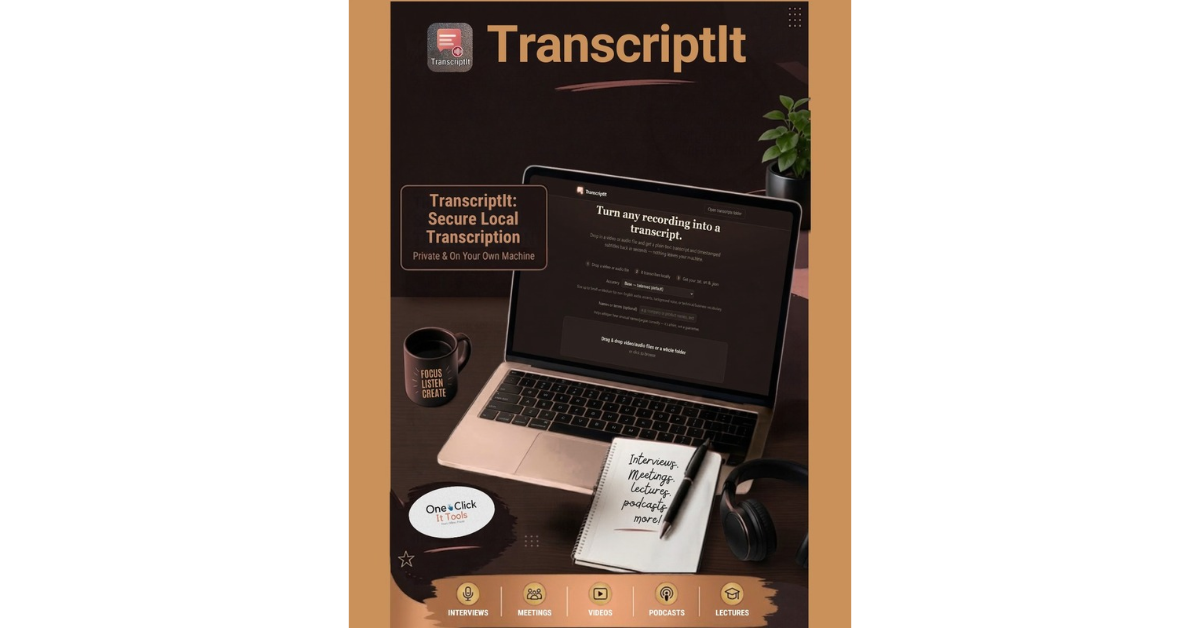
TranscriptIt
Your recordings shouldn’t have to leave your computer to become text. TranscriptIt turns any video or audio file into a transcript, subtitles, and translations — right on your own PC, with nothing uploaded anywhere.
Get TranscriptIt – R799.99 ~ $49.99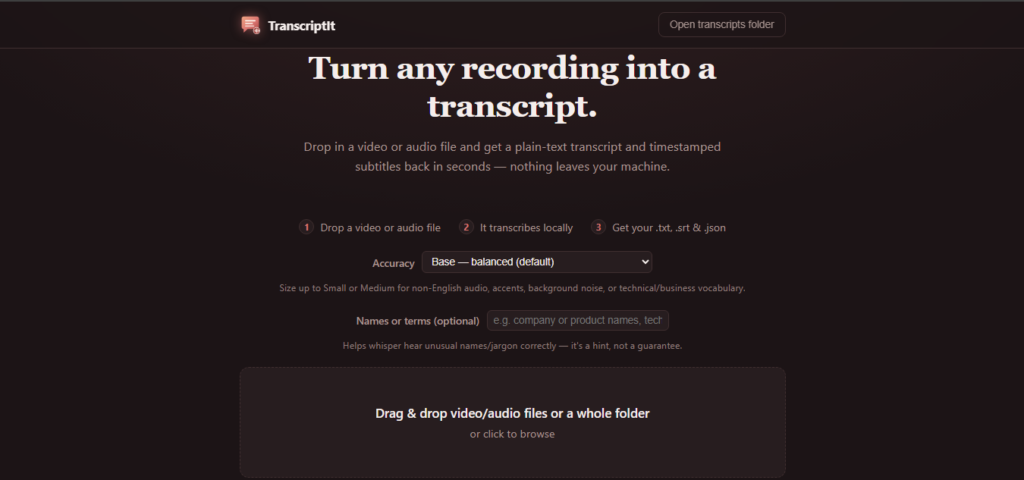
The Problem
You’ve got a recording — a lecture, an interview, a client call, a podcast episode — and you need it as text. So you search for a transcription tool and hit the same wall every time: sign up for an account, upload your file to a server you’ve never heard of, and watch a “minutes remaining this month” counter tick down while you wait.
That’s a bad trade for anything you’d rather keep private — a confidential client call, a patient conversation, a source you promised to protect, a family recording. And the usual alternative isn’t friendlier: the free open-source tools assume you’re comfortable with a command line. TranscriptIt is neither — drop in a file, get your text back, and the recording never leaves your drive.
How it works
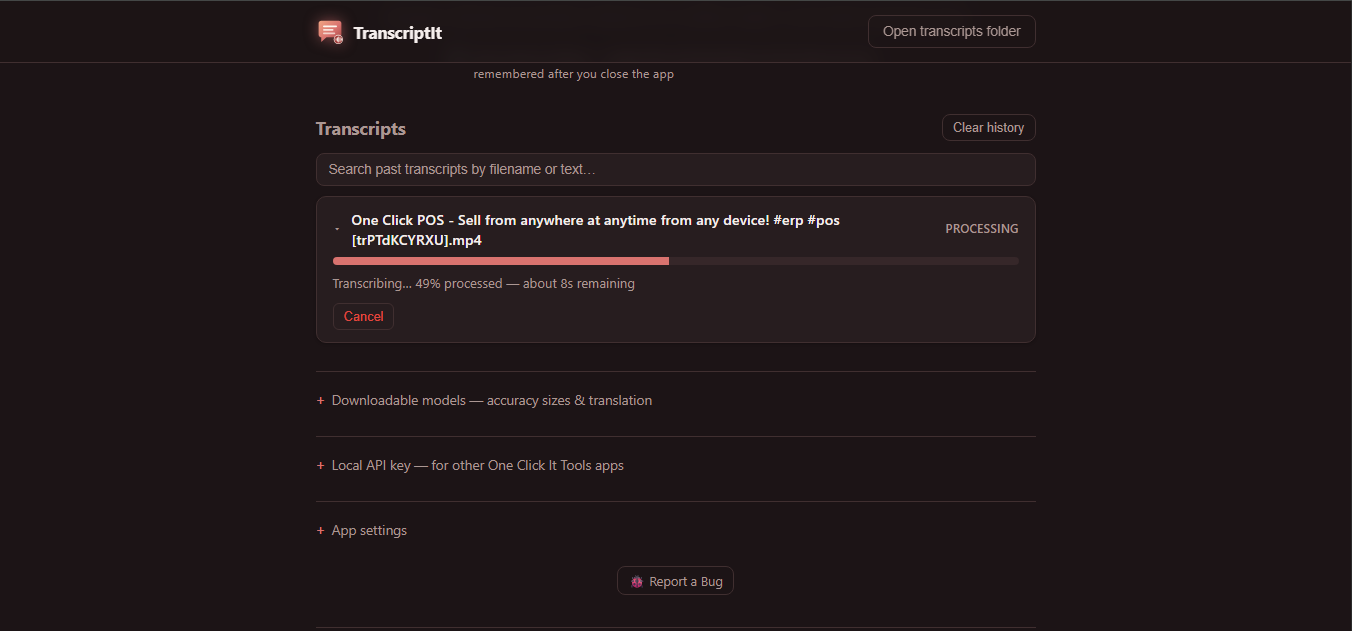
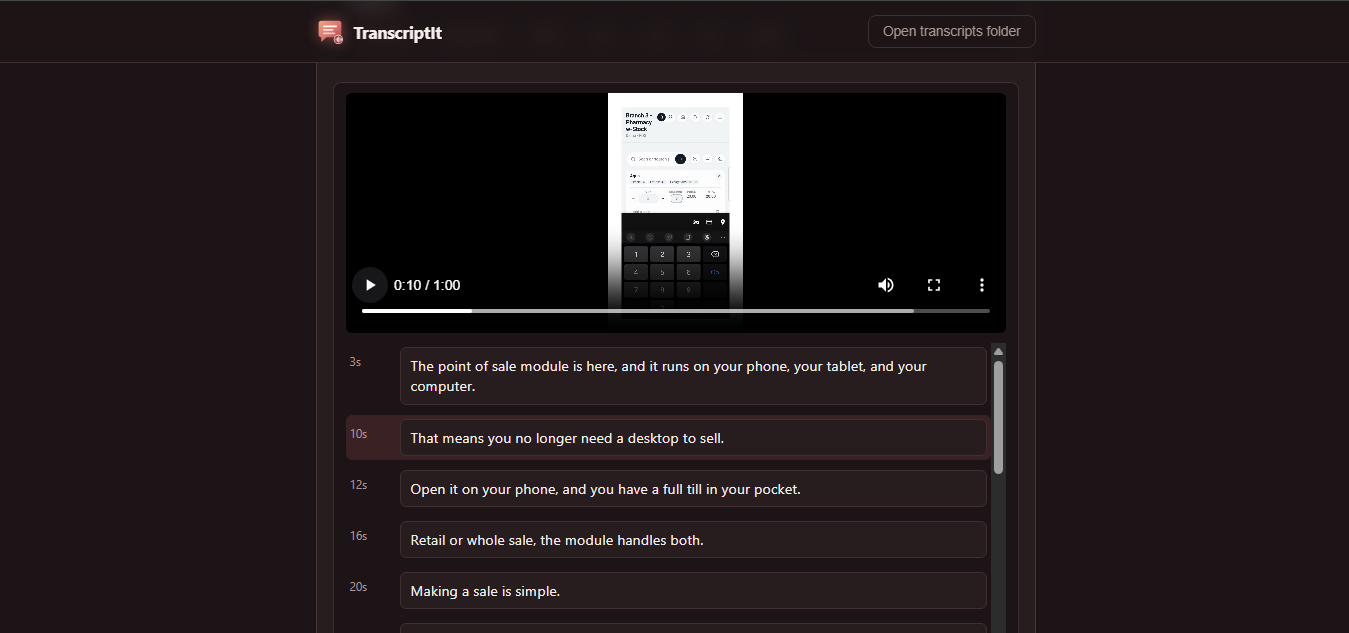
Drag a video or audio file onto the window (or a whole folder, or right-click it in File Explorer and choose “Transcribe with TranscriptIt”). Pick an accuracy size — faster and rougher, or slower and more accurate — and TranscriptIt does the rest on your own machine. Everything shows live, real progress the whole way through: “Transcribing… 42% processed” with a time-remaining estimate, and — the first time you use a larger accuracy size — the model download itself, with size, speed, and time left, never a silent multi-minute pause. A Windows notification tells you when it’s done, and cancelling a job in progress always asks first, so a misclick can’t throw away a long run.
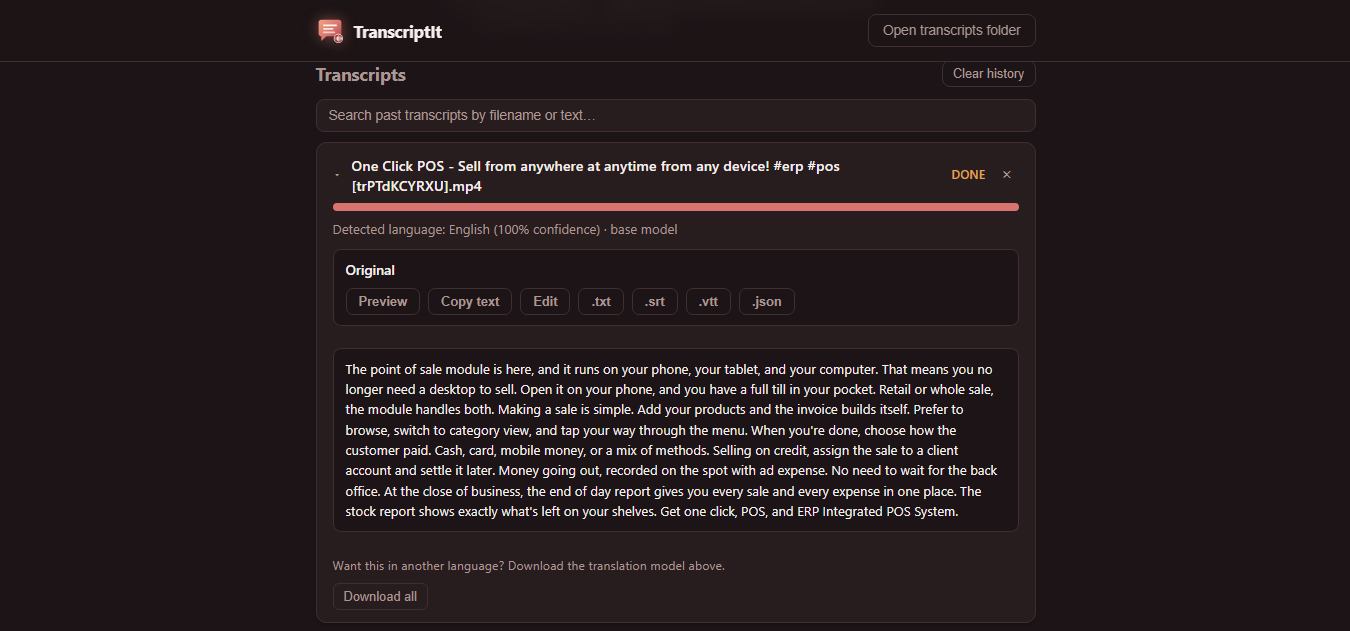
You get four files back, together, named after your recording: a plain-text transcript, two standard subtitle formats (.srt and .vtt — the kind every video player and editor already understands), and a structured .json with timestamps down to the individual word for anyone who wants to build on top of it.
What it covers
TranscriptIt is a complete workflow around one job — getting accurate text out of audio — not just a transcribe button.
- Any video or audio file — drop several at once, or a whole folder, and each queues as its own job. No converting to some other format first.
- Language detected automatically. Keep the original language, or translate straight to English as part of the same run. If detection isn’t confident, TranscriptIt falls back to English rather than guessing wrong and handing back garbage.
- Six accuracy sizes, from Tiny (quick) through Large (the most accurate available), with plain guidance on when to size up — non-English audio, accents, background noise, technical vocabulary.
- A “names or terms” hint. Tell it the company names, product names, or jargon to expect and it listens for them — a soft nudge toward the right spelling, not a guarantee.
- An optional “Faster transcription” checkbox, off by default, for when speed matters more than polish — about 1.3–1.5× faster, with an honest warning right next to it that a name repeated through a long recording can come out spelled differently in different places.
- Translate into around 100 languages, each shown by its real name (Spanish, Japanese, Welsh, Amharic), with the original timing kept so the subtitles still line up. Start several languages at once — each gets its own progress — and keep working while they run. (Translations come from a local AI model and can make mistakes: treat them as a strong first draft, not a certified translation.)
- Fix a line without starting over. Open the editor, play the audio right alongside the text, click any timestamp to jump there, correct what’s wrong, save. Keyboard shortcuts (Space to play and pause, Up and Down to move between lines) keep your hands on the keys.
- Readable by default. The plain-text transcript breaks into paragraphs at natural pauses, instead of one unbroken wall of words.
- Search every transcript you’ve ever made — by filename or by what was actually said, across the original and every translation.
- “Download all” — one zip with the transcript, subtitles, and every translation for a recording, instead of clicking each format separately.
- Incognito mode. Tick one box and a job isn’t saved to history — the files still download, but the app won’t remember it after you close it.
- Picks up where you left off. Your task list survives closing the app; cancel anything queued or in progress, and retry anything that failed with one click.
Runs on your PC, not someone else’s server
TranscriptIt doesn’t have an account, a cloud, or any telemetry. Every recording, every transcript, and every translation stays entirely on your own machine — nothing is ever uploaded anywhere, and it runs on an ordinary CPU, with no graphics card or special hardware. The only time it touches the internet is to download a model file the first time you pick a larger accuracy size or try translation — and you see exactly what’s downloading and how far along it is. After that, it all works offline.
Free Version
Not ready to commit? Try TranscriptIt Free. Your own real recording, not a canned demo file: one free transcript every day, forever, up to 10 minutes long — enough to hear how it handles your accent, your background noise, and your jargon before you pay anything. Translate it, edit it, and download every format, exactly like the full version. No credit card, no time limit, and when you’re ready for more, upgrade any time — same app, same history, nothing to redo.
Try TranscriptIt Free (1 a day)Pricing
R799.99 ~ $49.99. One time. No subscription, no recurring charge, and every future update is free for as long as you own it. Licensed for one PC — using it on a second PC needs its own license, and if you need several (a small team, a shared office computer), get in touch rather than buying one-by-one.
Get TranscriptIt – R799.99 ~ $49.99
FAQ
Is there a free version? Yes — TranscriptIt Free transcribes one file a day, up to 10 minutes long, using your own real recording rather than a sample file. Translation, editing, and every output format work the same as the full version; the only caps are one transcript a day and ten minutes per file.
Is this a subscription? No — it’s a one-time $49.99 purchase, and every future update is free.
Does one purchase cover all my computers? A license covers one PC. If you use TranscriptIt on a desktop and a laptop, that’s two licenses. Need it on several machines at once — a small team, a shared office computer? Get in touch rather than buying licenses one at a time.
Is my file uploaded anywhere? No. Transcription and translation both run entirely on your own computer. There’s no account and no cloud step; nothing you transcribe ever leaves your drive.
What file types does it accept? Any common video or audio format — TranscriptIt reads the audio track directly, so there’s no need to convert anything first.
Do I need an internet connection? Only the first time you use a particular accuracy size or the translation feature, to download its model files — with real size, speed, and time-remaining shown, not a silent wait. After that, everything runs offline.
How accurate is it? It uses the same class of speech-recognition technology behind most modern transcription tools. Clear speech does very well; heavy background noise, strong accents, or specialist vocabulary may need a larger accuracy size, and the names-or-terms hint helps with unusual words. The Free edition exists so you can test this on your own recording first.
How accurate are the translations? Good for understanding and everyday use, generated by a local AI model — but like any machine translation, it can make mistakes. For anything where precision really matters, have a fluent speaker check it.
Does it label who’s speaking? No. TranscriptIt starts a new paragraph at a natural pause, but a pause says nothing about who’s talking, so it doesn’t pretend to label speakers.
How long does it take? It depends on your PC and the accuracy size you pick — Tiny and Base are quick, larger sizes take longer — and a live time-remaining estimate shows while it works. It runs on an ordinary CPU; no graphics card is needed.
Can I buy multiple licenses for my team? Commercial and volume licensing is available on request — contact us rather than buying through the regular checkout.
Why does Windows show a blue warning when I run the installer? That’s Microsoft SmartScreen flagging that we’re a small, independent publisher rather than a large signed vendor — it’s not a sign of a security problem. Click “More info,” then “Run anyway” to continue.
What do I need to run it? Windows 10 or 11, 64-bit. There’s nothing else to install first — TranscriptIt bundles everything it needs, and takes about 340 MB once installed.
TranscriptIt
Your recordings say something. TranscriptIt just helps you read it — without asking you to hand them over first.
Get TranscriptIt – R799.99 ~ $49.99Discover more from One Click Solutions
Subscribe to get the latest posts sent to your email.